 Getly
GetlyNavigator Guide: Twitch stream overlays and alerts setup
This navigator guide helps you set up a Twitch stream with overlays and alerts by choosing the right digital assets and ready-made templates in Getly. It’s for streamers, editors, and small creator teams who want a clean-looking broadcast: panels, badges, webcam styling, animated motion, and event-based alerts. Read each need in order, then pick marketplace items that match that role. You’ll end with a complete visual system tailored to your layout and brand.
Stream overlay visuals and layout elements
Find overlay graphics that match your on-screen layout, including panels, decorative elements, and UI-style components that sit around your gameplay or webcam. This category helps you build a cohesive visual frame for the stream.
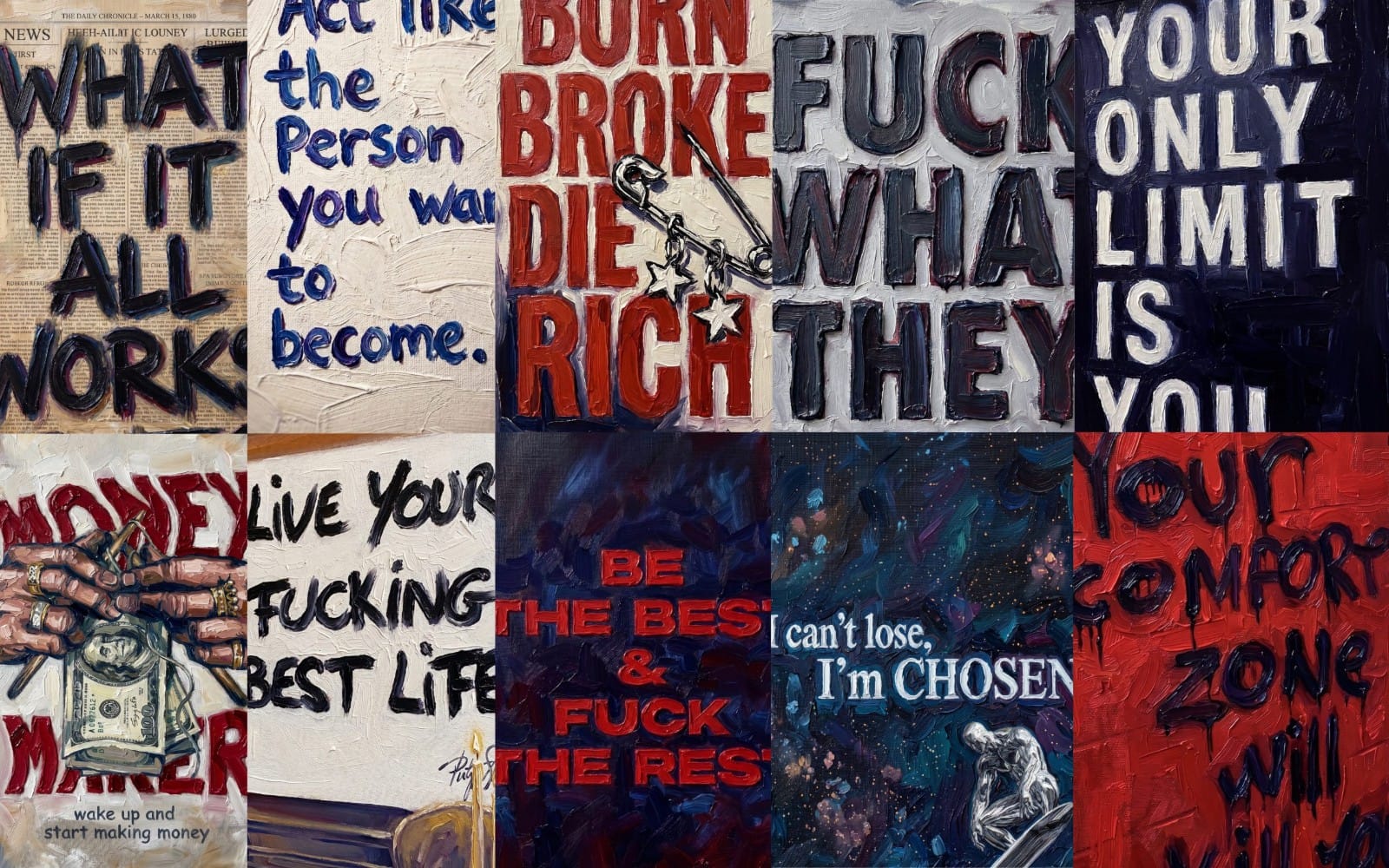
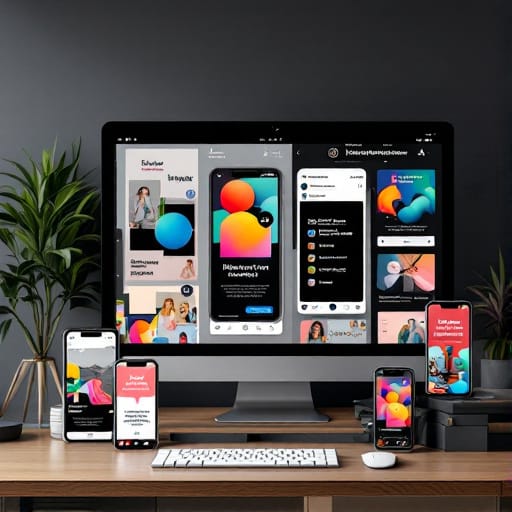
Alert graphics for follows, subs, raids, and more
Source alert-ready visuals for events like follows and subscriptions. You get themed designs that can plug into your alert moments so each activity looks consistent with your stream’s look and branding.

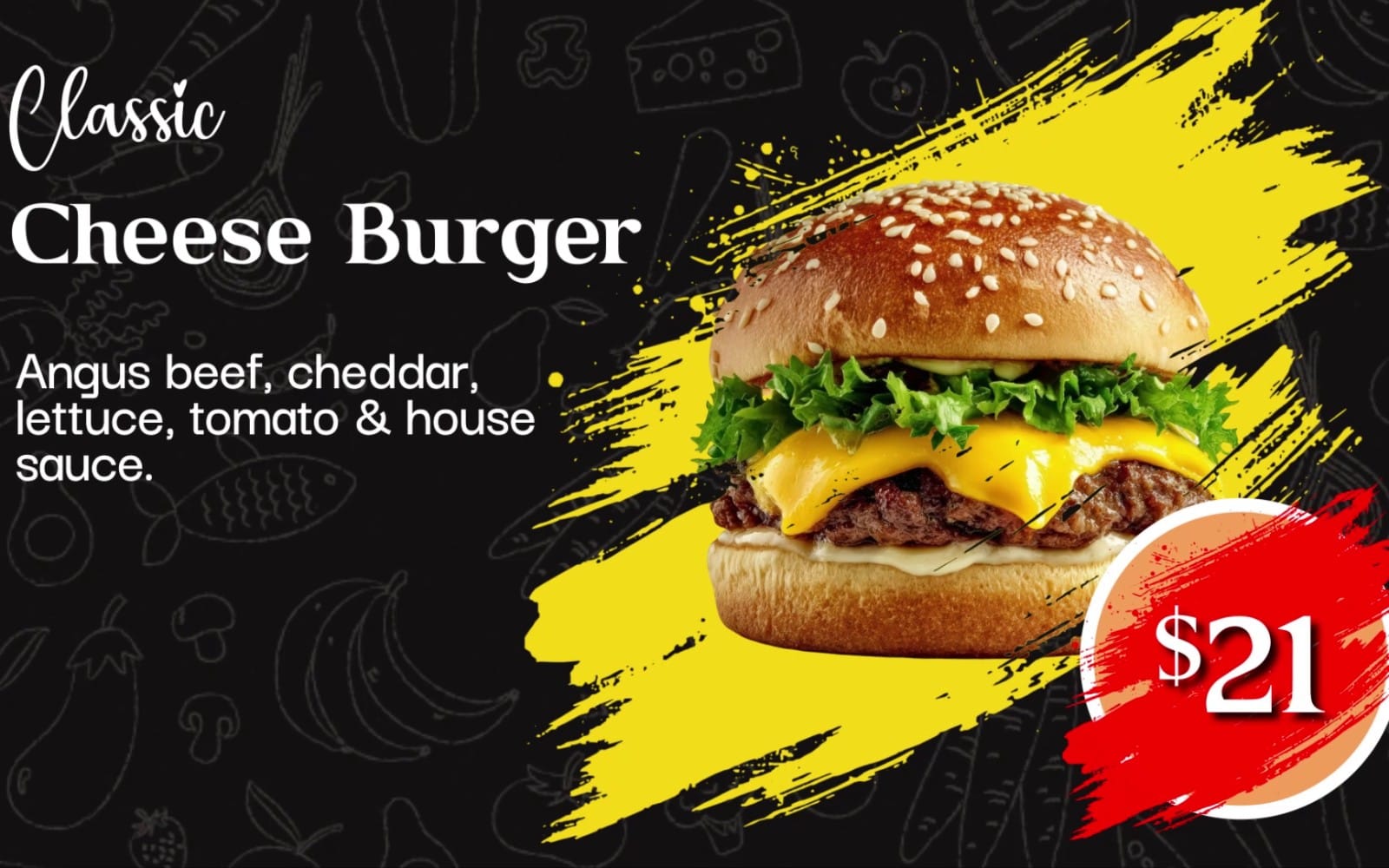
Reusable backgrounds and stream backdrops
Pick background art that supports readability behind text and alerts. You can choose abstract, decorative, or themed backdrops so your stream keeps a consistent mood without overpowering the content.

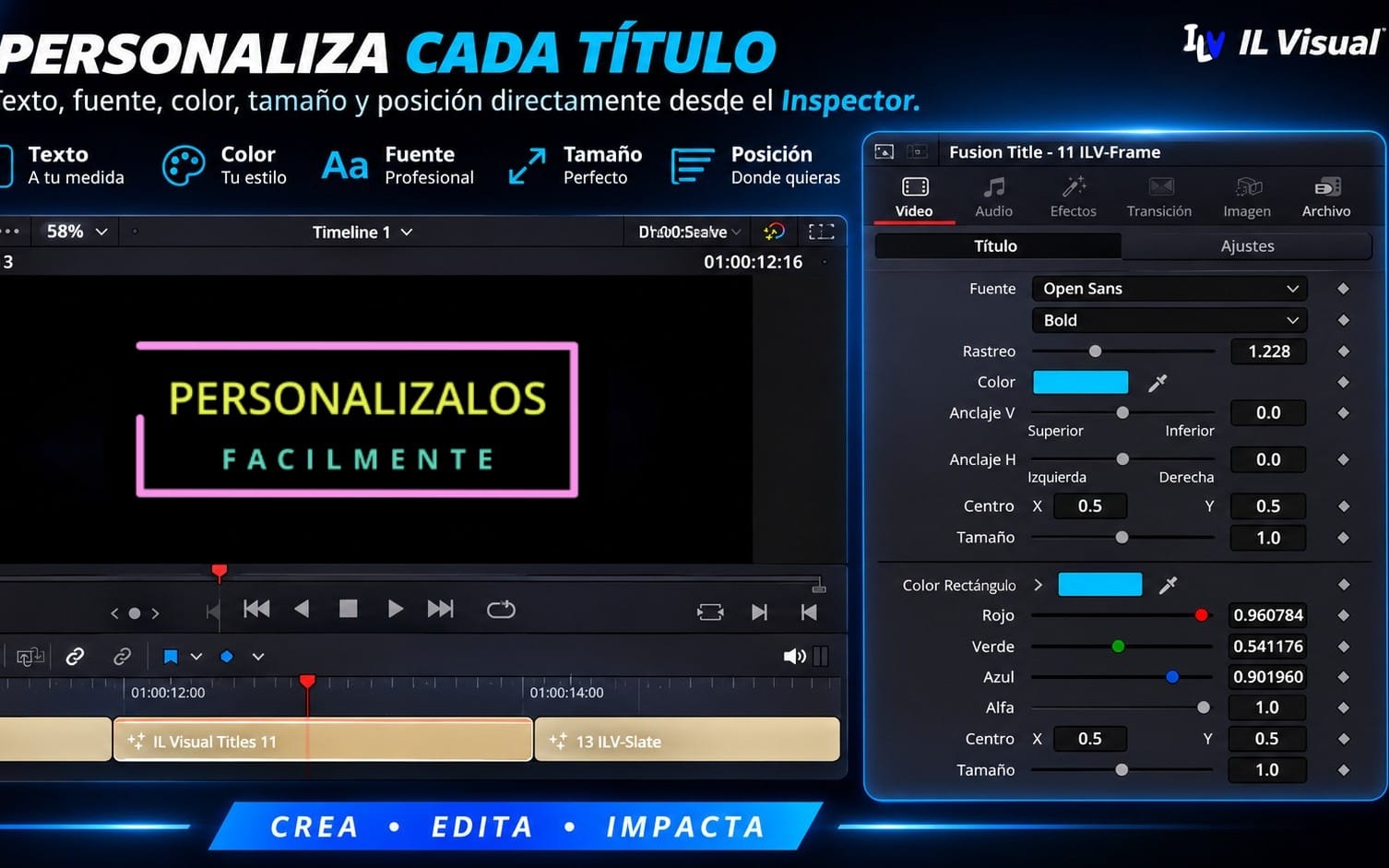
Brand fonts and typography for overlays
Use fonts that keep your stream readable at a glance and consistent across panels, alert text, and lower thirds. Typography assets help you maintain a recognizable style every time your on-screen information changes.
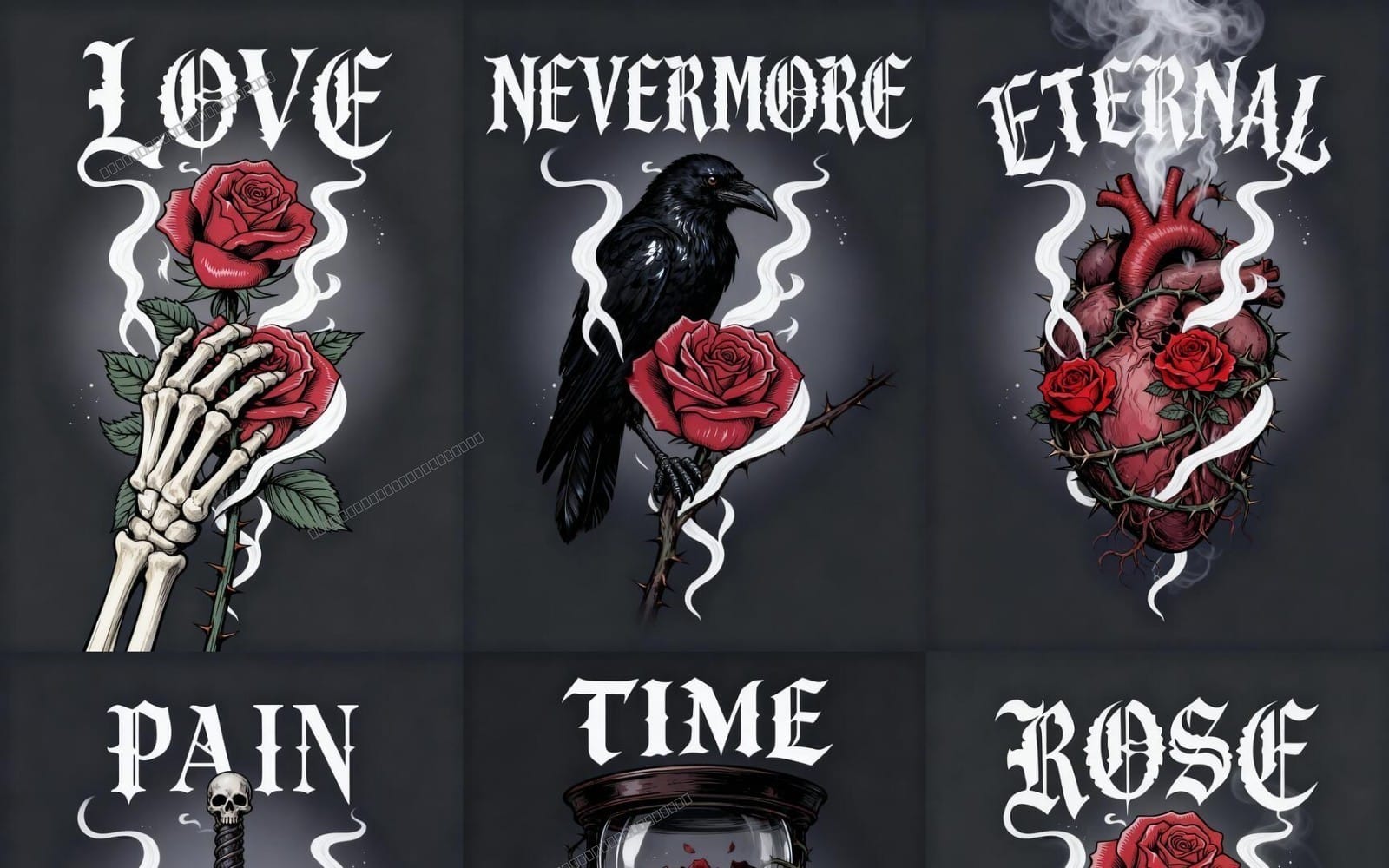


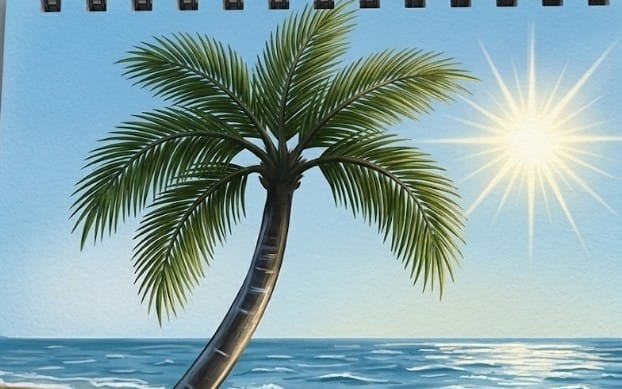
Add animated transitions and motion pack elements
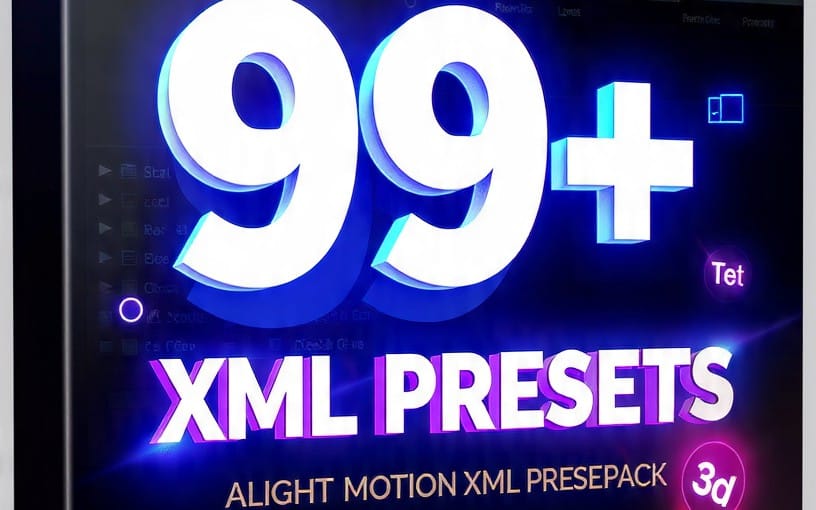
Bring life to your stream with motion graphics that support overlay transitions, stingers, and other visual moments. Motion packs help you keep changes smooth instead of jumping between states.



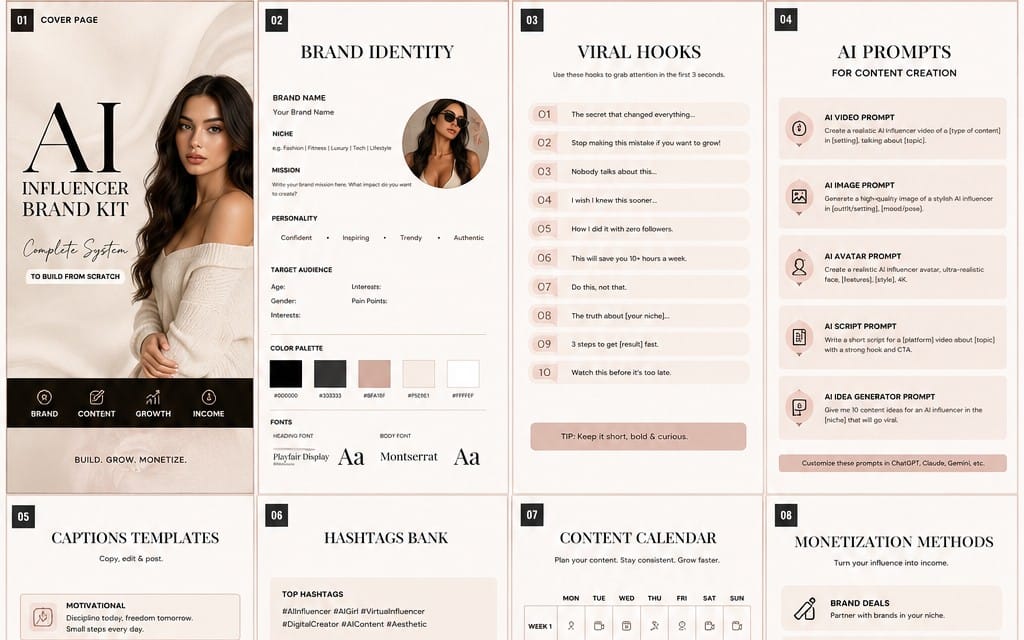
Edit and assemble your final assets
Choose templates and components that speed up assembling overlays into a broadcast-ready package. This category supports the build process so your final stream visuals come together without starting from scratch every time.
What should I prioritize first for overlays and alerts?
Start with your overlay layout visuals and alert graphics. Once those match your theme and readability needs, add backgrounds, typography, and motion elements to keep everything consistent.
Can I reuse the same alert style across different stream events?
Yes. Pick a small set of matching alert visuals and typography so follow, sub, raid, and other alerts share the same visual language.
How do I keep overlays readable during gameplay?
Use backgrounds that won’t compete with gameplay, and choose fonts designed for quick scanning. Keep alert and overlay contrast high and avoid heavy elements behind text.