 Getly
GetlyMobile App UI Navigator for Getly Creators
This navigator helps you design a mobile app UI from the assets and templates you need most. It targets designers, product makers, and indie teams who want a clean, consistent interface without building everything from scratch. Read the sections top to bottom: start with a system for layout and components, then cover ready-made screen structures, visual styling assets, and final UI presentation materials.
Create a consistent UI foundation
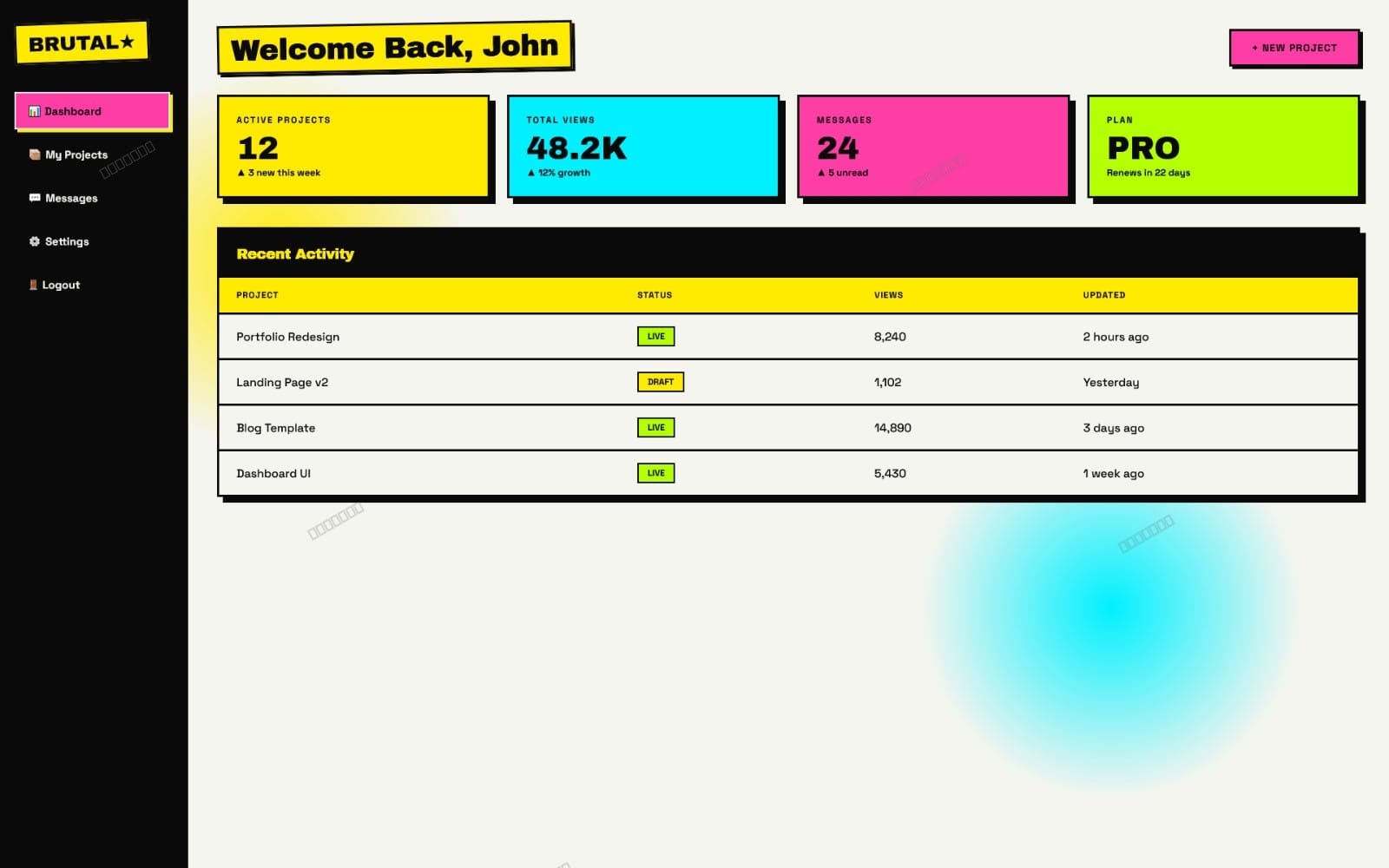
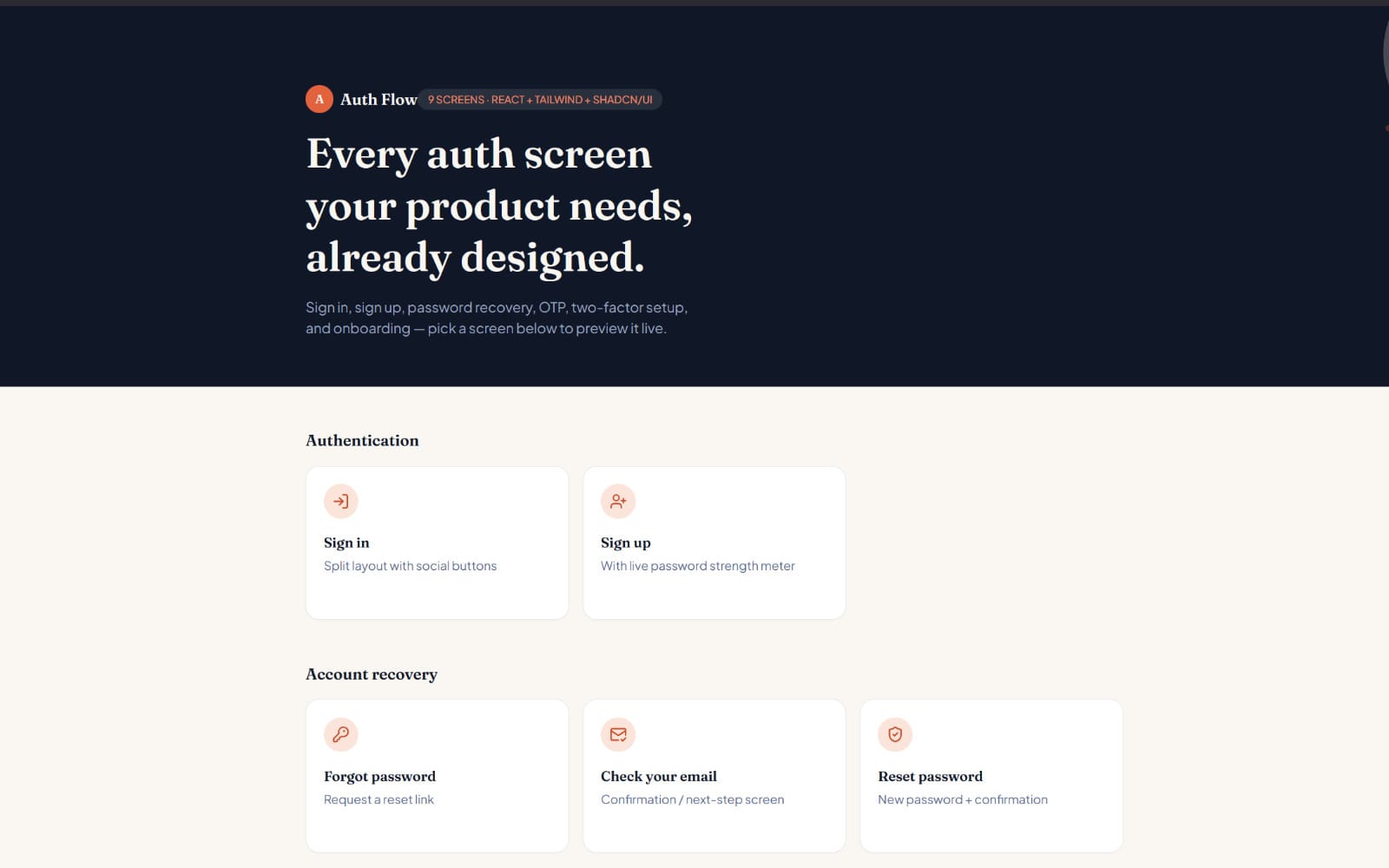
Grab a design system style kit so your typography, spacing, and component patterns stay consistent across the whole mobile app experience. This helps you avoid mismatched buttons, headings, and layout rules as screens grow.
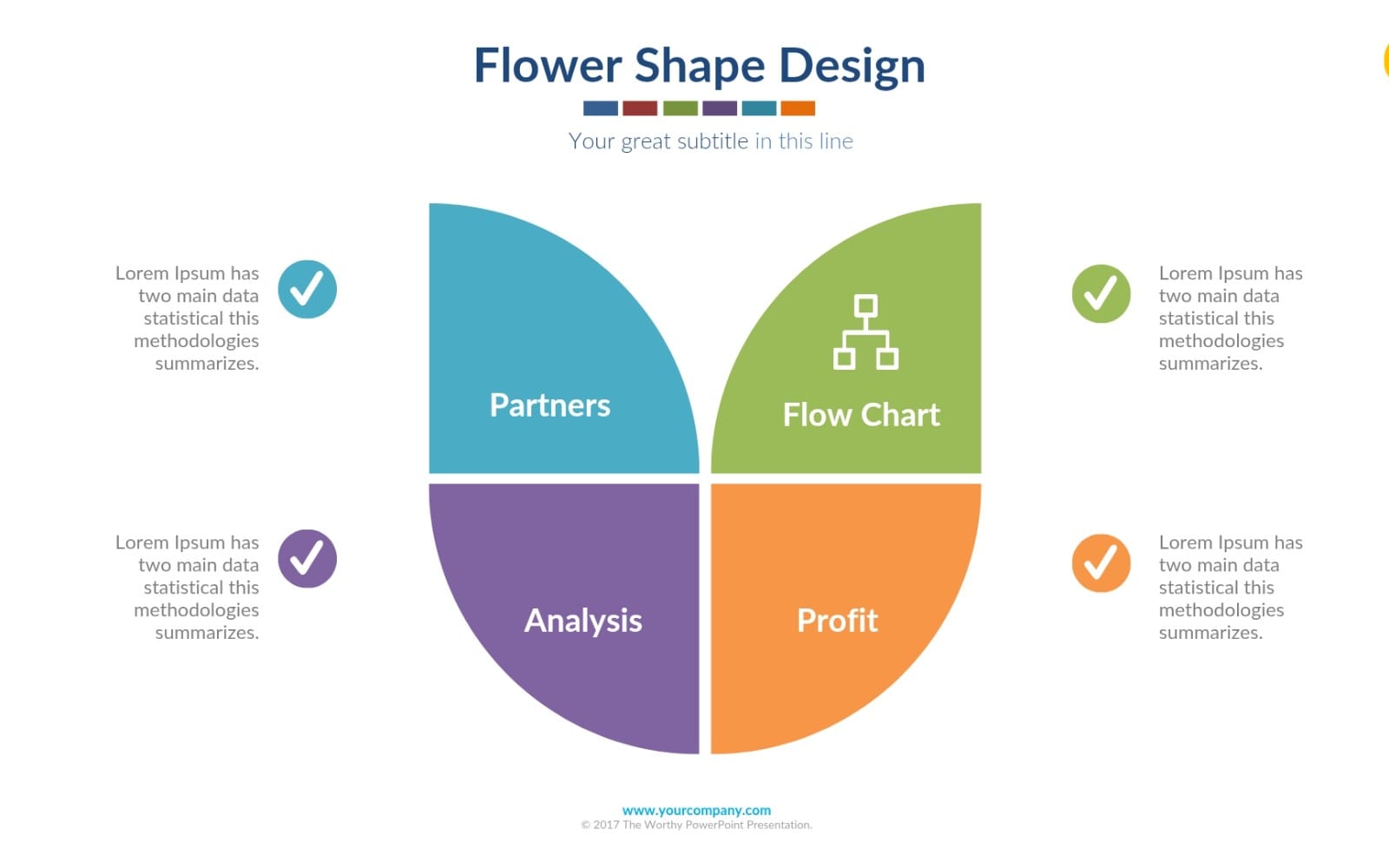
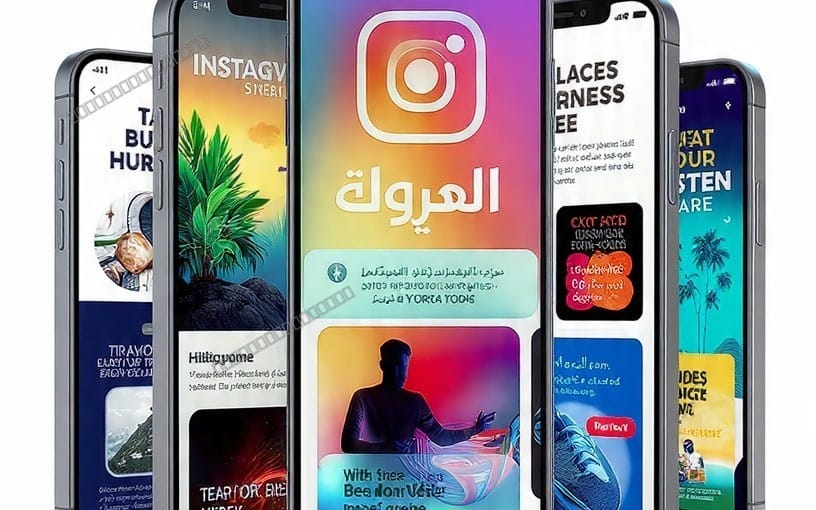



Start with real mobile screen structures
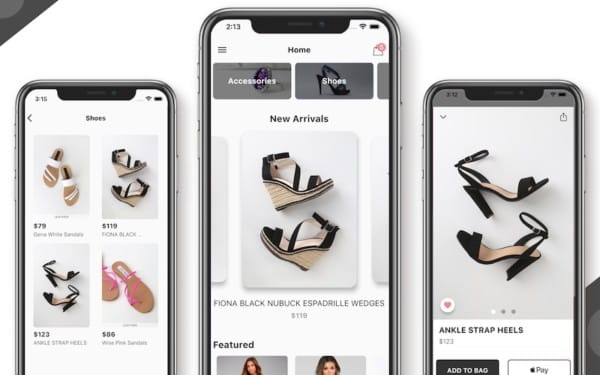
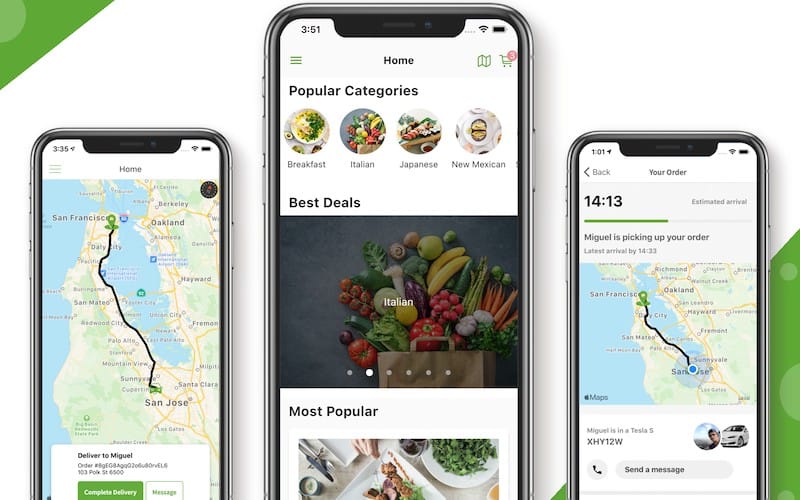
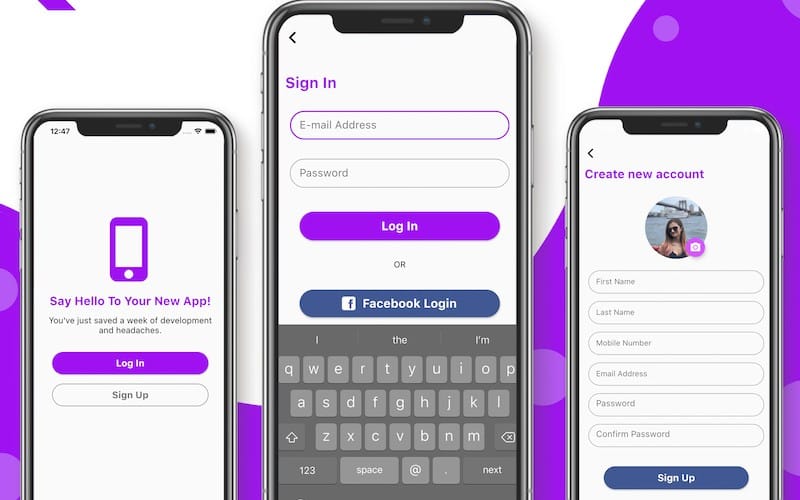
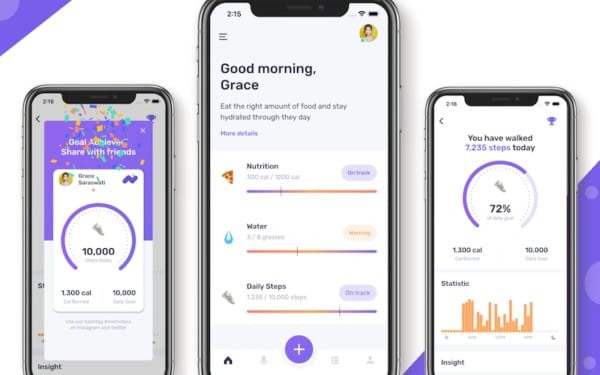
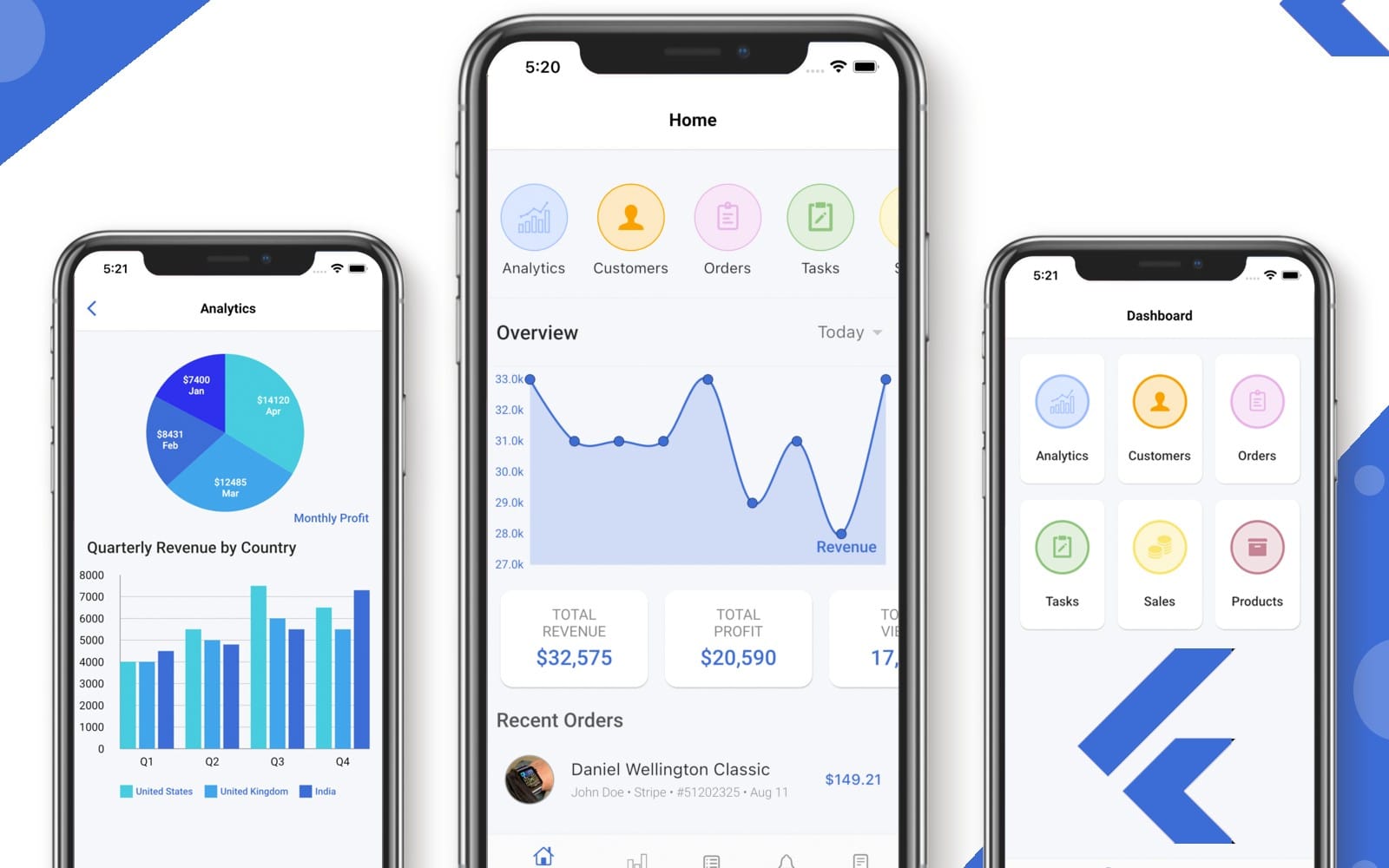
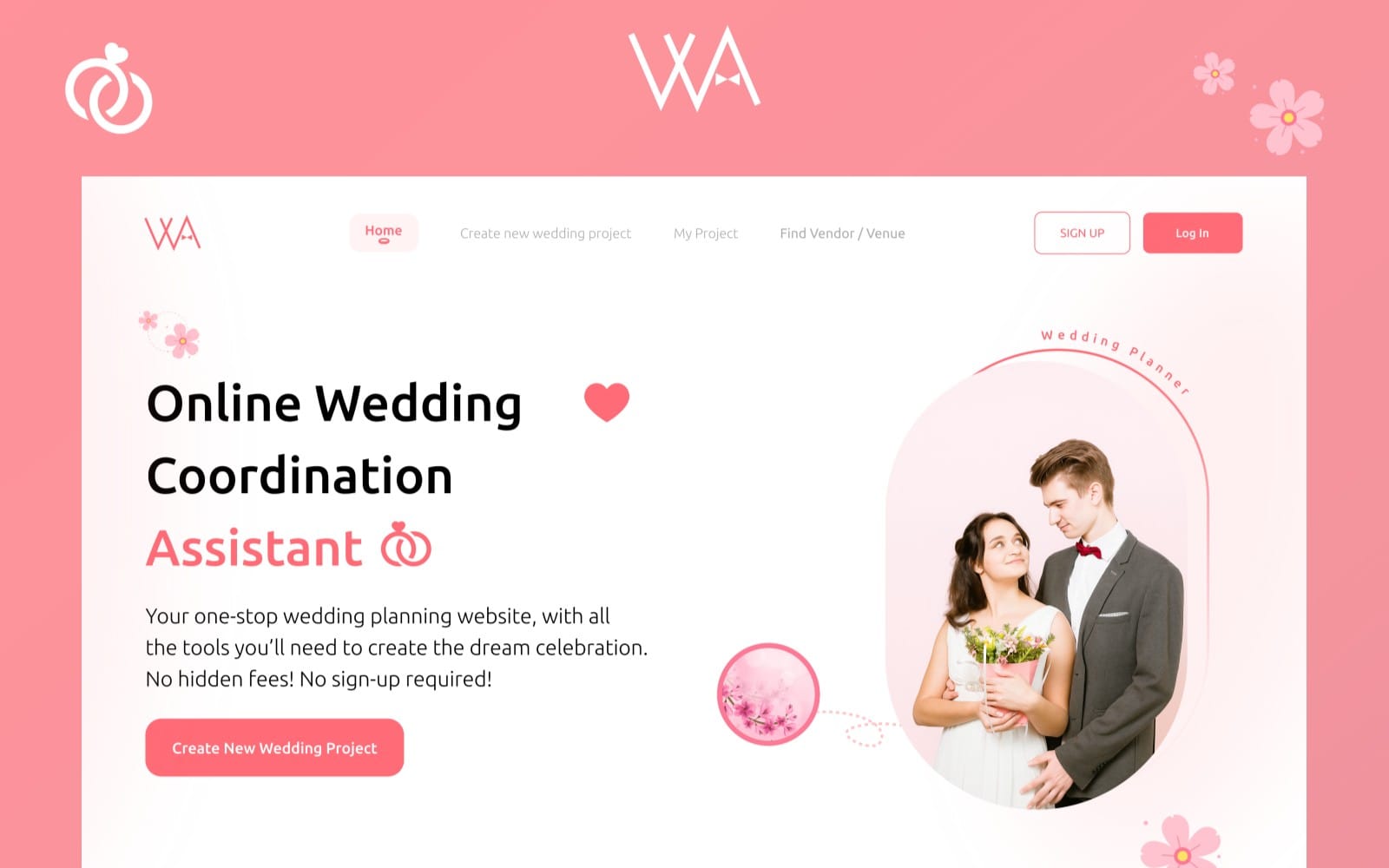
Use mobile app templates to get screen-by-screen layouts that match common app flows like onboarding, browsing, and settings. You get a UI scaffold that keeps your work grounded in practical mobile patterns.


Select icons and UI elements that fit mobile
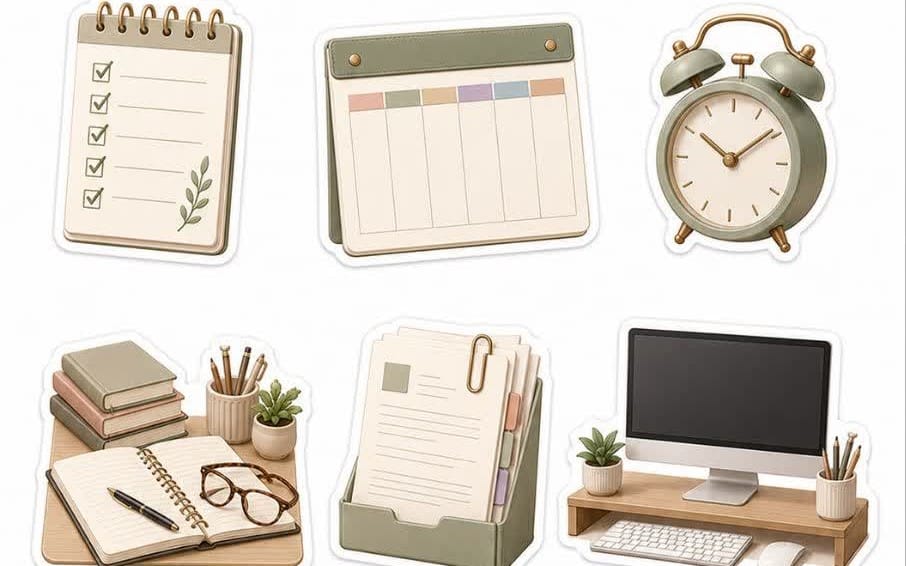
Build a coherent visual language with icon sets and UI elements sized for touch interfaces. Clear, matching icons reduce UI clutter and speed up recognition across navigation, actions, and status states.




Design the look with ready visual assets
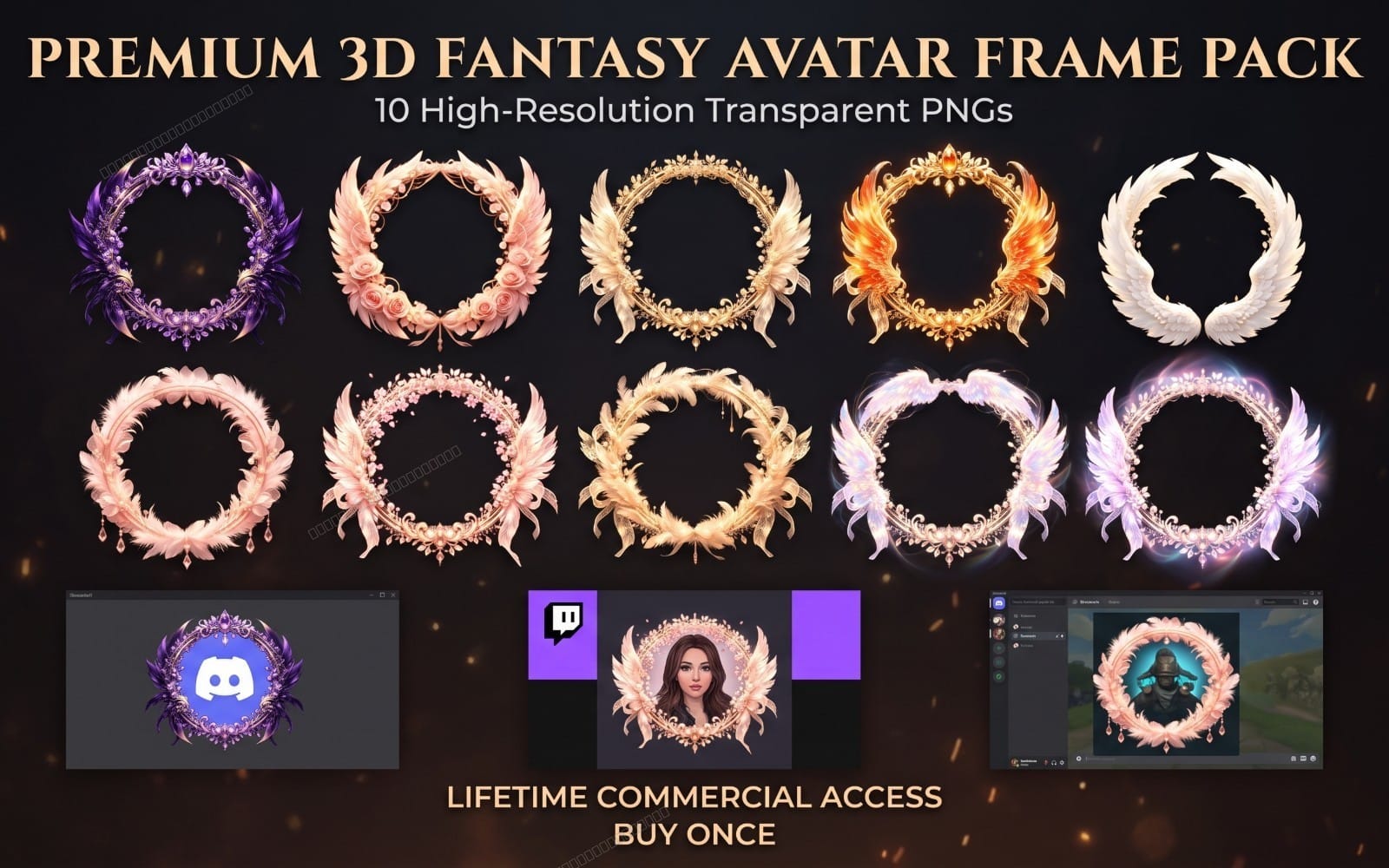
Add backgrounds, wallpapers, and decorative visual layers to control mood and readability behind your UI. These assets help you style screens without spending all your time on raw visual production.

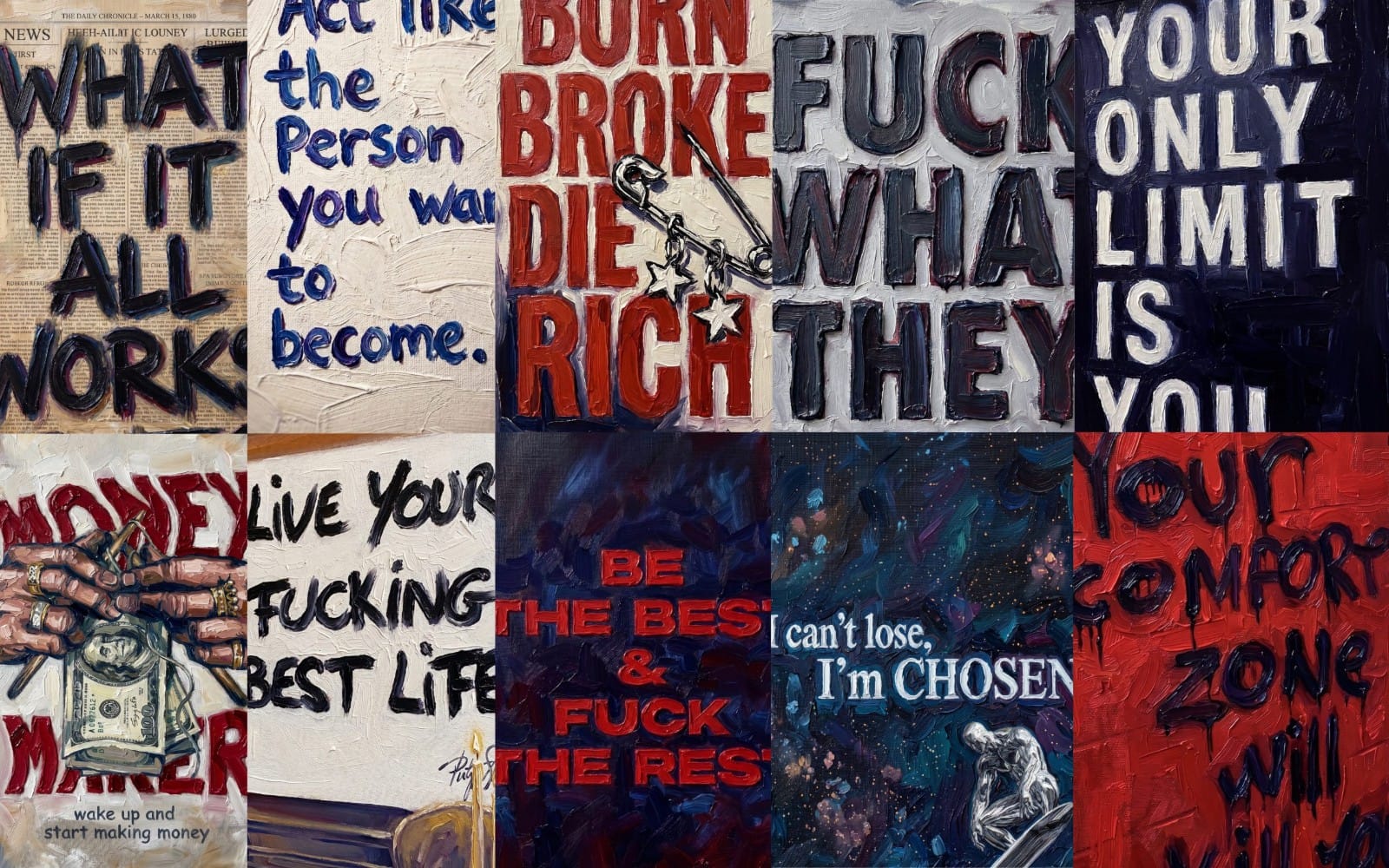





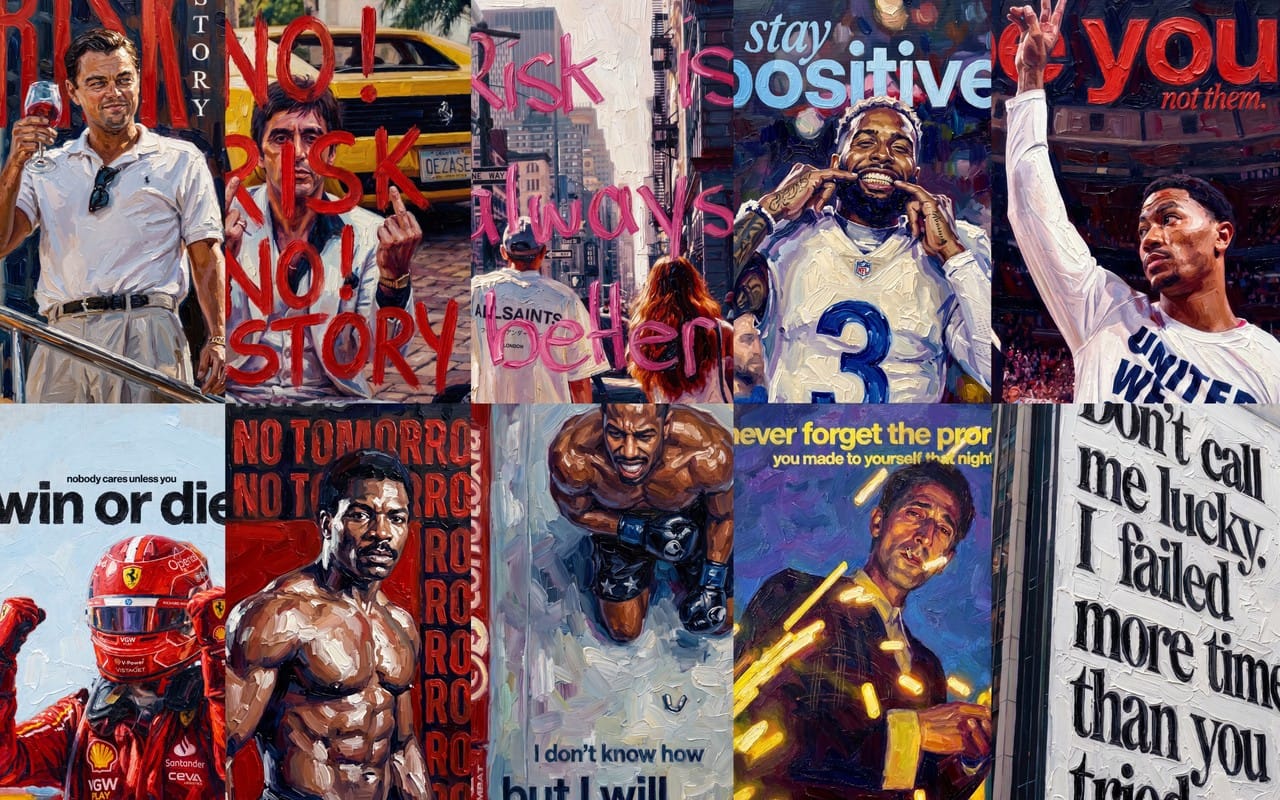
Present UI choices with device mockups
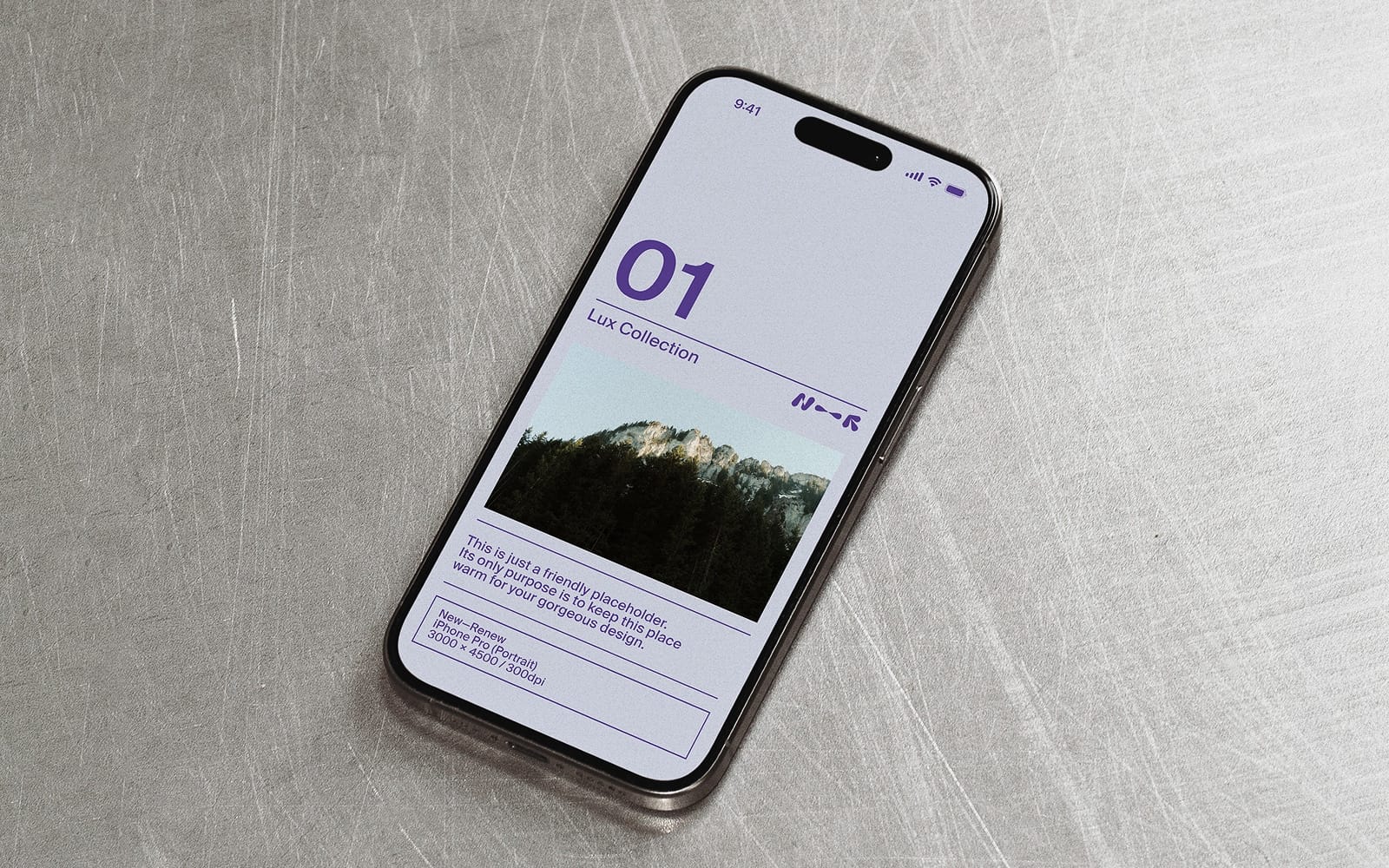
Use device mockups to show your mobile UI in realistic frames for reviews and stakeholder feedback. Mockups make it easier to spot spacing issues and overall hierarchy before you finalize.
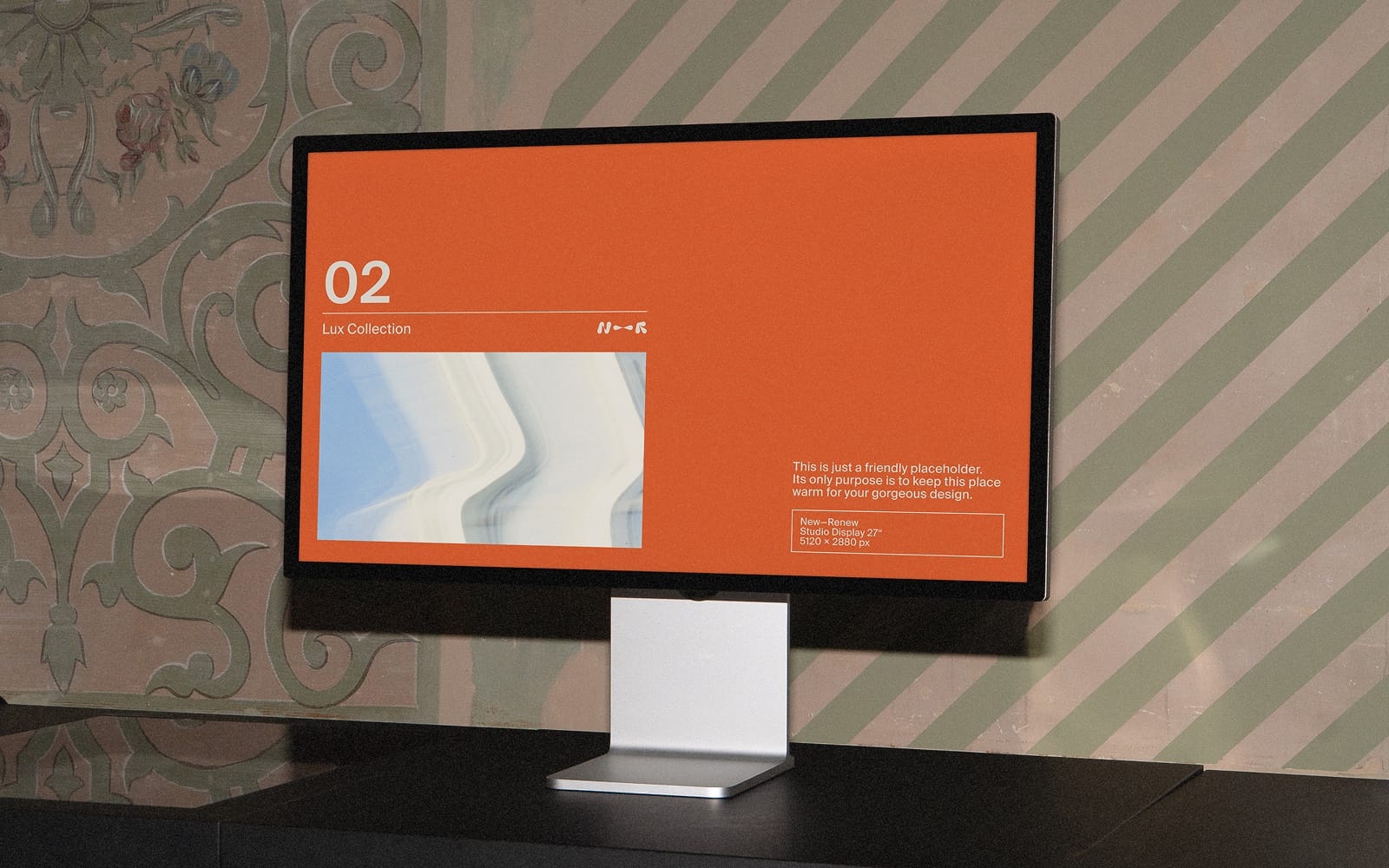
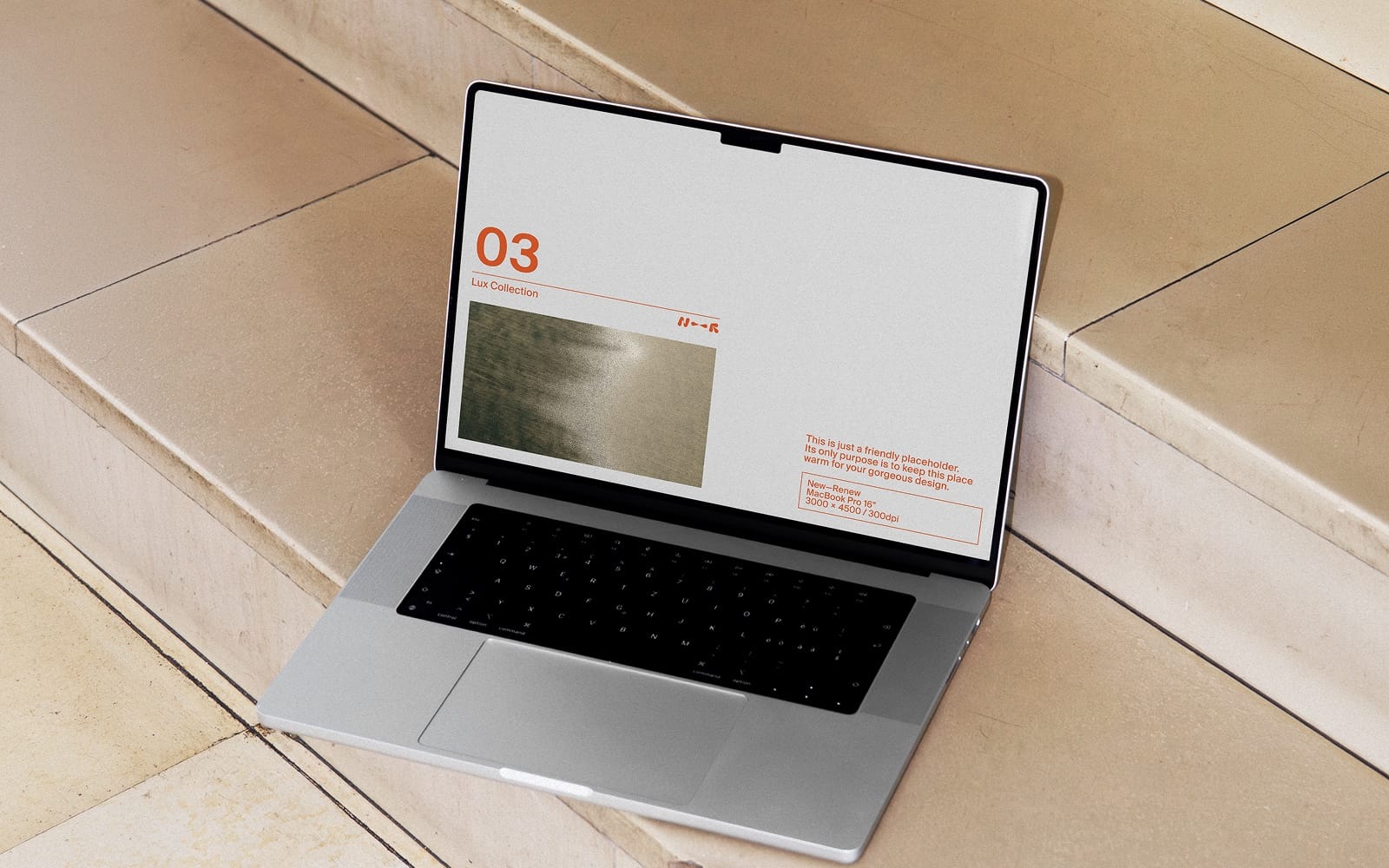
Do I need to pick assets from every section?
No. Start with a design system foundation and mobile screen templates. Add icons, visuals, and mockups based on what your app UI still lacks.
Can I use this navigator for a first mobile prototype?
Yes. The navigator focuses on UI foundations and ready structures, so you can prototype the look and layout quickly while you refine later.
Should I design for iOS or Android first?
Pick a target and build your UI consistently. If you need both, ensure your components and icon sizes stay aligned so screens feel like one product.