 Getly
Getly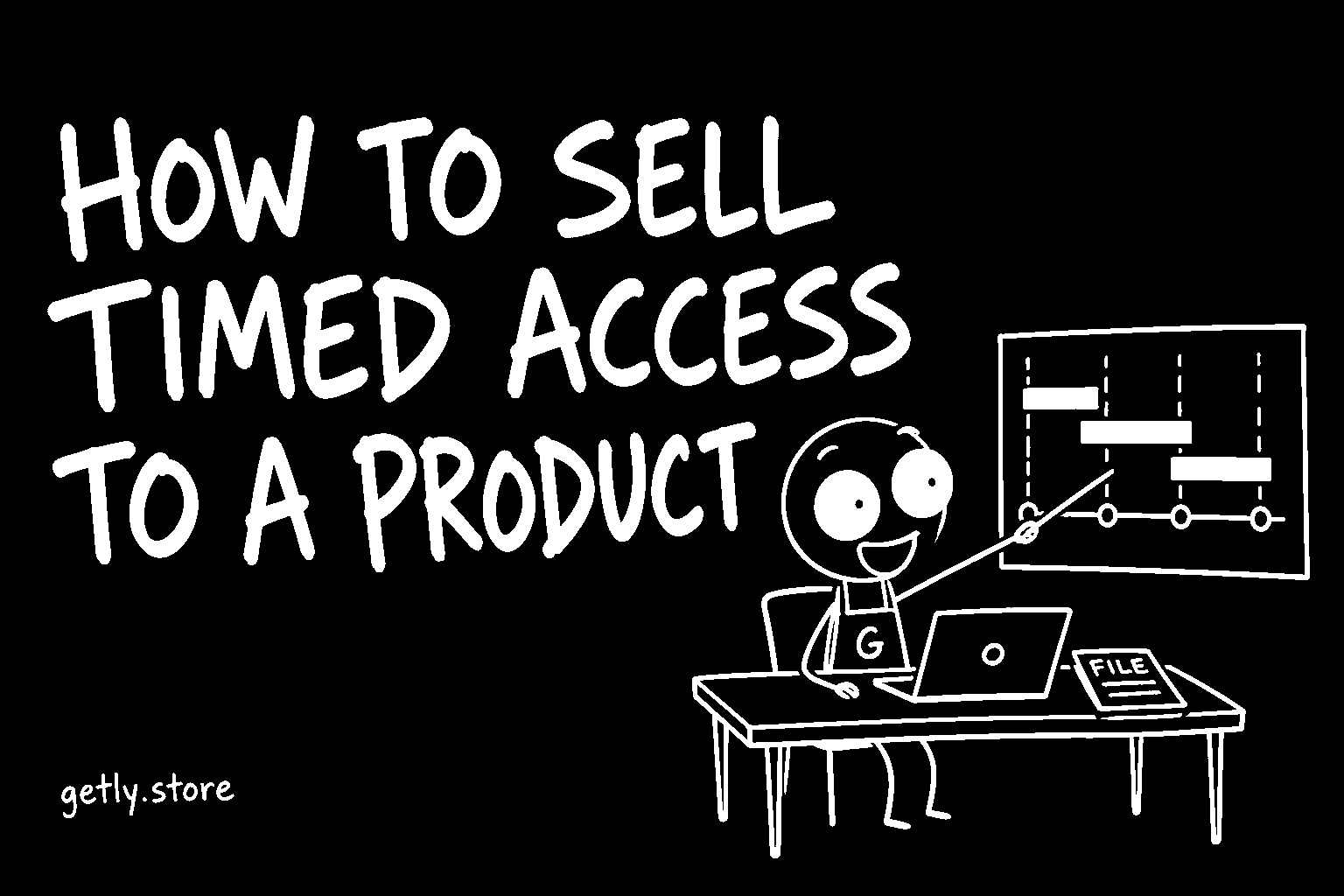
Some products are not a file you hand over once. A template library you keep adding to, a set of tools behind a login, a season of lessons, a feed of monthly assets: what the buyer really gets is access for a while. Getly lets you sell exactly that, a period instead of a file forever, with one payment per period and nothing that renews by itself. Measured on 26 September 2026, 1.79% of active listings are sold this way.
This guide sets it up step by step and then follows the buyer from checkout to the last day of their access.
When a period is the right shape
Timed access fits when the product keeps changing or keeps costing you something: new files every month, a service you run, updates you support. It is the wrong shape for a finished e-book or a font; there, a buyer paying again for the same file gets nothing new and will notice. A simple test: if you would not know what to put in month two, sell it for life.
Note what this is not. It is not an automatic subscription: nothing is charged again without the buyer choosing to. That is also why buyers can pay with PayPal or cryptocurrency on the same terms as any other purchase.
Step 1: switch the product to timed access
- Open the product (or start a new one) and go to the Pricing step.
- The first question is How is it sold?. Click Timed access instead of Lifetime access.
- A hint appears: one payment for a fixed period, access ends on a date, buying again extends it, nothing renews by itself. The single price field disappears, because the price now belongs to each period.
Step 2: fill in the Access periods table
A table titled Access periods appears with one row already in it. Each row is one thing the buyer can choose:
- Duration. Choose 1, 3, 6 or 12 months, or Custom (days) and type any number from 1 to 3650. Presets are counted in days (a month is 30 days, a year 365), so the end date is the same whatever day the buyer pays.
- Price (USD). What this period costs.
- Was (optional). A crossed-out price, which must be higher than the price. Use it only for a price this period really had.
- Label (optional). Up to 80 characters, shown to the buyer. The placeholder suggests Season pass; "Early access" or "Full year" work too.
Click Add a period for another row, up to six. Two rows cannot have the same duration. The × at the end of a row removes it, except the last one: a timed product always needs at least one period. If something is wrong, the form says Add at least one period with a valid price. Durations must differ; a crossed-out price must be higher than the price.
As you type prices, a green note appears on longer periods: Buyers save N% vs the shortest period. It compares the price per 30 days with your shortest period. For example, if one month is $9 and twelve months is $79, the twelve-month row shows a saving of 28%. Use it as a check: if a longer period shows no saving, buyers have no reason to choose it.
Under the table: The price shown in the catalogue is your cheapest active period. Cards in search and categories show that price and a Timed access badge, so nobody mistakes it for a lifetime price.
Step 3: save and check the page
Save with Publish or Update Product. A timed product without a valid period cannot go live, so if the save is refused, go back to the table.
On the product page the buyer now sees Choose your access period, one option per active period, shortest first, each with its "Save N%" where it applies, and a line explaining that it is one payment with no renewal and an end date shown in their library.
What happens after the sale
- Purchase. The buyer's library shows the files and Access until with the date.
- Seven days before the end. The buyer gets one email that their access ends in 7 days, with a link back to renew. Your store receives an
access.expiringwebhook. - Buying again. Access is extended from the current end date, not from today, so a buyer who renews early loses nothing.
- The end. Downloads stop, a Getly licence key issued with the order stops validating, the buyer gets an email, and your store receives an
access.expiredwebhook.
A refunded order ends its access at the refund, as you would expect.
If your product lives on your own system
When the thing you sell is an account on your service rather than a download, use webhooks from developer settings. Create or extend the account on sale.completed, which carries the order, the items and the buyer's email. Close it on access.expired, whose payload includes the order item, the product, the duration, expiresAt and the buyer's email. Verify the signature on every delivery before acting on it.
If you also hand out your own licence keys from a key pool, remember that each renewal is a completed order and uses a key. That is usually right, since a new period often means a new key, but size the pool for it.
Do this today
Take the one listing you update most often. On the Pricing step, switch it to Timed access, add a 1-month and a 12-month period, and adjust the prices until the longer row shows a saving you would be happy to give. Save, then open the product page and read Choose your access period as a buyer would.