 Getly
Getly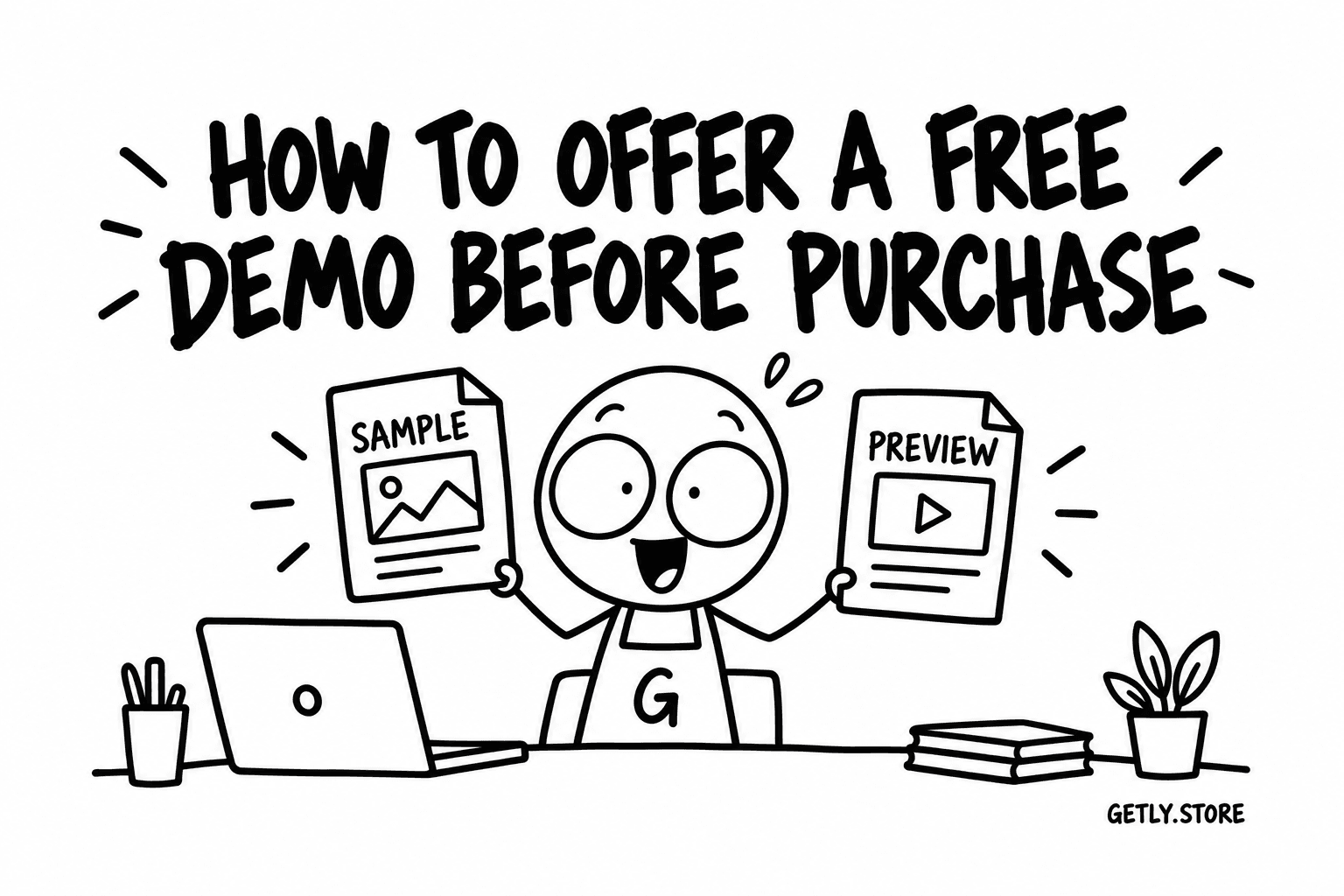
Some products are hard to judge from a picture. A plugin, a font, a sample library, a spreadsheet with formulas: the buyer wants to open it before paying. Every listing on Getly can carry a free demo that does exactly that, and measured on 26 September 2026, only 0.49% of active listings have one. It is optional, it never blocks publishing, and it takes about two minutes to add.
This guide covers the two kinds of demo, how to add each, what the buyer sees, and the one thing Getly will refuse to host.
Two kinds of demo
- A file you upload to Getly. An excerpt of your e-book, three loops from a pack of fifty, a sample worksheet, a short demo video, a trial build packed in an archive. Getly stores it and serves it from the product page.
- A link to a trial on your own site. Typically a software trial installer that your site already offers. Getly does not host or scan it; the product page tells the buyer which site the download comes from.
The split exists for one reason: executable files (.exe, .msi and similar) are never uploaded to Getly, as a demo or as a product file. The upload is checked by the file's name and by reading its first bytes, so an installer renamed to .zip is refused as well. If your demo is an installer, the link option is the intended route.
Step 1: open the Files step
Open the product from your dashboard (or start a new one) and go to the Files step. Under your product files there is a card titled Free trial or demo (optional), with the note that the button appears on your product page next to the price.
Step 2a: upload a demo file
- Click Upload demo file and choose the file. The button shows Uploading… while it works; large files go straight to storage, so a demo video of a few hundred megabytes is fine.
- When it finishes, the card shows the file name in a grey row with a bin icon. That row is your demo.
What makes a good demo file: something that answers the buyer's actual question. For a font, a specimen with the full character set rendered. For a sample pack, a handful of the real files at full quality, not a watermarked preview. For a template, one working page with its formulas intact. For a long e-book, a chapter, not the table of contents.
Step 2b: or link to your own trial
- In Or paste a link to your own trial download, paste the full address. It must start with
https://; a plainhttp://link or a link with a username in it is rejected with Enter a full link that starts with https://. - Click Add link. The card now shows the file name and the site, for example setup.exe · yourtool.com.
Link to the download itself or to your trial page, whichever your site treats as stable. If the address changes later, the button on Getly breaks silently, so use a URL you control and keep.
Step 3: save
The demo is part of the product form, so it goes live when you save: Publish on a new listing, Update Product on a live one. To remove the demo later, click the bin icon in the card and save again.
What the buyer sees
In the buy box on the product page, under the purchase button, a full-width button reads Try it free. Under it, one small line:
- for an uploaded file: Free demo, no purchase needed;
- for a link: Free trial from yourtool.com, with your site's name.
The button opens in a new tab, so the buyer does not lose the product page. No account and no checkout are needed to use it.
Demo, preview asset and look inside are different things
Three features sound alike, and each answers a different question:
| Feature | What it is | Use it when |
|---|---|---|
| Free demo | A download or trial link behind Try it free | The buyer needs to run or open the thing |
| Preview asset | An extra preview shown on the product page | Seeing it is enough to judge it |
| Look inside | The first pages of a long PDF, generated automatically | Your product is a PDF of ten pages or more |
A separate preview file is already on 13.5% of listings, measured the same day, so buyers are used to seeing samples. The demo is the step past that: they get to use one.
Pairing a trial with licence keys
The classic software setup is a trial that works for a limited time and a paid key that unlocks it. On Getly that is two features used together: a link to the trial installer as the demo, and your own licence keys in the key pool on the Pricing step, so that every sale hands out the next key from your list. The buyer tries the software, buys on the same page, and the key arrives in their library and inbox.
If you sell that way, say it in the description: how long the trial runs, what it limits, and that the paid version is unlocked with the key rather than a new download. Only 9.53% of descriptions mention compatibility, software or requirements at all, so a demo plus one clear paragraph about system requirements puts a listing in a small group.
Do this today
Pick the listing where buyers ask the most questions before paying. Cut the smallest file that answers those questions, upload it with Upload demo file, save, and open the product page in a private window to click Try it free the way a buyer will.