 Getly
Getly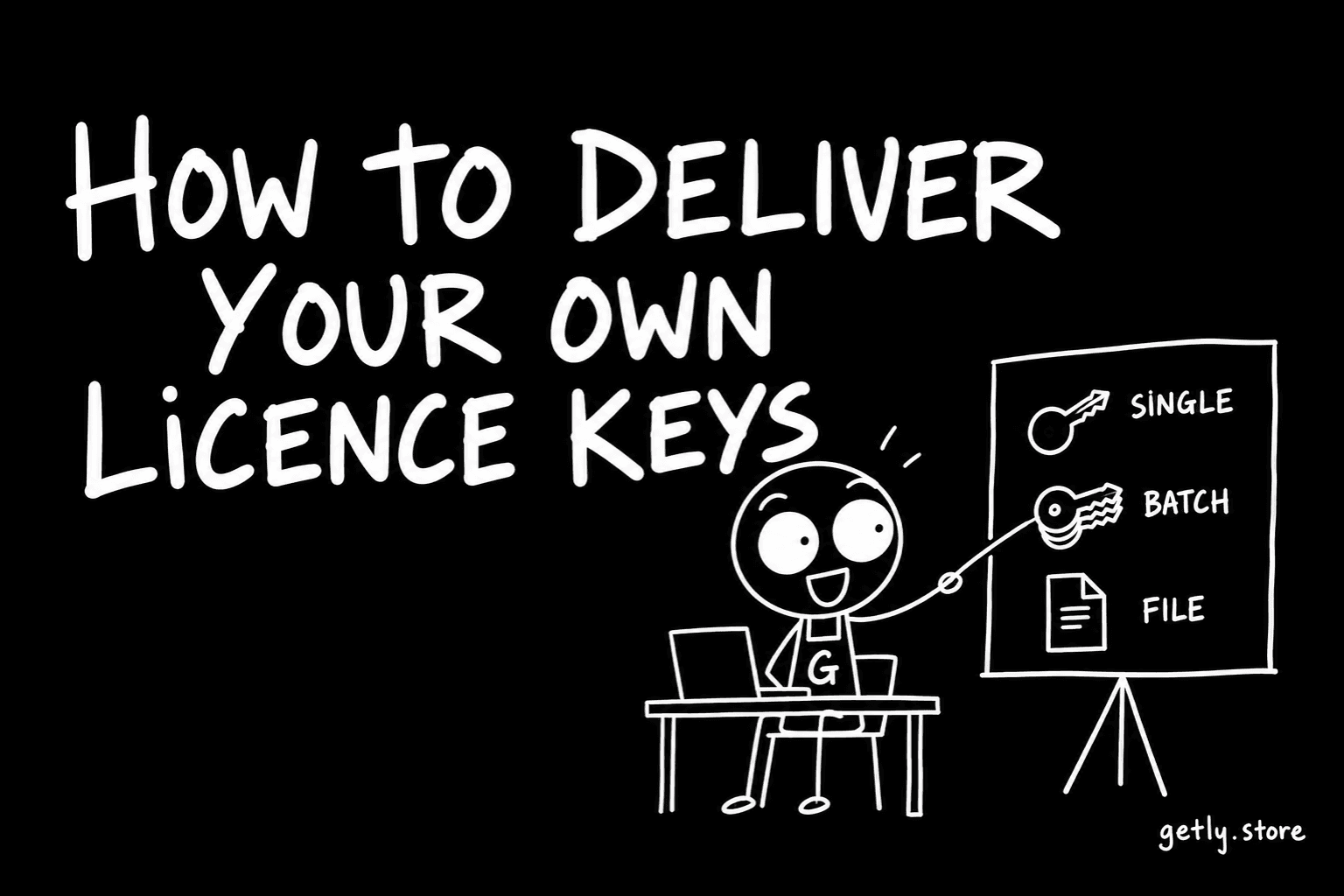
If your software checks its own licence keys, a key generated by the marketplace is useless to you: your program has never seen it and will reject it. What you need is for each sale to hand the buyer one of your keys, the ones your activation server already knows. That is what the key pool does. Measured on 26 September 2026, only 0.10% of active listings use it, and 0.11% use Getly-generated keys, so almost every seller of software here is still sending keys by hand or not at all.
This guide walks through the panel as it exists in the dashboard today, what happens when the pool runs dry, and what to do about refunds.
Before you start: which kind of key you need
A product delivers one kind of key or the other, never both.
- Your own keys. You generate them in your own system (a licence server, a spreadsheet exported from your activation tool) and paste them into Getly. Your software validates them, as it always has.
- Getly-generated keys. Keys in the form
GETLY-XXXXX-XXXXX-XXXXX-XXXXX, created at the moment of sale. These are switched on through the API, not in the product form, and they make sense only if your software asks Getly whether a key is valid.
Turning on your own keys turns Getly keys off for that product. If your program already has a licence system, you want the first option, and the rest of this guide is about it.
Step 1: save the product first
The pool belongs to a product, so the product has to exist. If you are creating a new listing, the Pricing step shows a note instead of the panel: save the product, then open it again from Products in your dashboard. When you edit it, the Pricing step shows a bordered panel titled Deliver my own license keys.
Step 2: paste your keys
- In the field Add keys - one key per line, paste your list. Line breaks separate keys; blank lines are ignored.
- Under the field you will see a live count, for example "120 keys to add". If it does not match the number you expected, your list is probably separated by commas or spaces instead of new lines.
- Click Add keys.
The keys are saved straight away, without waiting for the product to be saved. A message tells you how many were added and how many were skipped. Duplicates are skipped, both repeats inside the list you pasted and keys already in the pool, and so is any key longer than 500 characters. You can add up to 5,000 keys at a time; a longer list has to go in parts.
The order matters: keys are handed out in the order you added them, oldest first. If some keys belong to an older batch that you want sold first, paste that batch first.
Step 3: switch it on and set the warning
- Turn on the switch next to Deliver my own license keys. The note under it says the change takes effect when you save the product. Until then, keys you add sit in the pool and are not handed out.
- In Email me when this many keys are left, enter a number from 1 to 1000. Pick something that gives you time to generate a new batch: if you sell about ten a week and need two days to make more keys, 10 is a sensible floor.
- Go to the last step and click Update Product (or Save changes on a draft).
Three counters at the top of the panel now show Available, Issued and Waiting buyers. The list under Your keys shows each key masked, only a few characters from each end, with its status and, for sold keys, the date it went out.
What the buyer sees
After payment the key appears in the buyer's library next to the download and in the purchase email. On a listing that sells keys, the product page tells the buyer the key is emailed after purchase, so nobody is surprised that it arrives separately from the file.
Note that every completed order uses a key, including free claims (a free product, pay-what-you-want at $0, Free This Week) and renewals of timed access. If you run a free week on a key-pool product, plan the pool size around that.
When the pool runs out
An empty pool does not stop sales. That was a deliberate choice: a buyer who wants the product should be able to pay for it at two in the morning, when you are asleep. Here is what happens instead:
- The buyer pays and gets the files. Their library says the licence key will be emailed as soon as the seller adds it.
- You get an email that the keys have run out, with the number of buyers waiting, and a notice in the dashboard. The panel shows a line such as "3 buyers are waiting".
- When you add keys, the waiting buyers get theirs immediately, oldest order first, each by email. The result message tells you how many waiting buyers received a key.
Before this reaches zero you will already have had the low-stock email at the threshold you set. Each warning is sent once per crossing: after you refill above the threshold, the next drop warns you again.
This also matters under the rule that applies from 26 September 2026 to new publishes and edits: a paid listing whose only delivery is a promise to send something later is sent to review. Delivery by email is accepted when Getly can see it is automated, and a key pool is one of the ways that counts.
Removing keys and refunds
A key that has not been sold can be removed with the bin icon next to it; a confirmation asks first. A key that has already gone to a buyer cannot be removed.
If an order is refunded, the key stays in your list marked Refunded and is never handed to anyone else. Getly cannot switch off a key that only your software understands, so this is your cue: find that key in your own licence system and revoke it there. Every shop's refund window is at least 30 days, and refunds are decided by Getly, so check the list for the Refunded label now and then.
From your own system: the API
If you generate keys automatically, you do not need the dashboard at all. GET /api/v1/products/{id}/keys lists the pool and its counts, POST to the same path adds keys, and DELETE /api/v1/products/{id}/keys/{keyId} removes an unsold one. A script that tops up the pool when it drops below your threshold means you never read the low-stock email at all.
Do this today
Open one software listing, generate a batch of keys in your own system, paste them into Add keys - one key per line, switch the pool on, set the warning threshold and save. Then make a test purchase of your own product: it walks through the same checkout, email and library, hands you a sample test key marked as such, and does not use a key from your pool.