 Getly
Getly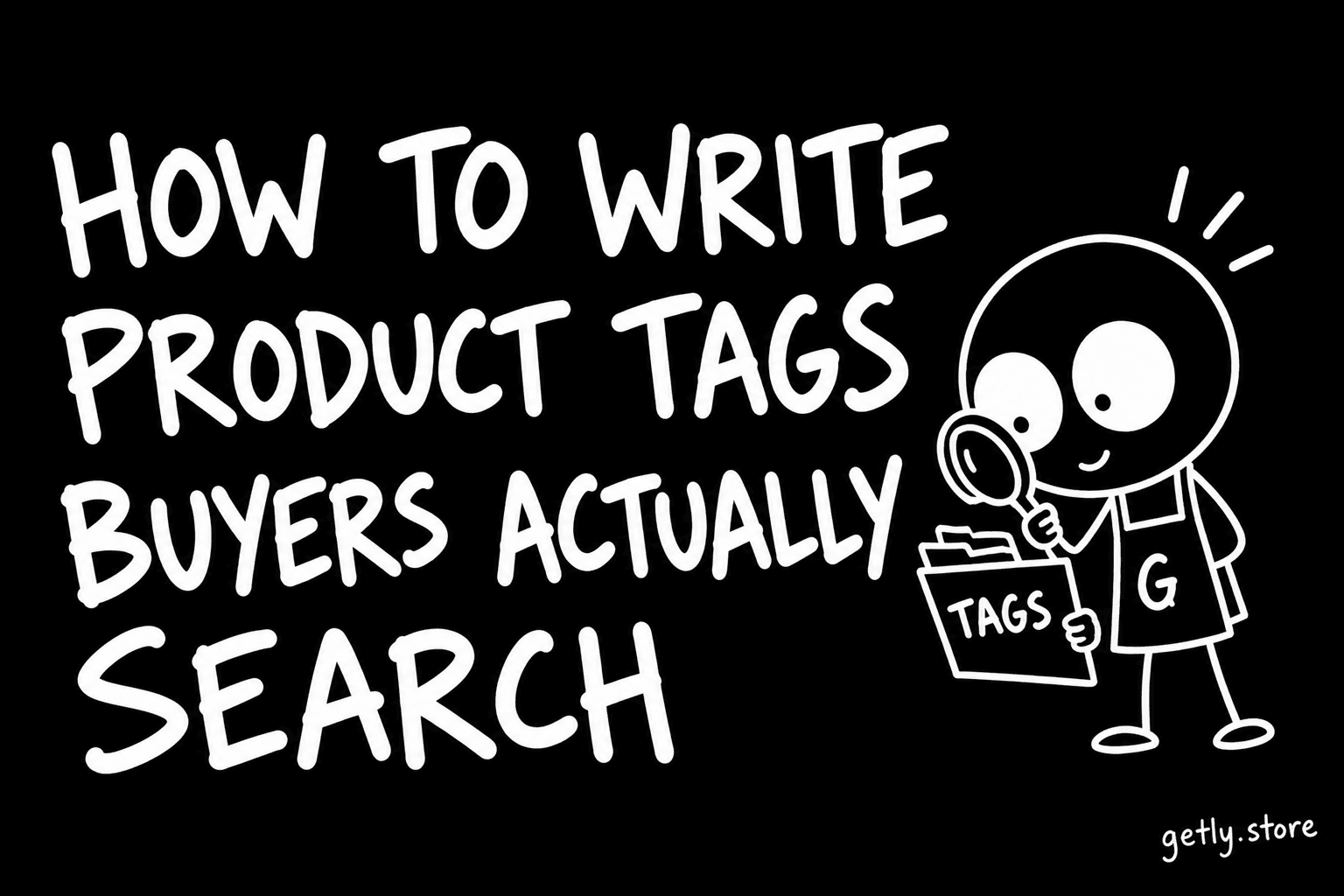
Tags are the part of a listing that sellers fill in last and think about least, and they are one of the few places where you can put a word the buyer will type without it cluttering your title. This tutorial walks through filling the ten tag slots on a Getly listing, one step at a time, using what buyers actually type into search.
Everything below was measured on 26 September 2026: the tags on every active listing, and the search queries typed on Getly in the previous 90 days, weighted by how often each was typed.
Before you start: how search reads your tags
Three facts shape every step that follows:
- Tags live next to the title. The word-matching part of Getly search reads the title, the tags and the short description together. The long description is not part of that word match, so a word that appears only there is easy to miss.
- A listing has ten tag slots, each up to 100 characters. In the product form they sit in the Tags (comma separated) field on the step where you choose the category, separated by commas.
- Buyers type short. Of all searches, 71.5% were a single word, 18.4% two words and 10.1% three or more. The median search was 10 characters long.
Now compare that with how tags are written. 32.7% of tags are phrases of two words or more, and the median tag is 13 characters, longer than the median search. Sellers tag the way they would describe the product; buyers search the way they would name it.
Step 1: Write the one-word name of the product
Start with the noun a buyer would type if they knew exactly what they wanted: planner, font, ebook, texture, template, stickers. This is usually already in your title, and that is fine for step one: the title covers it, so you do not need it as a tag. Write it down anyway, because every other tag is built around it.
Then ask what the second noun would be for a buyer who does not use yours. A "mockup" buyer may type template; a "backdrop" buyer may type background. If the title holds one of these words, the other one is your first tag.
Step 2: Add the software and the file format
Buyers search by the tool they already own. Excel, Notion, Canva, Blender, Procreate, GoodNotes, PDF, STL are single words, they match how people search, and they tell a browsing buyer instantly whether the product will open for them. Several of the most common tags across the catalogue are exactly this kind of word.
Use the name of the software on its own, not a sentence. excel works; works perfectly in microsoft excel 2019 is a sentence nobody types.
Step 3: Add who it is for and what it is for
These are the tags a title rarely has room for:
- Audience: teacher, student, freelancer, kids, etsy seller.
- Use or occasion: wedding, budget, classroom, youtube, halloween.
- Style: minimalist, watercolor, retro, pixel art.
Two-word tags are fine here when two words is the name of the thing (pixel art, lesson plan). What to avoid is a tag that joins three separate ideas into one phrase: a buyer will almost never type all three together.
Step 4: Cover the spellings buyers actually use
The same product gets searched in different forms. Among the queries typed on Getly, ebook, e book and e books all appear as separate searches. Search tries a word's singular form as well, so you do not need both planner and planners. You do need the forms that are genuinely different strings: a space or a hyphen inside a word, British and American spelling (colour and color), an abbreviation and its full name (svg and vector).
Tags are extremely personal on Getly: 79.0% of all distinct tag strings appear on exactly one listing. Some of that is healthy specificity. A lot of it is the same idea written in a way nobody else, including buyers, writes it. If a tag looks unusual, it probably is.
Step 5: Delete the tags that do no work
Go through the list and remove:
- any tag that repeats a word already in the title (the title is already searched);
- words that describe every product on the site: digital, download, instant download;
- sentence-long tags and marketing words (best, high quality, premium);
- duplicates. They are rare (0.39% of tagged listings carry the same tag twice) but easy to check.
A useful yardstick: only 12.6% of tags on Getly listings exactly match something a buyer typed in the last 90 days, while 48.0% of searches exactly match at least one tag somewhere in the catalogue. Buyers keep finding the tags that are plain words. The long, personal ones mostly sit unused.
Step 6: Use Suggest tags as a draft, then edit
Under the Tags field there is a Suggest tags button. It reads your product name, category and short description and proposes tags; you can add them one by one or all at once, and the form stops at ten. Treat the suggestions as a first draft: keep the ones that pass steps 1 to 5 and replace the rest with the words you wrote down.
Use all ten slots if you have ten good words, but do not pad. We have written before about how many listings stop at exactly ten; the number matters less than whether each tag is a word someone would type.
Step 7: Test it the way a buyer would
- Save the listing and open the Getly search in a private window.
- Type each of your tags on its own, as a single short search. Does your listing come up?
- Type the one-word name from step 1 plus the software from step 2 (planner goodnotes, texture blender). This is the most common two-word search shape.
- If a search you care about does not find you, check that the word is in the title, the tags or the short description, not only in the long description.
- Repeat for your next listing. Once you have done three, the pattern becomes fast: noun, software, audience, use, style, spellings.
Good tags do not change what the buyer receives. They change whether the buyer who types one short word ever sees it. If you have not published yet, start a listing and fill the tags last, with this list open next to it.