 Getly
Getly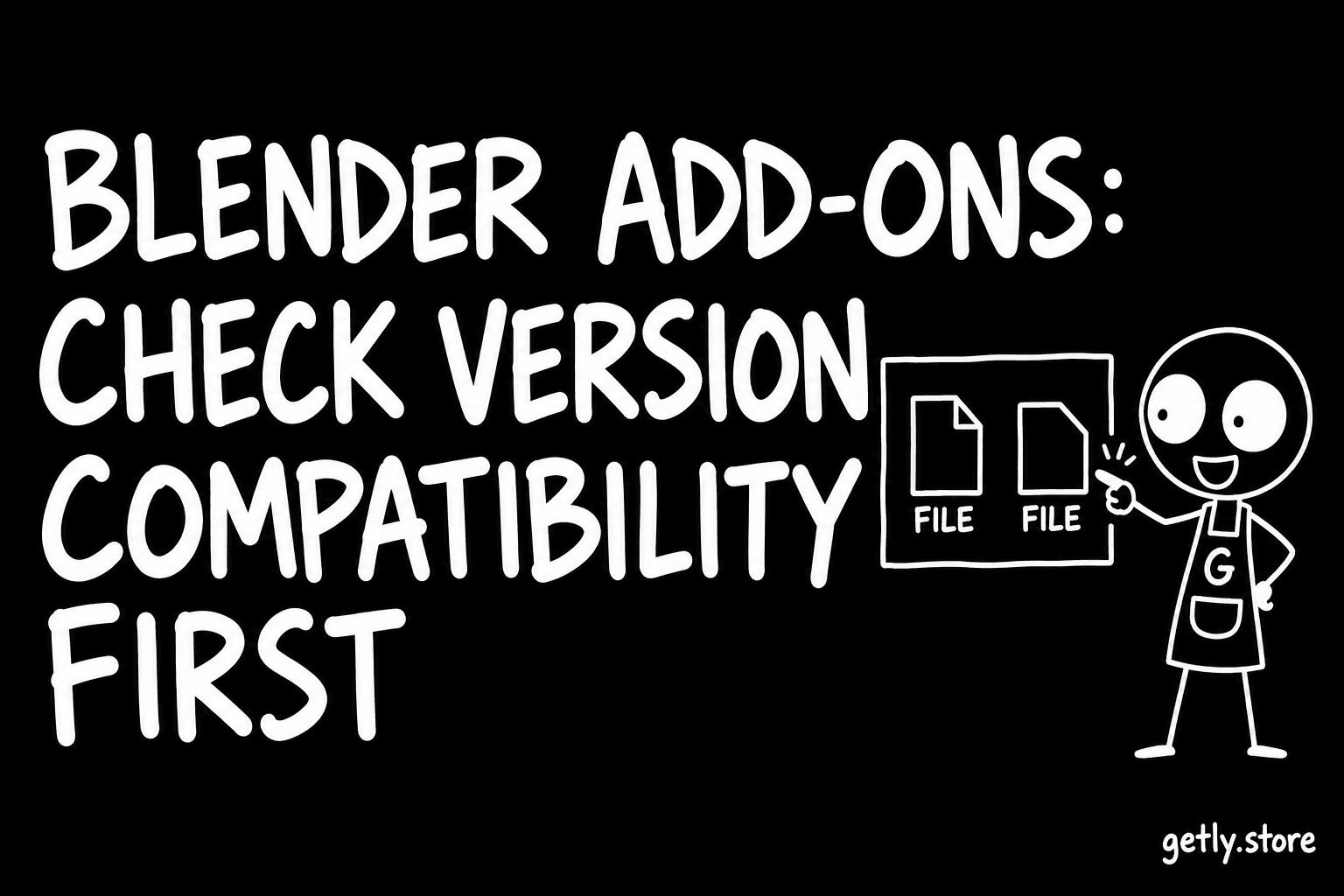
A Blender add-on that does not load in your version of Blender is not a smaller product, it is no product at all. The purchase is a zip file that sits in your downloads folder while you look for an older Blender or a refund. The good news is that most compatibility problems are visible before you pay, if you know which three lines to look for.
We read every active listing on the Blender Add-ons shelf on Getly, measured 26 September 2026: 55 listings, a median paid price of $9.99 and a middle half between $9.99 and $14.99. The numbers below come from that shelf. Facts about how Blender itself handles add-ons come from the official Blender manual, checked 26 September 2026, when the current manual was the one for Blender 5.2 LTS.
Two kinds of add-on, and why it matters
Since Blender 4.2, add-ons can be packaged as extensions. According to the manual, an extension is a .zip archive that contains a file called blender_manifest.toml next to the add-on code. The manifest carries the metadata Blender needs: an id, a version, a name, a maintainer, a licence, and a required blender_version_min. The manual's rule for that field is explicit: use at least 4.2.0. An optional blender_version_max names the first Blender version the extension does not support.
Older add-ons, which the manual calls legacy add-ons, describe themselves in Python code instead, and they still install: in Preferences, the Install from Disk menu accepts either an extension .zip or a legacy add-on's .py or .zip file. A legacy add-on is not enabled automatically after installation; you tick its checkbox.
For a buyer this gives a simple test. An add-on sold as supporting Blender 3.x cannot rely on the extension format alone, because an extension's minimum version is 4.2 or later. That is not a warning sign. It just tells you the package is, or includes, a legacy add-on, and you should expect to install it the legacy way.
What the listings on our shelf actually say
The most useful single line in a Blender add-on listing is the supported version. On our shelf, 81.8% of listings state one. Here is where the stated minimum falls:
| Stated minimum Blender version | Share of listings |
|---|---|
| 3.x | 30.9% |
| 4.0 or 4.1 | 10.9% |
| 4.2 or later 4.x | 34.5% |
| 5.x | 5.5% |
| No version stated | 18.2% |
Three other things are rarer. Only 18.2% say which Blender version the add-on was actually tested on, and only 3.6% name an upper bound, such as "through 4.x". 61.8% name the operating systems it runs on. And 9.1% explain installation in terms of the extension system (Get Extensions or Install from Disk).
The gap between "3.2 and later" and "tested on" is the one to notice. "And later" is a promise about versions that did not exist when the add-on was written. Blender's Python API can change between releases, so a claim that covers every future version is really a claim about the versions the author tried. "Tested on 4.2 and 5.1" is smaller, and it is the more useful sentence.
What the files tell you
Every listing on the shelf delivers a .zip, and 63.6% put a version number in the file name, which helps when you later need to know which build you have. The file name does not tell you whether the zip is an extension or a legacy add-on; only the manifest inside it does.
Getly reads the contents of code archives when a product is published. Of the 29 Blender add-on archives our reader opened, 44.8% contain no readme file and 37.9% no licence file. A missing readme is exactly where installation steps and version notes would have lived, so for those products the listing text is all you have. The shelf's median of $9.99 is small, but the cost of a wrong purchase is your time, not only the price.
A checklist before you buy
- Find your own version first. Blender shows it on the splash screen and in the About Blender window. Note the full number, for example 4.2 or 5.1, not just the major version.
- Find the stated minimum. If the listing gives none, ask the seller before buying. If it gives a minimum above your version, stop.
- Look for "tested on". A listing that names the versions it was tested on is telling you what it knows. If yours is newer than all of them, ask whether it has been checked.
- Look for an upper bound or a known break. A major Blender release can change the Python API. If the listing names a maximum, respect it.
- Work out which kind it is. A minimum of 4.2 or later and install steps through Get Extensions or Install from Disk suggest an extension. A 3.x minimum means legacy installation, then ticking the checkbox.
- Check your operating system. Add-ons that bundle compiled libraries or talk to other programs can be limited to one platform.
- Check for third-party dependencies. An add-on that needs another add-on, or an external program, should say so.
- Check the update and refund terms. Will a fix for the next Blender release be free? Is there a refund window if it does not load?
If you sell Blender add-ons
Every item on the checklist is a line in your description. The three that cost you the most when missing are the minimum version, the versions you tested on, and the install method. Put them in the first screen of the description, not at the bottom.
If you package your add-on as an extension, the manifest already holds most of the answer: blender_version_min, optionally blender_version_max, the licence and the platforms. Copy those values into the listing so a buyer does not have to download the zip to learn them. Add a readme inside the archive with install steps and a changelog, and put the version in the file name.
For .blend files you sell alongside an add-on, such as a demo scene, the free Getly Publisher for Blender checks them before you publish: textures that are not packed, paths that point at your own home folder, linked files missing from the upload. It is itself an extension and requires Blender 4.2 or newer. Getly has no listing fee, and the seller keeps 80% by default; current rates are on the pricing page and the rest is on the seller page.