 Getly
Getly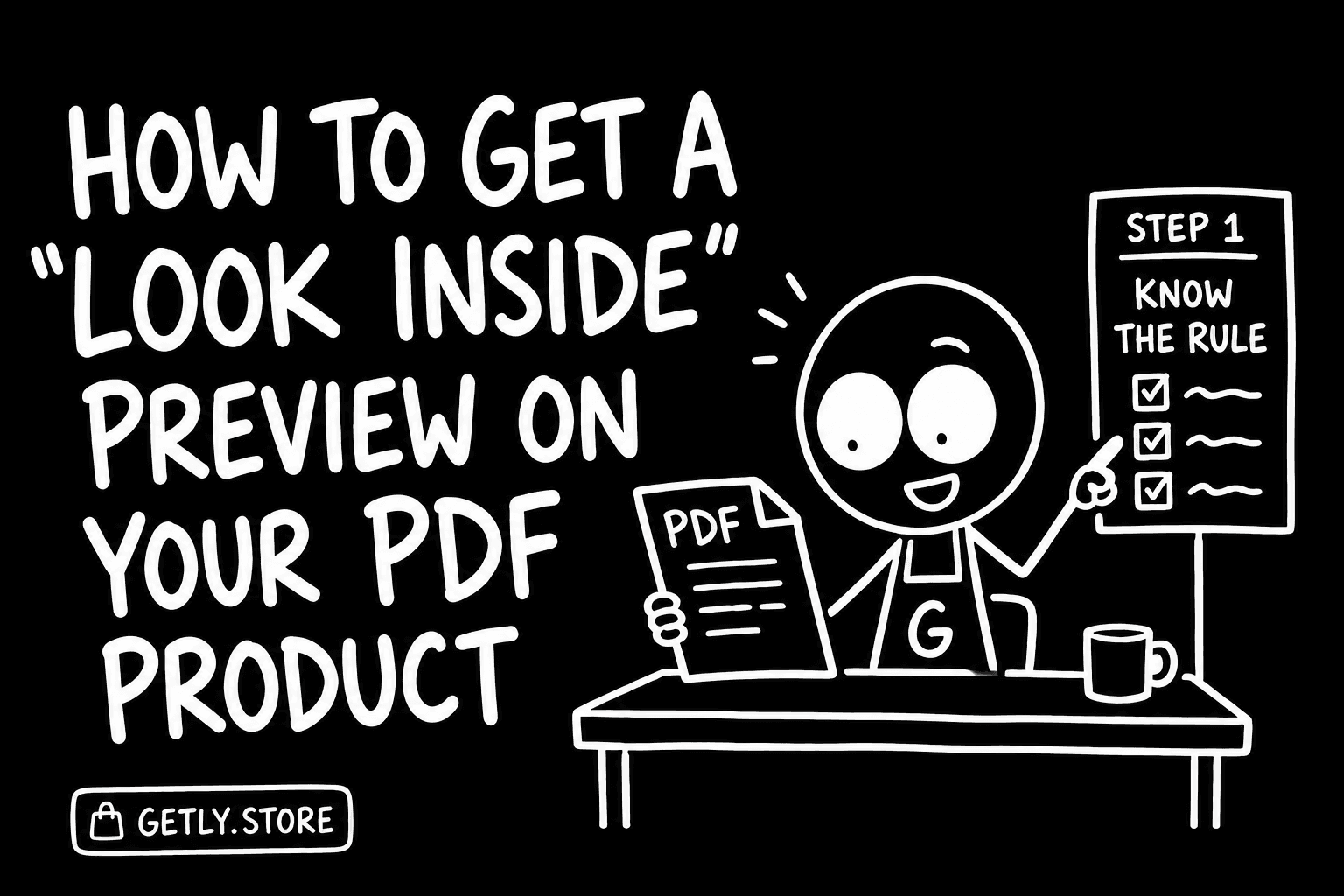
Since September a product whose file is a PDF can show buyers a Look inside button on its page. Pressing it opens a watermarked excerpt of the first pages in the browser's own PDF viewer. You do not switch it on and you cannot switch it off; it appears when the file meets the rule and does not when it does not. This tutorial is about making sure it appears, and that what appears sells.
Step 1 - Know the rule
- The file must be a PDF of ten pages or more. Shorter documents get no excerpt: a three-page checklist shown three pages deep is a checklist given away.
- The excerpt is two to five pages, never more than 15% of the document (the two-page minimum overrides the percentage for documents of 10–19 pages), and the last page is never shown.
- The source file must be under 50 MB and under 1,200 pages. Above either, no excerpt.
- Every excerpt page carries a watermark. The excerpt is generated the first time a buyer asks for it and cached; it always reflects your current file.
In plain numbers: 10–19 pages shows 2; 20–33 pages shows 3 or 4; 34 pages and up shows 5.
Step 2 - Put the selling pages first
The excerpt is always the first pages, so the order of your document is the order of your pitch. For a workbook: cover, one page of contents, one filled-in example page - not three pages of introduction. For a template pack: cover, then the strongest template, not the licence text. For a book: the five pages will almost certainly be cover, copyright, contents and the opening of chapter one, so make chapter one open well.
If your PDF begins with a title page, a blank page and a dedication, a ten-page document shows a buyer two pages that contain nothing. Reorder before you upload.
Step 3 - Upload the PDF as the product's current file
The excerpt is built from the product's current version of the file. When you upload a new version, the page count is re-read from the file itself - you do not type it - and the excerpt is rebuilt from the new file the next time it is requested. If you sell several files under one product, the button follows the PDF among them.
Step 4 - Check what a buyer sees
Open your own product page. If the button is there, press it: you are looking at exactly what a buyer gets, watermark included. If the button is not there, one of four things is true - the file is not a PDF, it is under ten pages, it is over 50 MB, or it is over 1,200 pages. The page count and file size are shown in the file facts on the same page, so you can tell which.
What it does not do
It is not a separate sample you upload; there is no "preview file" field. It does not show pages you choose; it shows the first ones. It does not replace the product images - for the 46% of PDFs in the catalogue that are under ten pages, the second product image is still the way to show the inside. And it is not a download: the excerpt is served to the viewer, watermarked, and the full file stays behind the purchase.