 Getly
Getly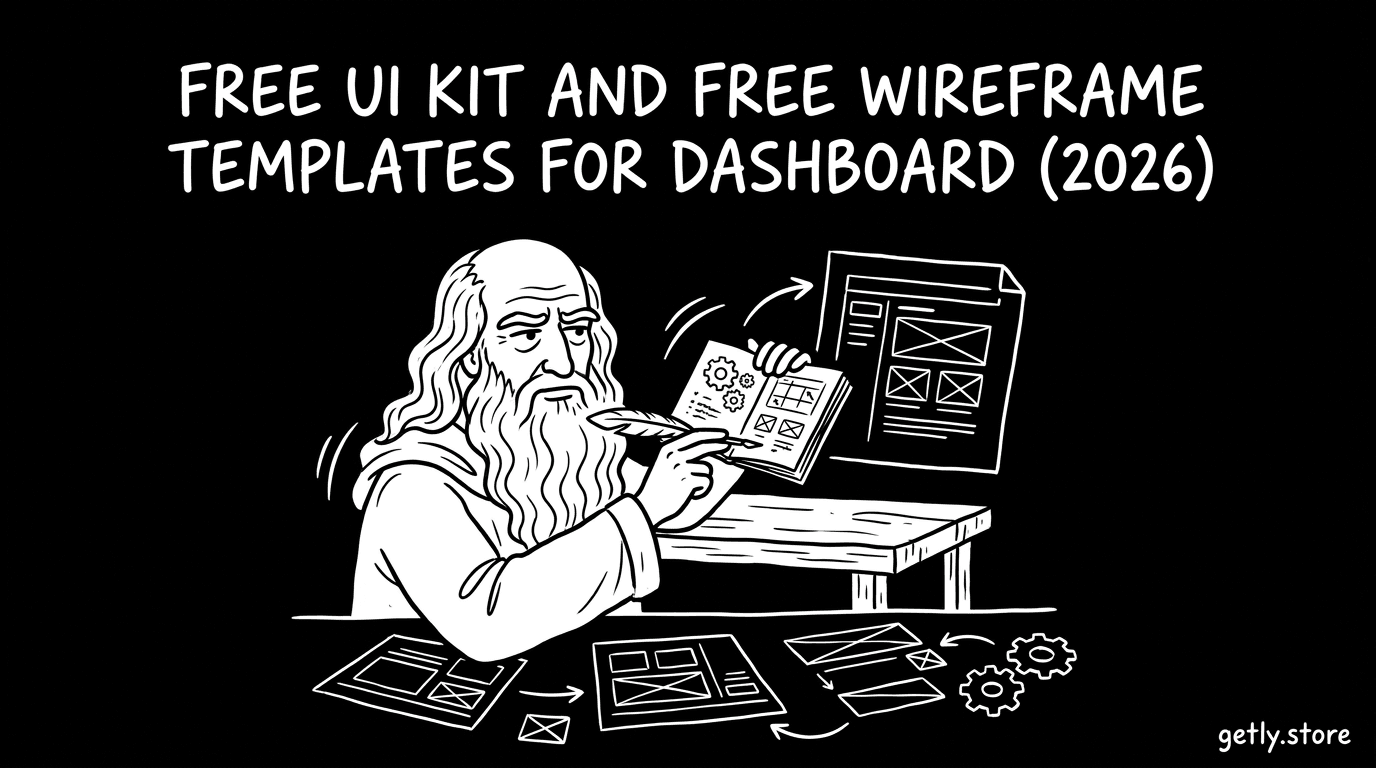
Getting a dashboard to “look finished” usually costs time more than money. In 2026, you can speed that process up with a free UI kit and free wireframe templates that match real product patterns: sidebar navigation, filters, tables, and KPI cards. This guide shows how to choose the right resources and turn them into a UI you can actually ship.
- Use wireframes to lock layout decisions early: grid, hierarchy, and empty states.
- Pick a dashboard template free that includes charts, tables, and filter patterns you need.
- Choose UI kits designed around components so you can wire React screens faster.
- Validate with content, not just placeholders, before you commit to styling.
What is a free UI kit for dashboards in 2026?
A free UI kit for dashboards packages reusable interface pieces such as buttons, input fields, cards, typography scales, icons, and layout containers. You use it to build screens faster because you start from consistent component styling instead of creating everything from scratch.
In 2026, the best kits also align with how dashboards behave: they support dense layouts, show loading states, and handle “no data” views without breaking spacing. That matters when your dashboard needs to display tables, charts, activity feeds, and multi-step filters across different screen sizes.
UI kits vs. dashboard template free
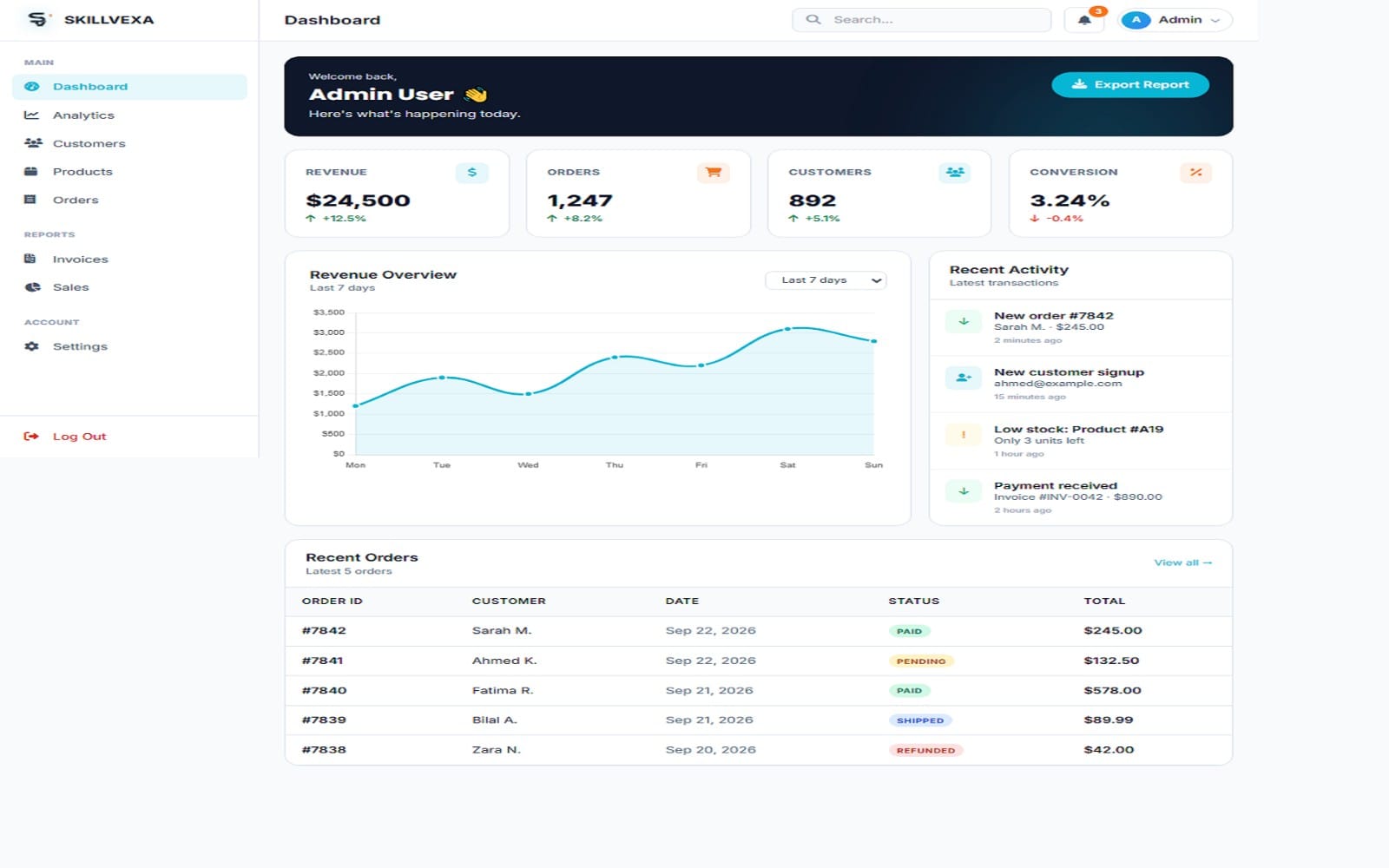
A dashboard template free often gives you a full screen layout, like “Analytics,” “Reports,” or “Settings,” with predefined sections. A UI kit gives you the building blocks to recreate that structure across pages.
For most teams, the fastest workflow uses both. You wire the overall layout with a template, then you swap in kit components for inputs, cards, and navigation so every screen looks coherent.
What to check before you download
Open the kit and scan for the things that usually break production dashboards. Look for consistent spacing rules, typography styles, and component variants (default, hover, focus, disabled, loading).
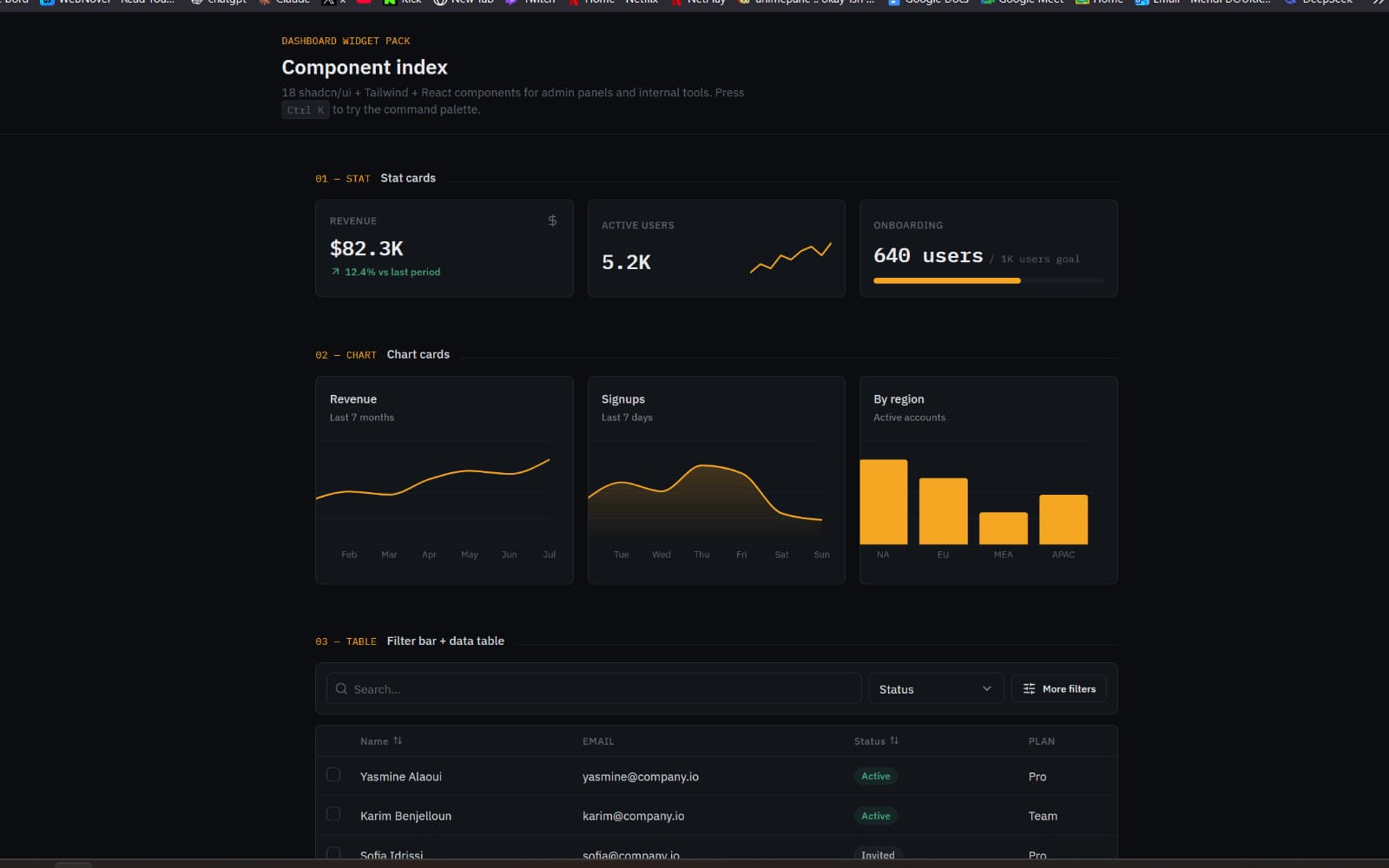
Also check for real dashboard patterns: filter bars, table header logic, badge/chip styling, and KPI card number formatting. These details make later React integration smoother because your UI already has the states you need.
- Component coverage: inputs, selects, toggles, tabs, pagination, modals.
- State coverage: empty, loading, error, disabled.
- Layout coverage: sidebar + top bar combos, responsive grid.
- Design system consistency: spacing and type scales.
- Export format: Figma files, SVG assets, or CSS-friendly tokens.
How to use free wireframe templates to design faster
Free wireframe templates help you decide structure before you chase colors. A wireframe template gives you the skeleton for dashboard screens: where charts go, how many columns you use, and how users move from navigation to content.
Wireframes reduce rework because you can test your information architecture early. Teams often spend weeks on styling while the layout still fails usability basics like scanability, focus order, and how filters affect the visible content.
Start with a layout grid that matches your data
Dashboards usually contain repeating “data zones” such as KPI cards, charts, and tables. Use the wireframe template to set your grid and define which zones span full width and which stay in columns.
Example: use a 12-column grid for a left sidebar layout, then reserve 8 columns for charts and 4 for summary cards. When you later pick actual UI kit components, you will not fight alignment issues.
Define empty states on day one
Most templates include placeholders, but you still need wireframe-level empty states. If a user has no activity, your dashboard should show an empty table with a clear explanation and a next action.
Draw the empty state in the wireframe. Then design the “loading then empty” path. This prevents awkward UI when API data fails or takes longer than expected.
Pro tip: Wireframe the filter bar and the table together. If you place filters separately, you risk mismatched spacing and confusing behavior later.
Which dashboard template free works best for real admin UI?
The best dashboard template free for admin-style UI includes practical sections you actually build. Admin dashboards need navigation, role-aware layouts, dense data tables, and consistent actions (view, edit, export, delete).
When a template includes those patterns, you spend less time translating design into code because your screens already reflect how users will operate the product.
Choose templates that include table and filter patterns
Look for templates with table headers, row actions, bulk selection checkboxes, pagination, and column sorting cues. These UI details show up in almost every admin dashboard and they affect both usability and implementation complexity.
Also confirm the template includes filter chips or tags for active filters. In production, users rely on those to understand why results changed.
Match the template to your hierarchy
Some templates assume the user wants KPIs first, others push charts to the center and hide KPIs. Pick based on your dashboard goal.
If the user’s job involves monitoring performance, put KPIs and alerts at the top. If the user’s job involves auditing details, prioritize filters and table density. A wireframe helps you decide, then a template helps you accelerate the look.
| Dashboard need | Best template elements to look for | Why it matters in React UI |
|---|---|---|
| Dense data | Tables, row actions, pagination | Predictable layout for virtualized lists |
| Monitoring | KPI cards, alerts, chart sections | Clear component boundaries for updates |
| Operations | Side nav, settings panels, forms | Reusable form controls and navigation |
| Trust | Empty and error states | Better UI behavior when data fails |
How to build a react UI kit workflow from templates
A react UI kit workflow connects the UI kit components you design with the components you ship. The goal is simple: you should map every design element to a React component or prop-driven variant.
You will move faster if you decide the component boundary early, using wireframes and templates to define what each component “owns.” Then you style with consistent tokens so the UI stays coherent across pages.
Create a component map before you code
After you choose a template, create a component map. Assign each UI block to a component category: navigation, filters, cards, charts containers, tables, modals, toasts.
When you code, you will avoid the trap where everything becomes a single page component. That trap increases bug risk and makes UI changes harder.
- Navigation: Sidebar + top bar components.
- Filter system: FilterBar + ActiveFilterChips + Apply button.
- Data summary: KPI cards with loading variants.
- Charts: ChartCard wrapper with consistent padding and title rules.
- Tables: DataTable with sortable headers and row action menu.
Use “token-first” styling
UI kits often give you colors, typography, and spacing. Convert those into a small set of tokens you can reuse in React. Keep tokens stable and let components apply them.
This approach reduces the “pixel drift” that happens when designers and developers adjust values separately. It also makes it easier to implement theme changes later.
Success pattern: Teams that define tokens (spacing steps, font sizes, border radius) early ship new dashboard pages faster because every component already agrees on layout rules.
Where to get UI design resources that actually fit dashboards
Good UI design resources do one thing well: they match the structure of dashboards you build in production. That means components and templates that cover navigation, tables, charts containers, and form controls.
You also want resources that reduce friction. The best files include assets and consistent styles so you can start working immediately instead of rebuilding the design system.
Use specific resource categories for dashboard building
Start with a dashboard-focused UI kit or wireframe template. Then add assets only where you need them, such as icons for navigation or animation references for empty states.
If you also create promotional content for your dashboard product, you can reuse motion and text design references. For example, an AI text animation workflow can help you create short video demos for onboarding or feature highlights.
- UI kit files: components, styles, icons.
- Wireframe templates: grid layout and page structure.
- Dashboard templates: KPI + table + chart page layouts.
- Motion references: onboarding micro-demos and feature teasers.
On Getly.store, you can find many digital assets across design and media categories, which can support your dashboard workflow even if the core dashboard templates come from elsewhere. For instance, you can pair UI work with marketing demos by using a video text animation resource like Product Title AI Text Animation Mastery: Create Viral Videos Without Showing Your Face.
Keep your toolchain consistent across files
If you design in Figma, keep templates and UI kits in the same ecosystem. When you mix formats, you spend time translating styles instead of validating layout and usability.
When you need supporting assets, download those separately and apply them as components or overlays rather than rebuilding your whole design system around them.
Common mistake: Designers download a great dashboard template free layout, then re-style everything from scratch without reading spacing and type rules. The UI looks “almost right” but breaks alignment across pages.
Quality checklist for dashboard UI templates in 2026
You do not judge a dashboard template free by how it looks in a screenshot. You judge it by how consistently it handles different data situations, different screen widths, and real user interactions like sorting and filtering.
A fast quality pass saves you from weeks of downstream fixes. Use the checklist below while the template and UI kit are still fresh in your workflow.
Usability checklist
Start with the basics: scanability, hierarchy, and actions. Then test behavior patterns: filter updates, sorting, and row actions.
- Users can scan KPIs in seconds.
- Table headers remain readable and clickable.
- Filter chips show active filters clearly.
- Empty states explain next steps.
- Buttons and links use consistent placement.
Implementation checklist for a react UI kit
Next, map the design to React components. If the template lumps unrelated UI into one block, refactor the component boundaries in your codebase.
- Each UI zone has a dedicated wrapper component.
- Loading and empty states use the same layout container.
- Props control variants such as size, density, and disabled.
- Tokens handle spacing and typography so styles stay consistent.
“A dashboard template is only useful when it survives the states your API creates: partial data, empty results, and slow loading.”
Pro workflow: from template to production
When you want speed without quality loss, follow a short workflow loop. Pick a template, implement components, test states, then refine spacing and hierarchy once.
This loop works for teams of one designer and one developer as well as small product squads. It also aligns with how dashboard pages change: you iterate on density, not on entire UI structure.
- Lock layout using wireframes and a dashboard template free layout.
- Replace placeholders with real copy and realistic data lengths.
- Implement loading, empty, and error states before final styling.
- Run a scanability pass: headings, table columns, and actions.
- Refactor into a consistent react UI kit component set.
- Use wireframes to decide structure and empty states before styling.
- Pick dashboard template free resources with table, filter, and KPI patterns.
- Build a component map so your react UI kit workflow stays maintainable.
- Validate with real data and state behavior, not screenshots.
FAQ: Free UI kit and wireframe templates for dashboards
Where do I find a free UI kit for a dashboard in 2026?
Search for dashboard-focused UI kits that include tables, filter controls, and empty/loading states. Look for files that already define component variants and spacing rules so your React UI can reuse them directly.
If you need motion or demo assets for your dashboard product, you can also pull supporting content from digital-goods marketplaces alongside your UI work.
What should my free wireframe templates include for a dashboard?
Your wireframes should cover the dashboard’s core zones: navigation area, KPI cards, chart containers, filter bar, and table layout. Add explicit empty states and describe what the user should do next.
That extra step prevents UI surprises when your backend returns no data or delayed responses.
Is a dashboard template free enough for React UI?
A template gives you layout speed, but a React UI still needs component boundaries and state logic. Use the template to define the structure, then implement reusable React components that map to the UI kit’s variants.
This keeps your codebase clean and makes later UI updates predictable.
How do I avoid common problems when using UI design resources?
The biggest issue comes from inconsistent spacing and typography rules across mixed downloads. Keep a token-first approach and apply one consistent spacing and type scale across screens.
Also test state behavior early: loading, empty, and error views catch design gaps faster than static screens.
Can I combine UI kit files with other digital assets?
Yes. Many dashboard teams pair UI design resources with marketing content or media assets to create onboarding videos, feature announcements, and interactive demos.
Use those extra assets as separate modules, so the dashboard UI system stays consistent.
If you want to move quickly, pick one dashboard template free layout, build the component map, and iterate on data states. Start small, make it work with real content, then expand to the rest of your product pages.
Soft call-to-action: When you need extra support assets for product demos, browse relevant resources on Getly.store and add only what improves your workflow.
Getly Sellers Team