 Getly
Getly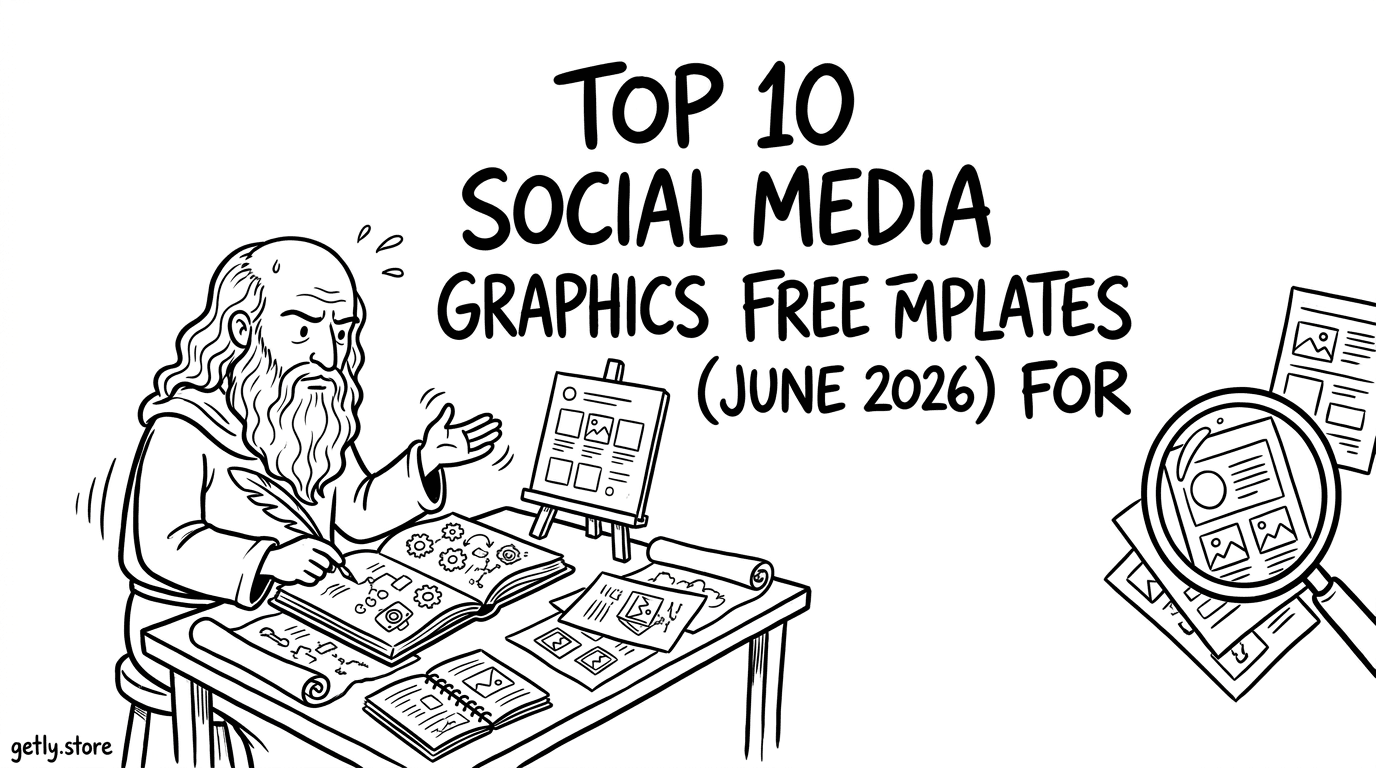
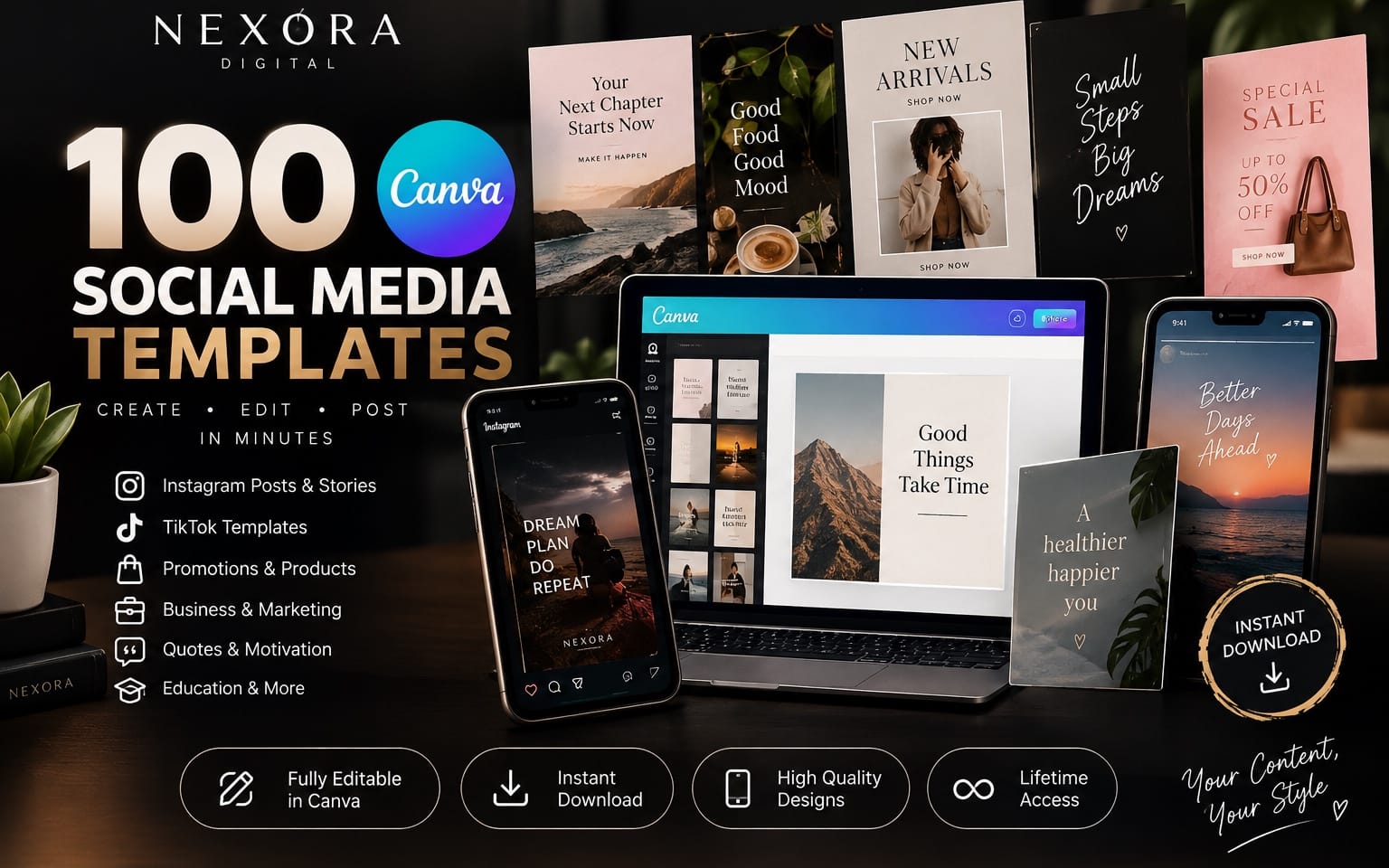
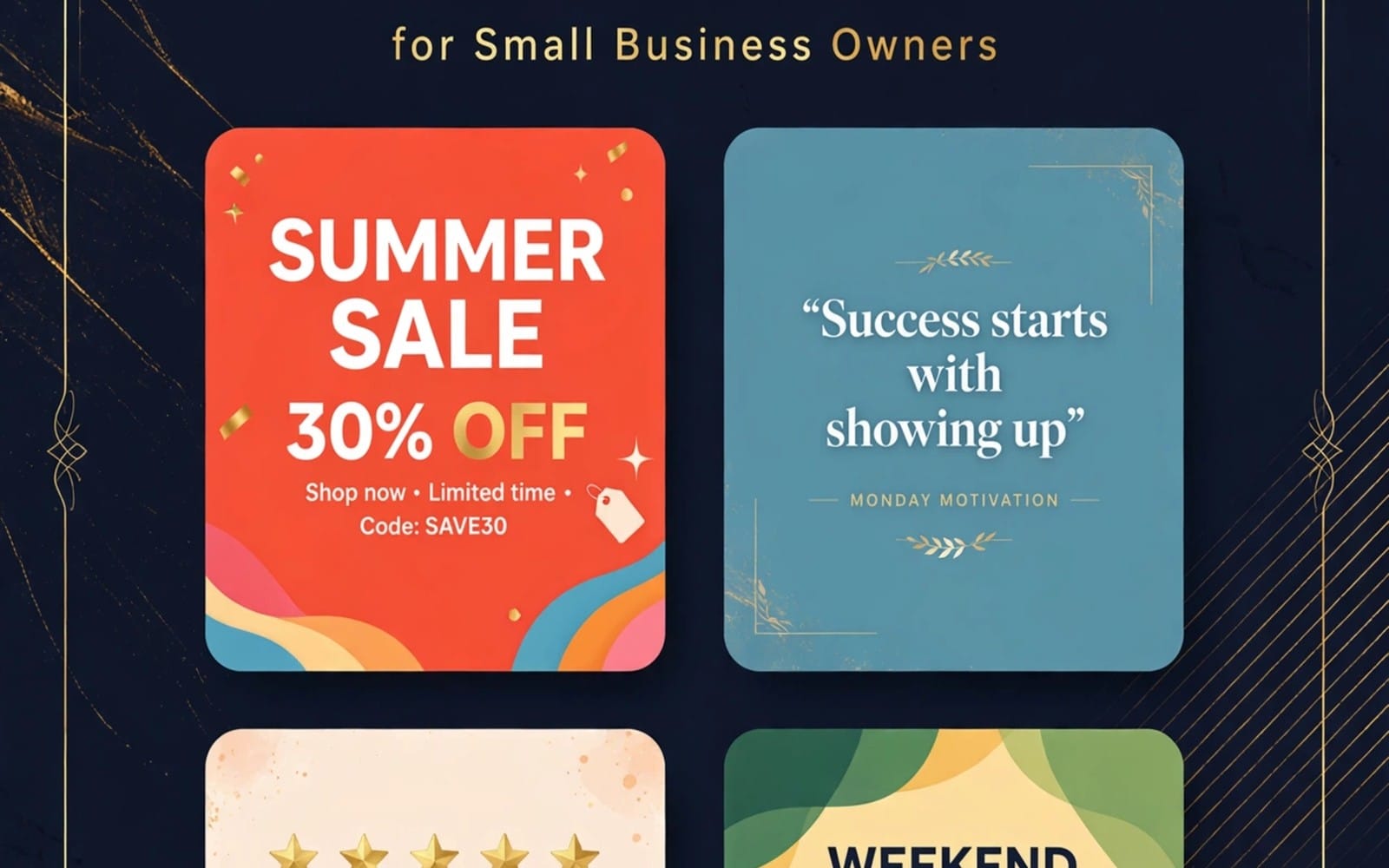
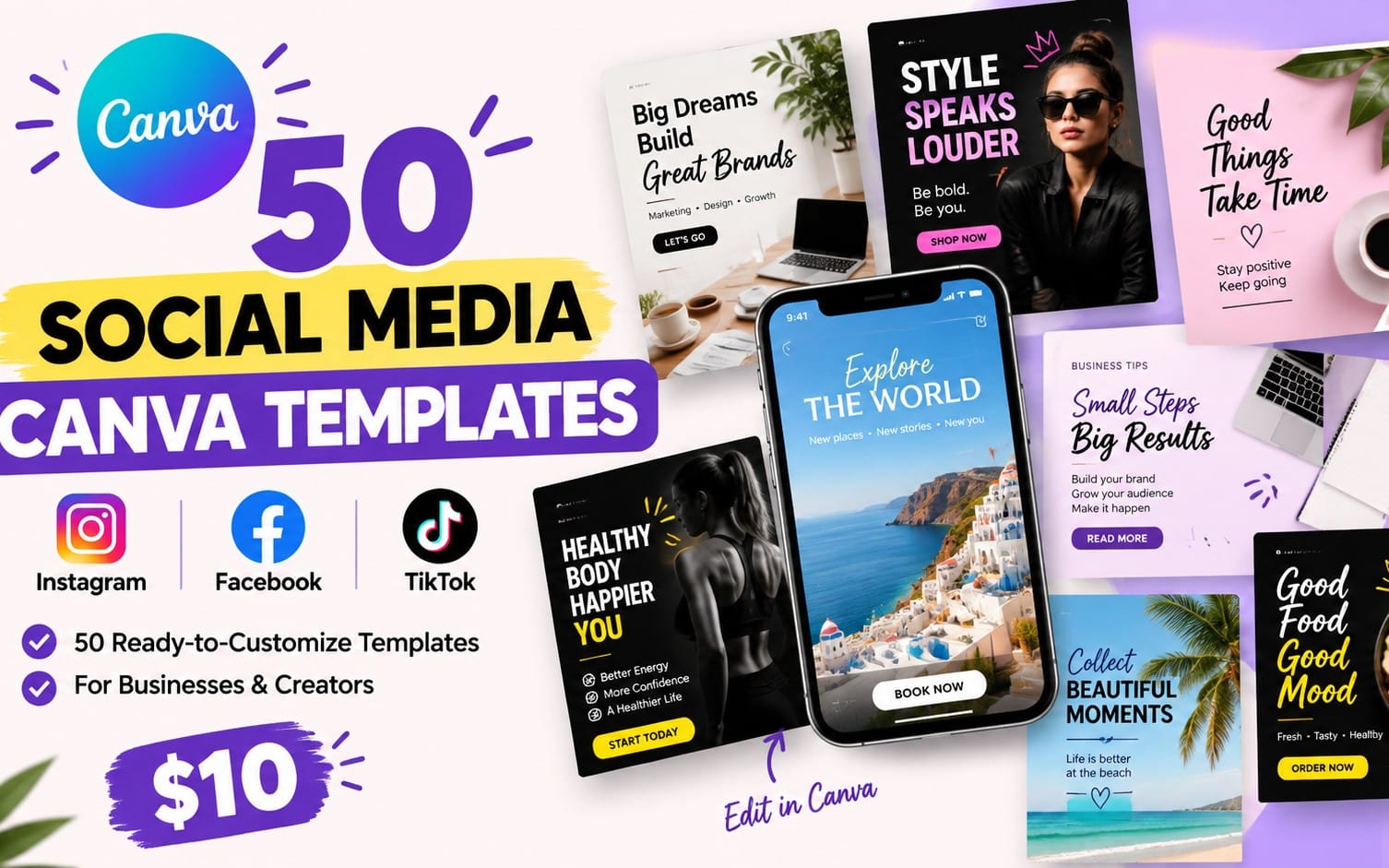
June 2026 is the month where your camera roll, your editing workflow, and your posting rhythm all need to line up. If you want more consistent photography content without burning hours on layout work, start with ready-made social media graphics free templates and plug in your images.
Below you will find 10 practical, photography-focused template ideas you can use fast, plus a workflow for turning free mockup templates, free stock photos, and photo editing presets into cohesive posts that look intentional.
- Use social media graphics free templates as layout scaffolds, then swap in your own photos for authenticity.
- Pair free mockup templates with a consistent color grade so your feed looks planned.
- Photo editing presets help you apply the same “look” across carousel slides and story frames.
- Pick a template category that matches your content goal: promos, portfolios, announcements, or daily series.
What are social media graphics free templates for photographers?
Social media graphics free templates are pre-made designs that give you a layout, spacing, and typography system you can reuse. You replace the placeholders with your photos, adjust the text, and export in the right sizes for Instagram, TikTok, and other platforms.
For photography, the real win comes from consistency. When you keep the same template structure across weeks, your portfolio looks like a series instead of a pile of posts. That pattern helps viewers recognize your style faster, even before they read your captions.
Template types photographers actually use
Most photographers don’t need complex brand systems to start. You need repeatable formats that match what you shoot and how often you post.
- Carousel templates for before-and-after edits, “5 tips” slides, or location spotlights.
- Story templates with framed photo areas for quick behind-the-scenes uploads.
- Poster or flyer templates for print announcements, mini sessions, or event dates.
- Quote or headline overlays that sit on top of a background photo.
If you keep your overlays consistent, your images do the emotional work while the design maintains clarity.
How to choose a free template without wasting time
Pick templates based on your posting goal for the month. If you want engagement, use carousel layouts that guide the eye. If you want inquiries, use promo templates that emphasize one clear offer.
Then check three practical details: export size, placeholder behavior, and how the design handles portrait images. A template that works with portrait photos saves you the most time.
Pro tip: Create a “master” folder for exports called IG Posts, Stories, and Carousels. When you reuse the same template sizes every week, your schedule stays stable and your visuals stay consistent.
How to use free mockup templates for photo branding?
Free mockup templates show your photos as if they appear on a product surface, like a poster, magazine cover, or framed wall print. You swap in the photo, adjust perspective if the template supports it, and export. The result feels more premium than a plain grid post.
Photographers often use mockups for portfolio previews, print shop promotions, or client-ready “this is what you will receive” visuals. Mockups also help you avoid repetitive post layouts while keeping your brand cohesive.
Best mockup angles for photography posts
You get more believable results when you match the mockup angle to your photo subject. Portraits look strong on vertical frames. Landscapes look right on wide posters or magazine spreads.
- Vertical frame mockups for portraits and headshots.
- Wide wall mockups for landscapes and architecture.
- Notebook or magazine mockups for editorial-style series.
- Card mockups for quick “feature” spotlights.
Use mockups to present a set: one hero photo plus two supporting images. That gives viewers context without turning your feed into an album dump.
Mockup workflow that keeps your edits consistent
First, edit your photos to one look. Then drop them into the mockup. When you reverse the order, colors can shift because the mockup’s lighting and overlays change how your image reads.
Use one consistent preset workflow for the whole set, and export at the final size so you do not resize too often.
Success story pattern: photographers who plan a monthly “series” use mockups for the hero image and story frames for the supporting shots. The feed looks curated, even when they shoot different days.
Where to find free stock photos for graphics?
Free stock photos help you build templates when you are practicing layouts, testing styles, or designing seasonal posts before your own shoot. You can also use them for texture backgrounds, soft bokeh layers, or generic lifestyle visuals behind text.
When you use free stock photos, treat them as placeholders, not your identity. Swap in your real photography as soon as you can so your feed stays authentic.
Use stock photos for background textures and overlays
Stock backgrounds work well behind typographic overlays, gradients, or subtle blur layers. They also help you build holiday-ready templates even if your photos are still editing.
- Search for light backgrounds that match your preset colors.
- Pick bokeh or soft-focus images for quote cards.
- Use city or studio textures for promo headers.
- Choose consistent aspect ratios to avoid heavy cropping.
This approach keeps you from spending time finding “the perfect photo” before you can post.
Keep a consistent look across stock and your photos
Apply the same color grade idea to your stock placeholders as you do to your originals. Even without exact preset matching, aim for the same contrast level, saturation range, and warmth.
When the set looks consistent, people read it as a brand. When it looks mixed, people notice the inconsistency instead of your photography.
Common mistake: Using free stock photos with a different color style from your camera edits. Your design may look fine, but your feed starts to feel disjointed.
Which photo editing presets help match social graphics?
Photo editing presets help you apply a repeatable “look” across images so your graphics and photos share the same mood. When you run the same preset logic on your portraits, landscapes, and product shots, your feed looks intentional even when you use different templates.
For photography posts, presets matter most for skin tones, sky color, and contrast. Small shifts in those areas create noticeable inconsistency when you publish frequently.
Preset goals for photography creatives
Use presets as starting points. Then adjust per image if lighting differs. Focus on a few anchors so every post shares DNA.
- Skin tone balance (warmth and tint)
- Highlights control (especially for bright skies)
- Color separation (so subjects pop)
- Noise and sharpening consistency
- Vignette level for the same “framing” feel
Once those anchors match, your templates will feel like they belong together.
Make presets work across carousel and story exports
Carousels usually show more detail because viewers can zoom. Stories often get compressed by platforms. So you should test your export settings with a few sample posts, then lock in the workflow.
After you export once, reuse that exact export path. That consistency beats constantly changing settings and chasing “perfect.”
80% of “cohesive feed” results come from consistent editing plus repeatable design layouts, not from using the most advanced tools.
Top 10 social media graphics free template ideas for June 2026
Here are 10 template ideas you can recreate quickly with social media graphics free layouts. Each one supports photography workflows and fits common content goals for June 2026.
Use this list as a blueprint. Pick the 2 to 3 that match your posting plan, then build a repeatable set around them.
1) Summer light carousel (3 to 5 slides)
Design a carousel that keeps the same headline style and background treatment on every slide. Use photo editing presets to keep highlights and skin tones aligned.
Slide structure: Slide 1 is the hero photo. Slides 2 to 4 focus on details. Slide 5 includes a simple call-to-action for prints, booking, or a portfolio link.
2) Before-and-after edit grid
Use a free mockup template or split-screen layout. Show the same photo with your preset applied. Keep the framing identical so viewers understand the edit impact.
Make Slide 1 “Raw vs Preset” and slides 2 to 5 break down what changed: exposure balance, color grade, and contrast shaping.
3) Instagram story frame with photo focus
Story templates should emphasize the image and keep text short. Use overlays for one phrase only, like a location, series title, or a behind-the-scenes note.
Use consistent typography color to match your preset mood. Export story frames in your platform-ready aspect ratio to avoid cropping surprises.
4) Portfolio highlight poster
Poster templates help you present a “best of” selection. Put one hero photo in the center and place smaller thumbnails around it.
If you sell prints, this is where mockups shine. Show the hero photo as a framed wall or poster mockup so your audience visualizes the final product.
5) Booking reminder template
Use a clean card design: one headline, one date block, and one image panel. Photography templates work best when they keep one offer per post.
Keep your text readable on mobile. Use your preset to ensure the background photo does not compete with the headline.
6) Location series template
Location templates turn your photos into a narrative. Put the location name in a consistent spot and keep the style fixed across shots from the same area.
Pair the series template with photo editing presets so colors match across different shooting times.
7) Tip-of-the-week carousel
Create a repeatable carousel template with a short header and one visual per slide. Each slide can feature one concept tied to your photography style.
Examples: composition grid overlays, lighting direction diagrams, or lens-choice examples. Use stock photos as temporary placeholders while you prep your shoot.
8) Client testimonial card layout
Testimonial templates can feel premium if you keep spacing and alignment strict. Add a photo strip with the client’s session highlights or a mood shot from the shoot.
Use one preset grade across all text-card backgrounds so the cards look like they belong in the same brand kit.
9) Seasonal promo story with mockup overlay
June content often performs well when you show a seasonal angle: prints, outdoor shoots, or lightweight portrait sessions. Use a story template with a mockup photo as the background layer.
Then add a minimal overlay with one benefit and one schedule line. Export as a story set you can reuse.
10) Color grade reveal graphic
Make a graphic that reveals your editing palette. Show one photo in a “warm summer” look, one in “cool editorial,” and one in “neutral clean.”
That template pairs perfectly with photo editing presets because viewers can instantly connect your style to the result.
Pro tip: Build these templates into a reusable set. Name files by template type plus aspect ratio, like “summer-light_carousel_1080x1350”. You will reuse them all month without rethinking the layout.
How to export and repurpose templates across platforms?
Template reuse breaks when exports get inconsistent. Your job stays simple: keep one design master, then export the right versions for each platform you use.
For photographers, the “platform mismatch” problem usually comes from cropping differences between portrait images, stories, and square posts. You solve it by choosing one safe photo framing and sticking with it.
Export checklist for photography templates
Before you schedule posts, check the following items. This saves you from repeated re-exports.
- Confirm the aspect ratio for each platform format.
- Verify text readability on mobile (no tiny captions).
- Check portrait photos for top and bottom safe zones.
- Run a quick test export on one template, then copy settings.
- Keep your image resolution consistent across the whole set.
When your workflow stays stable, your feed quality rises even if your posting volume changes.
Turn one design into a content system
After you finalize one carousel or card, repurpose the same visual system: use it for stories, add a mockup hero version for the grid, and convert the headline into a short caption graphic.
That approach reduces creation time because you start from a proven composition.
For creators expanding into motion graphics and text overlays, pairing your templates with prebuilt motion workflows can streamline the “graphics + photo” pipeline. If you already make video reels, you can combine design templates with an editing approach for overlays and text animation.
Examples of relevant product directions include AI and motion-focused assets like Product Title AI Text Animation Mastery: Create Viral Videos Without Showing Your Face for text animation workflows, or templates and presets for editing pipelines.
Get more consistency using the right asset mix
Free templates help you ship faster, but consistency comes from the asset mix: your photos, your presets, and your typography choices. When the presets match your design background style, your content stops looking like disconnected experiments.
Think of your workflow like a set of constraints. Constrain the look with presets. Constrain the layout with templates. Then remove the guesswork.
Recommended asset stack for photographers
You can build a stable production pipeline with these components.
- Social media graphics free templates for layouts you reuse.
- Free mockup templates for premium presentation shots.
- Free stock photos for temporary backgrounds while you edit your own images.
- Photo editing presets for a matching color grade across the set.
- A consistent export workflow so you avoid rework.
If you want preset-driven motion or text overlays, you can also add creator assets to your system. For example, creators who move beyond static posts often adopt ready-to-use motion or preset logic collections like 99+ Alight Motion Preset XML or preset-style logic assets for their editing stack.
- Pick 2 to 3 template formats for June 2026 and reuse them weekly with new photos.
- Use free mockup templates to sell the final result, not just the photo.
- Use photo editing presets so your feed color grade stays consistent across templates.
- Export with a checklist to avoid cropping and readability failures.
FAQ: social media graphics free templates and photo preset workflow
Are social media graphics free templates good for a photography portfolio?
Yes. Free templates work best when you use them as a layout system and swap in your own photos. That way you keep consistency while maintaining authenticity.
What should I use free mockup templates for?
Use free mockup templates to present prints, posters, and branded visuals in context. Mockups help viewers imagine the physical output, which improves clarity for offers.
Where do free stock photos fit into a photographer workflow?
Use free stock photos for background textures, placeholder design drafts, and layout testing. Replace stock images with your real photography before you publish to protect your brand identity.
Do photo editing presets matter for graphic consistency?
They matter a lot. Presets keep highlights, skin tones, and color balance consistent across posts, which makes your template layouts look cohesive instead of mismatched.
How do I avoid re-exporting social graphics every time?
Lock one export workflow per template type and keep aspect ratios consistent. Then reuse the same safe framing for portrait photos so text overlays never end up cropped.
If you want a calmer publishing month, choose one template format, apply one preset look across a mini set of photos, and export using the same checklist. That single change usually brings your feed together fast.
Getly Content Team