 Getly
Getly
By the end of this guide, you will know how to open a purchased Notion template, duplicate it into the correct workspace, and confirm that the copy contains the pages you expected. You will also know what to check when the Duplicate button does not appear.
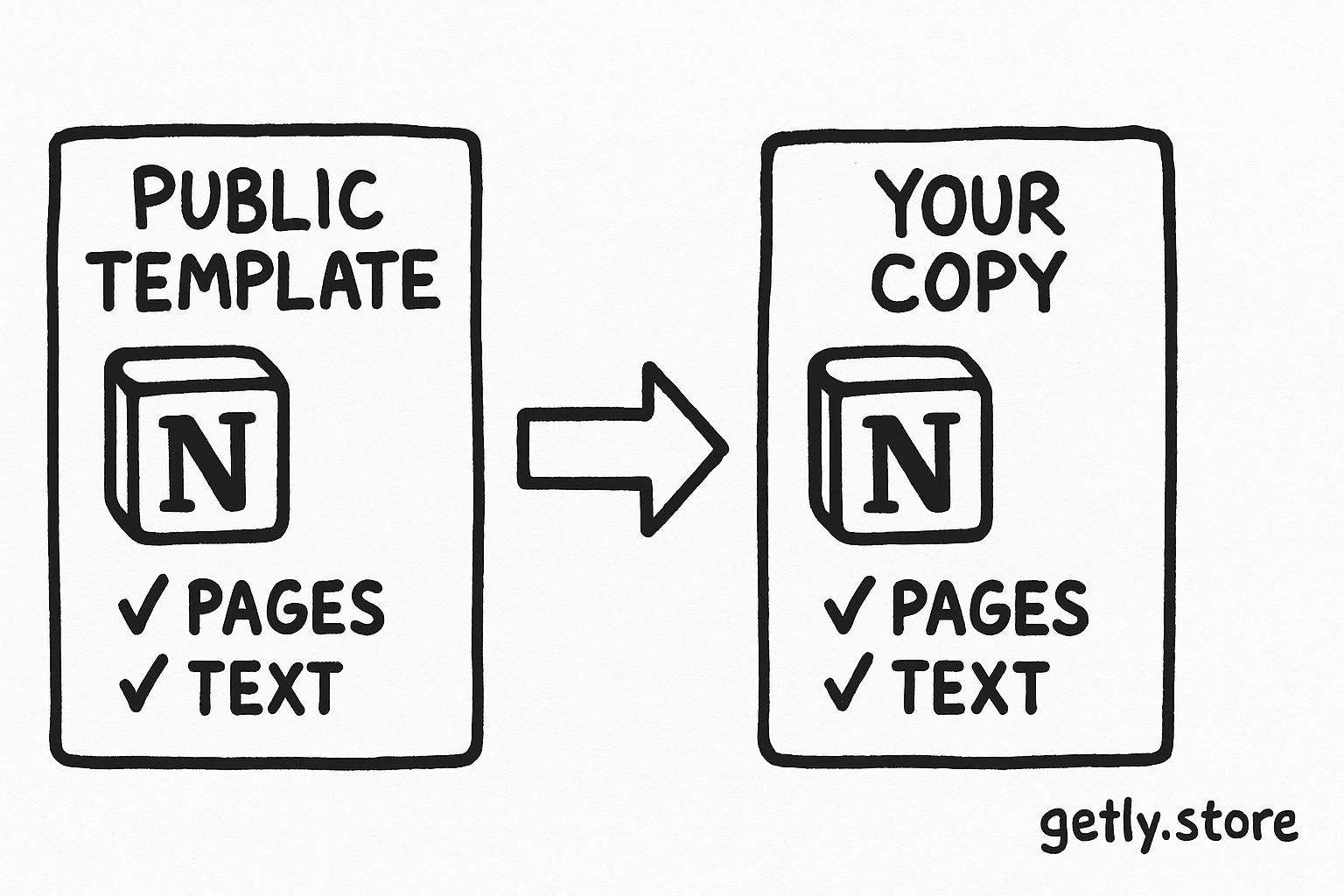
Notion calls this process duplicating a public page. That wording matters because you do not import the template as a file. You open the creator's public Notion page and create a copy in your workspace.
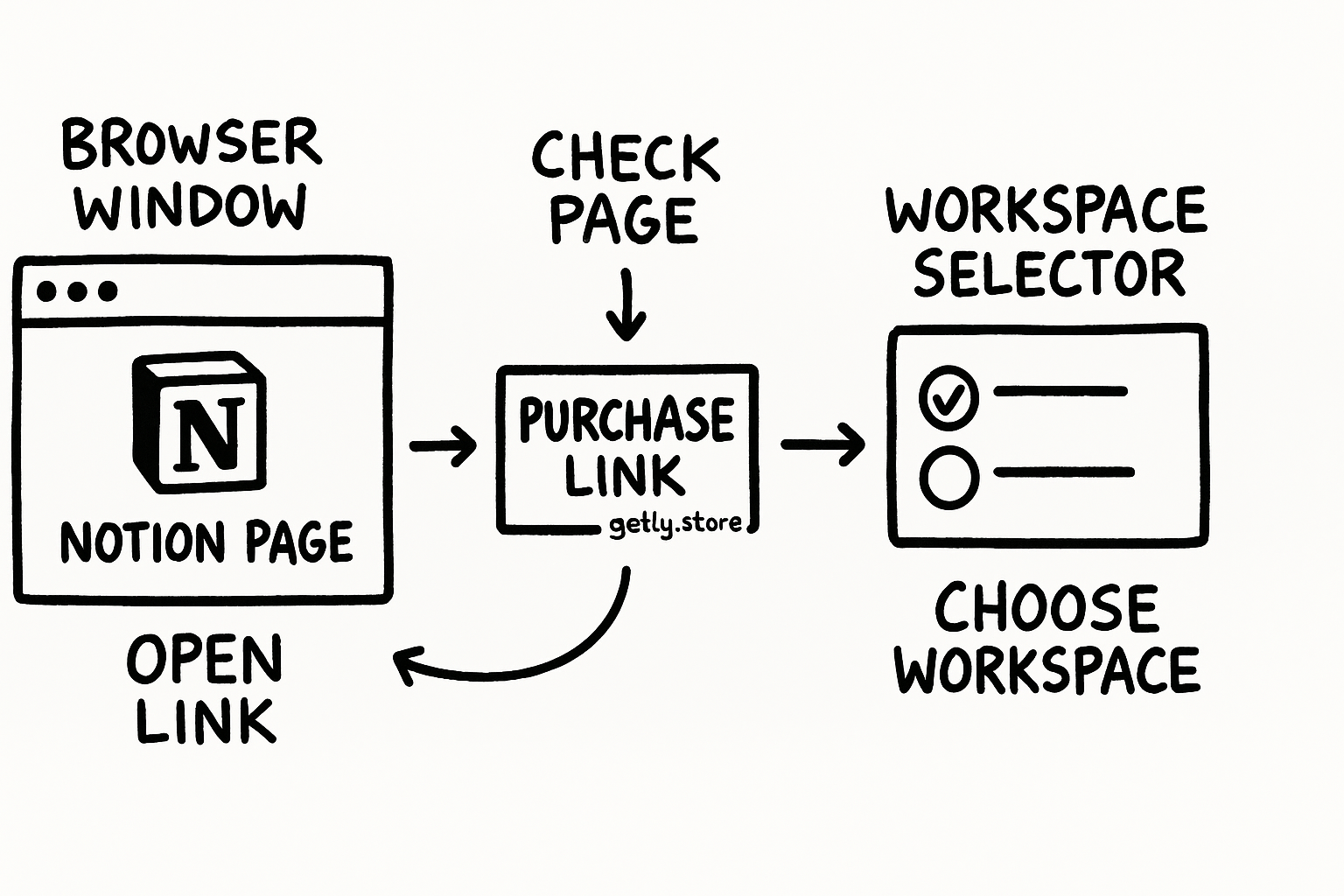
1. Open the template link
Start with the Notion link that came with your purchase. Open the link and check that it takes you to the template page rather than to a product description or checkout page.
Use the account and workspace where you want to keep the template. Notion asks you to select a workspace during duplication, so signing in first makes that choice easier to verify. If you use more than one Notion workspace, pause here and identify the one you use for personal projects, client work, or your business.
Look at the page before you duplicate it. Check the title, visible sections, and any page navigation the creator included. This quick review helps you spot a wrong link before you place a copy in your workspace.
Open the purchased link
Confirm that the link opens the creator's public Notion template page.
Check your account
Use the Notion account connected to the workspace you want to use.
Review the page
Compare the title and visible structure with the template you purchased.
2. Find Duplicate and choose the workspace
Find Duplicate in the upper-right area of the public page. Select it to start the copy process. Notion then asks you to choose a workspace.
Choose the workspace where you plan to use the template. This decision controls where Notion places the duplicated page, so read the workspace names instead of clicking the first option automatically.
After you select the workspace, follow Notion's confirmation step. Notion creates the duplicated page in that workspace. The page becomes your copy to organize and adapt for your own use.
The creator's public page and your duplicated page serve different purposes. Keep your attention on the new copy after Notion finishes the process. That prevents you from changing the public template by mistake and gives you a clear starting point for customization.
Do
- Choose the workspace that should contain the template.
- Read the workspace name before confirming.
- Continue from the duplicated page after Notion creates it.
Don't
- Click the first workspace without checking it.
- Assume the browser page itself has become your copy.
- Customize the public template before duplication finishes.
3. Confirm that the copy arrived
Once Notion completes the duplication, inspect the new page in the selected workspace. Check the page title first, then open the main sections and any sub-pages that came with the template.
A template often uses a page hierarchy. For example, a dashboard may link to setup instructions, a weekly planner, and a reference page. Open those sections one at a time so you can confirm that the duplicated page includes the structure you expected.
Use the page you duplicated as the working copy. You can now replace sample text with your own information, rename sections, and arrange the template around your workflow. Make changes after you confirm the copy, not while you still have the public source page open.
If the template includes sub-pages, inspect the parent page and several child pages before you start editing. This check gives you a practical map of the template and helps you notice a missing section early.
A quick verification pass
- Page identity: Check that the title matches the purchased template.
- Top-level structure: Open the main sections shown on the source page.
- Sub-pages: Open linked child pages and confirm that the expected hierarchy appears.
- Workspace: Check that the copy sits in the workspace you selected.
4. Start personalizing the duplicated template
Begin with the parts that make the template useful for your situation. Replace example names, dates, instructions, and placeholder content with your own. Keep the original page structure until you understand how the sections connect.
Work through the template in the order that the creator presents it. Setup pages often explain how the dashboard or planning pages fit together. Reading those instructions first can help you avoid deleting a page that supports another part of the template.
Rename pages only after you know what each page does. A clear title helps you find the page later, while an early rename can make the template harder to compare with the creator's instructions.
Save a simple record of the changes you make during setup. You might note which pages you renamed, which sample sections you removed, and which areas still need your information. That list gives you a practical handoff if you return to the template after a few days.
Keep the duplicated page as your working version. If you need to check the original layout or instructions, return to the creator's public link rather than treating your edited copy as the source.
5. Fix the common problems
The Duplicate button does not appear
Check whether the page owner allows visitors to duplicate the public page. Notion gives page owners an option called Allow duplicate as template. When the owner turns that option off, the public page does not offer the duplication control.
Return to the link you received and confirm that you opened the complete public page. A copied page title, screenshot, or partial link will not give you the same duplication flow as the creator's public page.
The copy went to the wrong workspace
Review the workspace choice you made during duplication. If you manage several workspaces, their names can look similar, so identify the intended workspace before you try the process again.
Do not edit the wrong copy while you investigate. Open the page and verify its location first, then restart the duplication flow from the purchased public link if you need a copy in another workspace.
The page looks different from the preview
Compare the public source page with your duplicated page. Open the main sections and sub-pages rather than judging the result from the first screen alone. A template can place useful material inside nested pages.
Check the source link again if the title or structure differs from what you purchased. The seller may have sent a link to a different page, or you may have opened an older or incomplete link.
Common mistakes to avoid
- Editing before duplicating: Make the copy first, then personalize it. This keeps your changes in the workspace you selected.
- Choosing the wrong workspace: Read the workspace selector carefully when Notion asks where to place the copy.
- Skipping the structure check: Open sub-pages before you delete or rename sections.
- Using a screenshot as the source: Return to the public Notion link so you can use the Duplicate control.
- Assuming every public page can be duplicated: The page owner must allow duplication through the public-page settings.
After the verification pass, the setup becomes a normal workspace task. Replace the examples, keep the sections that match your needs, and remove only the pages you understand.
Frequently asked questions
How do I import a purchased Notion template?
Open the creator's public Notion link, select Duplicate in the upper-right area, choose the workspace where you want the template, and complete Notion's confirmation step. Notion creates a copy in that workspace.
Why can’t I see the Duplicate button in Notion?
The page owner may have disabled the public-page option called Allow duplicate as template. Check that you opened the complete public Notion page rather than a screenshot, copied title, or partial link.
What should I check after duplicating a Notion template?
Confirm the page title, selected workspace, main sections, and sub-pages. Open the nested pages before you rename, delete, or replace template content.
Can I customize the duplicated Notion template?
Yes. After Notion creates the copy, use that duplicated page as your working version. Replace sample content, rename pages after you understand their purpose, and keep the structure that supports your workflow.