 Getly
Getly
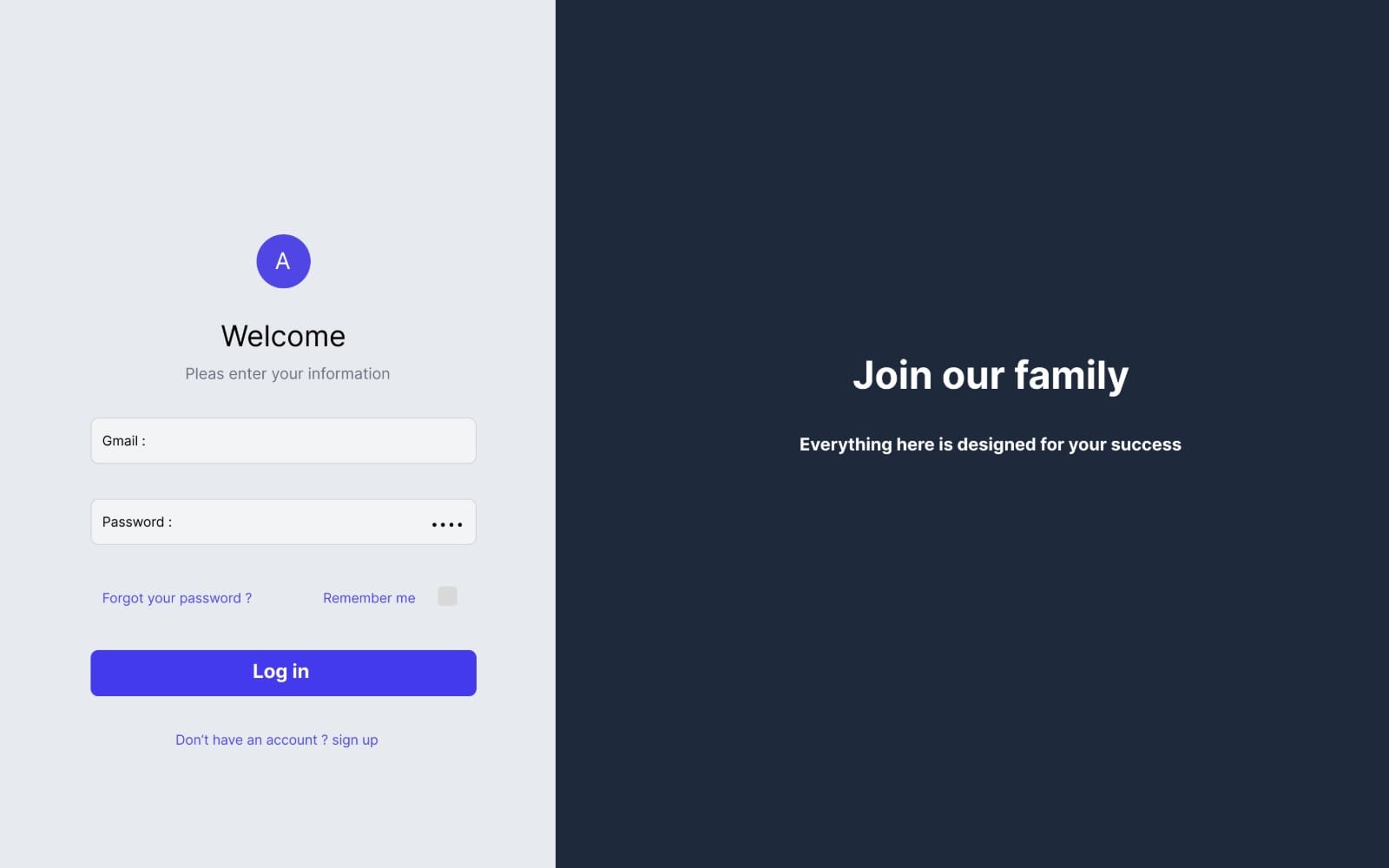
Dashboards decide whether users trust your product within seconds. In 2026, you can ship faster by mixing free Figma templates with a React UI kit that matches your component patterns. This guide shows practical options for dashboard template free workflows, including free wireframe templates and UI design resources you can adapt.
TL;DR: dashboard template free workflow in 2026
You can build a consistent dashboard layout without paying for every screen. The fastest approach uses a free Figma base, then maps the design to a React UI kit your frontend already supports.
- Start from a free Figma dashboard layout or free wireframe templates, then lock your spacing and grid rules.
- Pick a React UI kit early so your components match the design system, not your wish list.
- Use UI design resources like table, chart, and empty-state patterns to reduce design debt.
- Validate your dashboard on real data states: loading, empty, error, and long labels.
What is a dashboard template free package and why it matters?
A “dashboard template free” package gives you a ready layout for common dashboard sections: header, sidebar, filters, cards, tables, and charts placeholders. You save time because you skip the first-pass structure and focus on content, hierarchy, and component behavior.
In practice, free templates work best when you treat them like a starting system, not a final UI. You should adjust typography scale, spacing tokens, and component rules so your dashboard stays consistent across pages.
What you should look for in free dashboard templates
When you scan a template, prioritize structure and reusability. A good template lets you swap data density and states without rebuilding everything.
- Reusable components: buttons, inputs, cards, badges, table rows
- Layout grid that matches your target viewport range
- Clear hierarchy for titles, metrics, and subtext
- Data-state coverage: loading skeletons, empty states, and error panels
- Chart placeholders that don’t break when labels wrap
How templates reduce design debt in React builds
React dashboards fail when design and components drift. If your Figma “Card” looks like a card but your React “Card” component uses different padding, the UI feels off even when everything compiles.
Use the template to define the component contract. Then enforce that contract in React by aligning padding, border radius, font styles, and spacing rules to match what you planned in Figma.
Pro tip: Copy the template’s spacing and typography rules first. Rebuild the components later. This order keeps your UI consistent even if you swap sections or charts.
How to get free Figma templates for dashboards fast
The quickest way to find free Figma templates is to search by “dashboard” plus a constraint: “analytics”, “admin”, “SaaS”, or “responsive”. Free Figma templates also show up through “UI design resources” bundles that include wireframe templates.
Once you pick a candidate template, you should convert it into your own system. Rename layers, standardize styles, and replace one-off elements with component variants.
Search checklist for “free Figma templates”
Use a shortlist so you avoid template fatigue. Your goal is to find a base layout that already matches your dashboard’s information architecture.
- Dashboard type: admin, sales analytics, project management, or support metrics
- Navigation style: sidebar vs top-bar
- Widget set: cards, charts, tables, filters, and pagination patterns
- Density: comfortable spacing vs compact layouts
- Responsiveness: desktop-first with clear breakpoints
Turn any template into a usable system
Even the best free template becomes confusing when it mixes inconsistent components. Standardization makes the template useful for every future page.
- Map each element to a component: inputs, dropdowns, checkboxes, toggles, chips
- Create variants: sizes, statuses, and empty/error versions
- Set typography styles for headline, metric, body, and caption text
- Standardize corner radii and border thickness
Success pattern: teams that standardize card + table spacing early ship dashboards faster because every new page reuses the same layout logic.
Best react UI kit choices for dashboard layouts
The best react UI kit for your dashboard depends on your design goals: component density, theming, and how closely the kit maps to your Figma design tokens. Pick a kit that supports consistent Card, Table, Form controls, and Status badges.
When you align the kit with the template, you reduce mismatch issues like padding drift, inconsistent font weights, and duplicated “almost the same” components.
How to match a React UI kit to a Figma dashboard
Do a quick “visual contract” pass between Figma and React. Compare the template’s most repeated components to the UI kit components you plan to use.
- Cards: padding, border radius, shadow or border behavior
- Tables: row height, header typography, cell padding
- Inputs: label position, focus ring thickness, error style
- Badges: status colors and contrast rules
- Charts: wrapper sizes so labels do not overflow
React dashboard patterns that templates should include
Templates often provide the look. You still need patterns for behavior. These patterns keep the dashboard stable under real user inputs and real data.
- Filter bar with applied-state chips
- Table sorting UI and empty-state when filters return zero results
- Card loading skeletons so metrics feel responsive
- Pagination rules for consistent table scanning
- Notification area for success and error messages
Common mistake: You copy the template visually but ignore spacing tokens. The UI “looks right” at first, then breaks when you add new widgets or translate labels into other languages.
UI design resources: free wireframe templates and states
Free wireframe templates matter because they give you interaction structure before you polish visuals. For dashboards, wireframes usually define the sections users scan most: filters, KPI cards, activity lists, and tables.
Once you pick a wireframe, you can add fidelity using the same component mapping you planned for the React UI kit. This reduces rework when you later implement data states.
Wireframe templates that work for most dashboards
Instead of hunting for a “perfect” layout, pick a wireframe that covers your core screens. Then reuse the structure across pages.
- KPI dashboard overview wireframe: header + sidebar + metric cards + charts + recent activity
- Reports dashboard wireframe: filters row + chart section + table section + pagination
- Admin dashboard wireframe: user management table + role filters + status badges
- Empty-state wireframe: initial setup prompts and call-to-action placement
Data states you must design, even with free templates
Dashboards fail when teams design only the happy path. Users see loading spinners, blank data, and error messages all the time.
- Loading: skeleton cards, chart placeholders, and disabled filters
- Empty: “no results” messaging with clear next steps
- Error: an inline panel near the affected section
- Long text: table cells with safe truncation and tooltip rules
- Dense mode: compact layout for power users
How to adapt a free template into an export-ready dashboard
You can turn a free template into a React-ready dashboard by separating layout, typography, and components. Treat Figma like a spec, not a picture. Export-ready design means your assets and styles map cleanly to your component props and variants.
In addition, you should plan for accessibility and responsive behavior early, because dashboard UIs pack many UI controls into small spaces.
Make your dashboard design “component-first”
Start with the repeated parts, not the unique charts. Create a component library that matches your UI kit, then place those components into the dashboard layout frames.
- Define component variants for status (success, warning, error) and size (sm, md, lg)
- Lock typography styles for metric numbers, labels, and helper text
- Set consistent spacing between stacked widgets
- Use consistent empty-state templates across pages
Prepare for responsive dashboard behavior
Free templates often look good on desktop. You should still design the dashboard behavior on smaller screens to prevent broken filters, clipped table columns, and unread cards.
- Decide when the sidebar collapses or becomes a drawer
- Choose a table strategy: horizontal scroll vs stacked rows
- Reduce chart label density on smaller widths
- Keep primary actions visible, hide secondary actions behind menus
Pro tip: Build one “stress test” dashboard screen. Put in long names, high numbers, and zero results. That screen reveals 80% of layout issues fast.
Where paid UI resources can complement your free Figma setup
Free templates help you get started, but paid assets can accelerate polish when you need specialized sections or production-ready UI patterns. The key is to buy the pieces you cannot reasonably design in an afternoon.
For example, if you need a dashboard hero area, animated text, or high-quality visual assets for onboarding, you can pair those with your free dashboard layout and React UI kit components.
Ideas to pair with dashboard templates
Use paid resources to fill gaps without changing your dashboard structure. Here are a few categories of assets that often plug into dashboard workflows.
- Landing or onboarding visuals (great for dashboards with product tours)
- Animation assets for empty states or tutorial overlays
- Content tools that help you generate consistent dashboard copy
- Specialized visual effects when the dashboard needs standout moments
Examples from Getly you can integrate (optional)
If you already maintain a Figma dashboard system, you can incorporate a few production assets into your layout frames. For instance, you can add animated headline behaviors with a text animation asset.
Product Title AI Text Animation Mastery: Create Viral Videos Without Showing Your Face can support dashboard onboarding moments where you want motion without relying on a full UI redesign.
Similarly, if your dashboard includes creative workflow previews, you can extend the visuals with motion presets. For example, 99+ Alight Motion Preset XML offers a way to standardize motion style across product clips or tutorial updates.
If you need tools for consistent product copy inside onboarding cards or dashboard tooltips, you can use AI Product Description Generator — Bulk GPT Tool to speed up draft text. Keep your final tone consistent with your design system and brand voice.
- Free Figma dashboard templates work best when you convert them into a token-driven component system.
- Match your React UI kit components to your Figma Card, Table, and Form rules to avoid padding drift.
- Design loading, empty, and error states from day one, even if your template already looks complete.
- Add paid assets only where they replace costly work, like specialized animations or bulk content generation.
FAQ: free Figma templates and React UI kit for dashboards
Where can I find dashboard template free resources in 2026?
You can find dashboard template free resources by searching Figma community-style keywords like “admin dashboard”, “analytics dashboard”, and “responsive dashboard wireframe”. Focus on templates that include components and states, not only static screenshots.
After you download, standardize typography and spacing so the free template becomes your system.
What should a react UI kit include for a dashboard?
A strong react UI kit includes consistent Cards, Tables, Form controls, and status/badge components. Those parts cover most dashboard needs: filtering, displaying KPIs, and handling data states.
Match kit components to your Figma rules for padding, border radius, and font weights.
How do I use free wireframe templates without rebuilding everything?
Use the wireframe template to lock your information architecture: header, sidebar, filter region, metrics/cards region, and the main data table or chart section. Then replace the placeholders with your React component variants.
Keep one “stress test” screen to catch layout issues early.
How do I ensure free templates look consistent across pages?
Rename layers and convert repeated visuals into a small component library: buttons, inputs, cards, and table rows. Then enforce spacing tokens so every page shares the same rhythm.
Consistency matters more than the exact look of any single widget.
Can I ship a production dashboard using only free assets?
Yes, if you treat free templates as a foundation and you design missing states and interactions. Teams ship production dashboards with free layouts by standardizing components and validating behavior with real data.
If you later need specialized visuals or motion polish, add paid assets only for the gaps that cost time to build.
Thanks for reading. Build one dashboard screen you can trust, then expand using the same template rules across every new page. If you want a starting point, browse more dashboard and UI template options on Getly when you’re ready.
Getly Sellers Team