 Getly
Getly
Indie teams ship faster when they stop rebuilding the same pixels. If you want free game assets for your 2D project, you need more than a random image dump. You need a practical way to find usable free 2D game sprites and a game UI kit free that fits your style, your scope, and your release timeline.
This guide walks you through a concrete workflow for sourcing, evaluating, and integrating free sprites and UI elements in 2026. You will also get a few production-ready tips for building UI polish without spending weeks on animation or shaders.
- Use a checklist to verify sprite consistency (resolution, pivot points, color space) before you ever download game assets.
- Build your 2D UI from a “system” (buttons, states, spacing rules) so a game UI kit free asset still scales across screens.
- Prefer licensing clarity and multi-use rights when you ship to Steam, web, or mobile.
- Speed up iteration by pairing UI kits with a text animation pass and reusable transitions.
- Track what you borrowed and where it came from to avoid last-minute rework before launch.
What is a free 2D game sprites workflow for indie teams?
A free 2D game sprites workflow treats downloaded assets like a kit of parts, not like a final art solution. You pick a target look, validate compatibility, then assemble sprites into a coherent set using consistent rules for scale, pivots, and naming.
Most indie rework happens because teams skip validation. A sprite sheet can look good in isolation and still fail inside your engine because frames misalign, edges blur, or animation timing does not match your gameplay loop.
Step 1. Define your “sprite spec” before you download
Lock a few numbers before you grab assets. Set a target resolution (for example, 320px tall characters, 16px grid UI), define whether you work with pixel art (nearest-neighbor scaling) or smooth sprites, and decide your maximum texture sizes.
Then add simple rules that keep your kit coherent: consistent pivot location (usually character feet for actors), frame order conventions, and a naming pattern that mirrors your game states.
Step 2. Validate compatibility on day one
When you evaluate assets, check them in your engine immediately. Drop a sprite sheet into a test scene, place it beside your existing art, and zoom to your actual gameplay scale.
Do not wait until you finish your UI. Validate the sprite sheet first, then build UI around it so button sizes, fonts, and spacing match the art scale you picked.
Pro tip: Create a one-screen “Asset Lab” scene. It holds sample sprites, buttons, icons, and a few UI transitions. Every time you download game assets, test them there. You prevent compatibility surprises from turning into late production work.
How to find free game assets that actually fit your game?
Finding free game assets is easy. Finding free assets that fit your pipeline is harder. You need to search with intent and filter for assets that match your art direction, technical constraints, and licensing expectations.
In 2026, search quality matters more than raw quantity. AI search and visual search workflows help you locate close matches, but you still need to check practical details like frame layout, sprite sheet padding, and UI state coverage.
Use “constraints-first” searching
Start with constraints that describe your project, then refine. If you need 16x16 tiles for a top-down roguelike, search for “pixel” and “tileset” rather than “2D sprites.” If you need character idle and run cycles, search for “idle run” or “character animation sprite sheet.”
Then filter by formats and compatibility. Your engine and tools decide what matters. For example, some assets import cleanly into Unity workflows while others require manual slicing.
Audit licensing and usage scope early
Free does not always mean unrestricted. Before you commit to a kit, confirm the intended usage: personal vs commercial, redistribution rules, and any restrictions about game engines or platforms.
If the asset author offers multiple license tiers, pick the tier that matches your distribution plan. For indie games, you often need at least a commercial-ready license if you plan to sell on storefronts.
Common mistake: Downloading free 2D game sprites and building levels before you verify the license. If the author later restricts commercial use, you end up replacing art right before release. Validate early, even if it feels slower.
Best free 2D game sprites categories to prioritize in 2026
The best free 2D game sprites for indie games prioritize gameplay visibility and reuse. Your time goes further when you pick assets that cover multiple systems: movement, combat states, UI-friendly icons, and reusable environment elements.
In practice, your first download batch should cover what players see most and what drives UI feedback. That reduces the number of unique assets you need and stabilizes your art direction across your whole game.
Start with characters and core animation states
Build a minimal player and enemy animation set. Focus on idle, walk/run, attack, hit reaction, and death or knockback. Even if you simplify combat later, these states establish your timing and animation readability.
After you validate player movement, add a small set of environment sprites and interaction prompts. Those assets define how the game communicates with the player.
Then add UI-friendly icons and effects
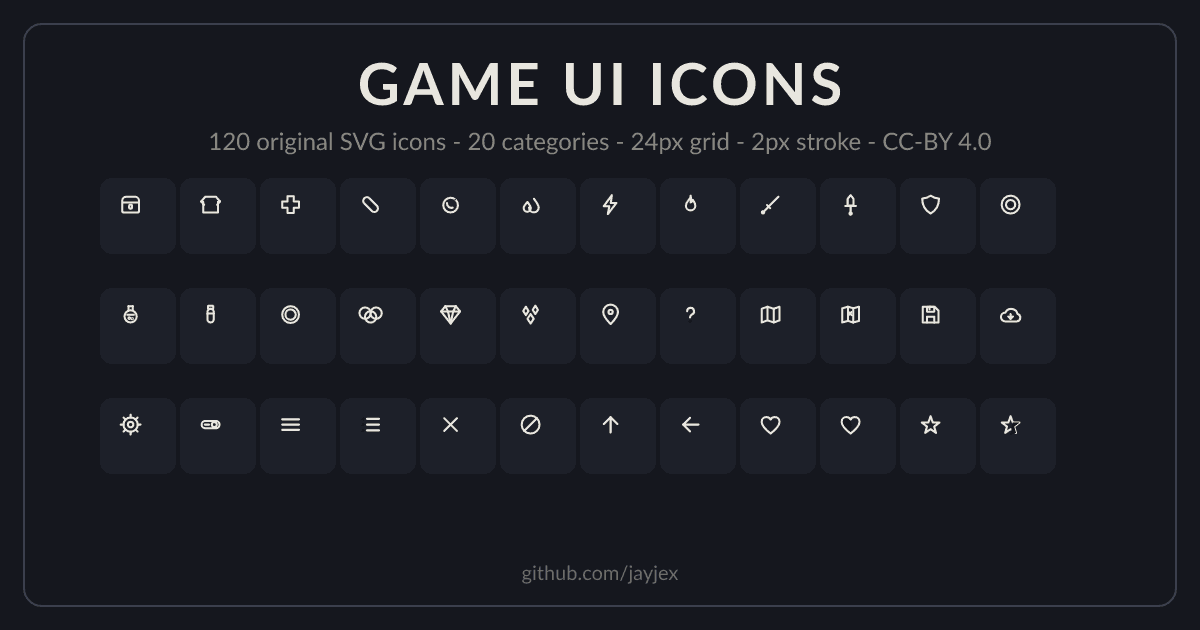
Icon sprites and small effects (damage numbers, hit sparks, status icons) connect directly to your HUD. A game UI kit free becomes more useful when it includes icon placeholders that match your art style and line thickness.
Effects also help you “sell” feedback without building new animations every time. You can reuse the same effect sprites for multiple abilities by swapping color tints or swapping frames.
How to use a game UI kit free without breaking your visual system?
A game UI kit free works best when you treat it as a UI system, not a set of one-off screens. You set spacing rules, define button states, and standardize typography so the kit fits your HUD and your gameplay readability.
Indie UI often fails because assets do not share the same assumptions. One kit uses thin outlines, another uses thick strokes, and a third uses different padding. Your job is to unify those assumptions through layout rules.
Build UI rules: grid, spacing, and states
Define how UI elements sit on the screen. Many teams start with a simple grid: align buttons to an 8px or 16px baseline, keep consistent margins from screen edges, and limit font sizes to a small set.
Next, map button states. A robust kit includes default, hover, pressed, disabled, and sometimes focused states. If the kit only includes one button style, you need a plan to derive the rest using consistent color and outline changes.
Connect UI scale to sprite scale
When your UI uses the same scale logic as your sprites, the game feels intentional. If your characters occupy a 320px vertical band, choose HUD sizes that align with readable on-screen proportions at your target resolution.
Test UI against gameplay moments. Put the HUD over an effect-heavy scene, then check legibility. You want players to read health, ammo, quest updates, and notifications at a glance.
Success pattern: Teams that standardize UI spacing on day one usually cut UI rework by replacing screens instead of redesigning layouts. One consistent button size and one consistent icon size carry across menus, inventory, and settings.
How to speed up UI polish with shaders, animations, and templates?
You can make UI feel “premium” by adding polish passes instead of redoing the whole kit. Use small shader-like effects (glows, outlines), text motion, and transitions to create depth while keeping your art budget stable.
In 2026, indie teams also benefit from mixing UI assets with lightweight animation workflows. Text animation, menu transitions, and notification pop-ups create the illusion of complexity while reusing the same UI kit components.
Polish pass checklist for a 2D UI kit free
Apply polish in a tight loop. Change one thing at a time, test it, then lock it. This keeps your UI consistent with your sprite style and avoids visual noise.
- Add a single highlight style for buttons (hover + pressed).
- Use one outline or one glow color palette across the HUD.
- Animate only the parts that improve feedback (labels, numbers, prompts).
- Keep notification motion short: quick in, quick settle.
- Ensure focus and disabled states remain readable under bloom or post-processing.
Pair your UI kit with reusable text motion
Text motion works because it guides attention. Animate quest updates, damage numbers, or tutorial steps using consistent easing curves and short durations.
If your project uses AI-assisted workflows for marketing or in-game text previews, you can also generate motion-ready text layouts for trailers. That keeps your presentation consistent with the game UI style you built.
For example, creators often use text-focused video presets and animation tools to prototype visuals quickly. If you want a ready-made workflow for titles and overlays, you can check an AI text animation resource like Product Title AI Text Animation Mastery: Create Viral Videos Without Showing Your Face and adapt the pacing to your game UI transitions.
Where to download game assets safely and fast in 2026
You can download game assets quickly and still stay organized. The goal is to keep your project shippable while you experiment with free sprite packs and UI kit components.
Use a folder structure that mirrors your game. Store raw downloads separately, then place sliced or exported assets into engine-ready directories with clear version labels.
Organize downloads like you will audit them
When you store assets with a clean record, you avoid the “mystery sprite sheet” problem. This matters if you switch UI themes or if you need to replace assets due to licensing changes.
- Create folders for Raw, Imported, and In-Use assets.
- Save a README file with the source, author, and license notes.
- Record the sprite spec you used to validate it (scale, pivot, frame order).
- Keep UI kit components grouped by function (buttons, icons, panels, bars).
- Tag assets by “game state” so you find them during implementation.
Choose kits that reduce your future workload
When you evaluate a free UI kit or sprite set, ask one practical question: how many unique screens will you build using the same components. A kit that includes icons, panels, and buttons often saves more time than a kit that focuses only on one hero animation.
For 2D games, also prioritize kits that follow consistent style assumptions. The more coherent the design language, the less time you spend reconciling stroke widths, saturation, and spacing.
If you later decide you need extra production assets (for example, an animation preset or a material converter for pipeline work), you can browse focused creators. Some sellers on Getly offer production-friendly assets across formats and workflows, such as UI and animation-related packs and converters like Unreal to Unity Material Converter.
Don’t confuse “free” with “drop-in.” Even the best free 2D game sprites often need slicing, re-exporting, and naming normalization. Plan an hour for import cleanup per asset pack so your game code does not fight inconsistent frame layouts.
FAQ: Free 2D game sprites and game UI kit free
Where can I download free 2D game sprites for indie games?
Look for assets that include clear sprite sheet structure (frame rows and columns), licensing info, and consistent style notes. Your best results come from searching by gameplay needs (idle run, hit reaction, UI icons) instead of generic “2D sprites.”
Always validate in-engine right after downloading so you catch pivot, scaling, and import issues early.
What should I check before I use a game UI kit free?
Check button states coverage (default, hover, pressed, disabled), font readability, and spacing assumptions. Confirm the kit’s visuals still match your sprite scale at gameplay zoom levels.
Then test UI over your intended background and effects so you avoid legibility problems later.
Can free game assets hurt my release if the license is unclear?
Yes. If a creator restricts commercial use or redistribution, you can face forced replacements before release. Validate license scope before you build core systems around the art.
When a pack offers multiple tiers, pick the tier that matches your distribution plan for 2026 storefront launches.
How do I keep sprite animations consistent across multiple free packs?
Standardize timing and frame order in your engine. Use one pivot convention (for example, character feet), one scale target, and one naming approach for state animations.
Create an Asset Lab scene and retest every new sprite sheet under the same camera and lighting conditions.
What’s the fastest way to make a free UI look finished?
Add a small set of polish passes: consistent outlines or glows, short notification animations, and unified button hover feedback. Keep motion subtle and reuse the same easing and duration rules across the HUD.
That approach lets you leverage a game UI kit free while still achieving a cohesive, shippable look.
Free assets accelerate your project when you validate them early and integrate them with a system mindset: spec first, audit second, polish last.
If you want a simple next step, pick one sprite set and one UI kit component, then build a single test screen today. Once it looks right at gameplay zoom, expand from that foundation.