 Getly
Getly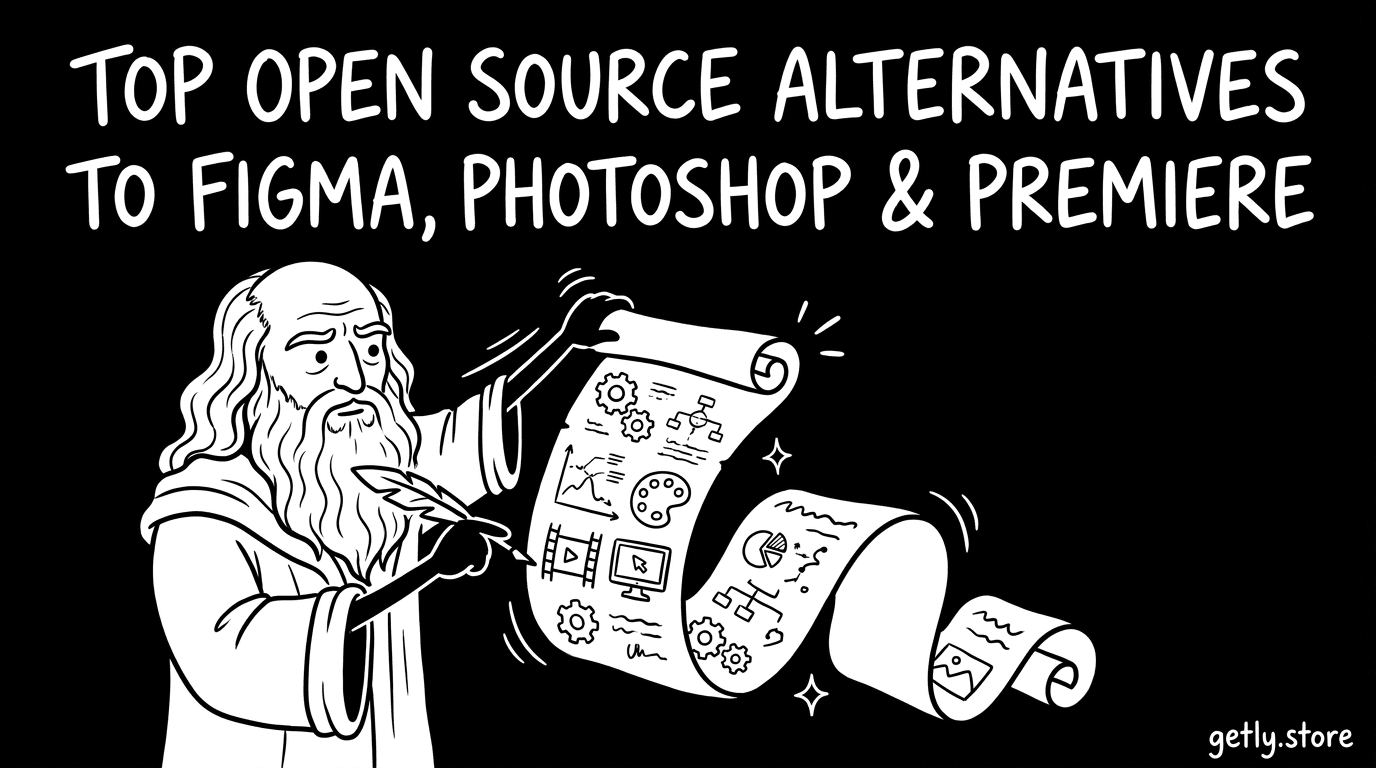
Designers, editors, and creators are tired of paying for “access” to everyday tools. In 2026, the open-source ecosystem is strong enough to replace major paid apps-at least for many workflows. Below are the best open source alternatives to Figma, Photoshop & Premiere, plus practical setup tips so you can ship real work.
TL;DR: Best open source alternatives in 2026 for creators
If you want a fast decision: choose tools that match your output format, team workflow, and your tolerance for plugin-heavy setups. Open source is excellent for customization, offline use, and long-term ownership.
- Figma alternatives: use Inkscape for vector UI assets and Krita/GIMP for art handoff; for collaborative editing, you’ll rely on file sync + exports (unless you use community projects).
- Photoshop alternatives: GIMP is the closest “free heavyweight,” especially for raster editing and batch workflows.
- Premiere alternatives: Shotcut, Kdenlive, and DaVinci Resolve (free tier) cover most editing needs; open-source is best for basic-to-mid workflows.
- Developer-friendly pipeline: prefer tools that export clean SVG/PNG, support scripting, and integrate with CLI tools and Git-based asset repos.
What are the best open source alternatives to Figma in 2026?
Figma’s core value is collaborative UI design, component thinking, and fast iteration. Open source alternatives rarely replicate “real-time multiplayer + libraries” 1:1, but they can cover the design production side: vector editing, icon creation, layout assets, and handoff.
So the right question is: which parts of your process are you replacing-vector design, prototyping, or collaboration? Most teams can swap the design canvas and keep collaboration via version control + exports, or by using lightweight sync workflows.
Inkscape: the free design tool for vector UI assets
Inkscape is one of the strongest open source developer-friendly design tools because it treats vectors as first-class citizens. You can build icons, logos, UI elements, and SVG-based components that map directly to front-end implementations.
In practice, Inkscape excels when you want assets that stay crisp at any resolution and can be converted reliably (SVG → PNG @ multiple sizes) for production. It also integrates well into automated pipelines where you export assets from source-of-truth files.
Practical workflow: SVG-first handoff to engineering
A developer-friendly design workflow usually means “design once, export many.” Start with SVG sources, then generate raster outputs for places that don’t support SVG. This avoids inconsistent exports across teammates.
Here’s a workflow that works well in 2026:
- Create vector assets in Inkscape (SVG as the source format).
- Commit SVGs to a repo (or asset system) so changes are traceable.
- Export PNG variants (e.g., 1x/2x/3x) on demand using a build script or batch export.
- Use Git history to review design changes like code.
Success pattern: Teams that adopt “SVG-first” reduce asset mismatch bugs and speed up UI reviews-because every export is derived from the same vector source.
Pro tip: If your designers are used to component libraries, create a small internal “asset contract” (naming rules, export sizes, padding conventions). Even without a Figma library system, you’ll get predictable handoffs.
How to choose GIMP vs Photoshop (and when to switch)
For many creators, the decision is simple: GIMP vs Photoshop comes down to whether you need industry-specific plugins, proprietary file workflows, or the fastest possible UI for complex edits. GIMP is powerful, capable, and free-especially for batch processing and image manipulation.
In 2026, the biggest advantage of GIMP is cost and control: you can run it locally, customize workflows, and store everything with your project files. The biggest disadvantage is that you may need to adapt to different tool behavior and occasionally hunt for plugin equivalents.
GIMP strengths for real creator workflows
GIMP is not just a “Photoshop clone.” It’s a full raster editor with extensibility. It’s especially strong for:
- Batch edits (watermarks, resizing, consistent color adjustments)
- Layer-based compositing for thumbnails, banners, and product images
- Plugin-driven capabilities to extend effects and import/export needs
- Automation possibilities via scripting and repeatable actions
If you’re building a content pipeline (e.g., weekly images for social + stores), GIMP’s repeatability often matters more than having the “perfect” UI.
What to watch out for when migrating
Photoshop users sometimes hit friction around brush feel, blending modes, and filter parameters. The goal shouldn’t be “exact parity”-it should be “same output quality” and “consistent workflow.”
Common migration adjustments:
- Validate color management early (especially if you export for print).
- Confirm how your team’s assets are stored (PSD-centric vs open formats).
- Standardize export presets (size, DPI, compression) so outputs match expectations.
Common mistake: Switching to GIMP but keeping ad-hoc export settings. That leads to inconsistent thumbnails and “why does this look different?” issues. Create and reuse export presets immediately.
What are the best open source developer tools for graphics pipelines?
When people say “open source alternatives,” they often mean end-user apps. But the most reliable creator workflows usually combine apps with developer tooling: scripting, validation, and deterministic exports.
In 2026, the best approach is to treat graphics as artifacts produced from source files (SVG/EXR/PSD-like equivalents) using repeatable commands and scripts.
Design system-friendly formats: SVG, PNG variants, and metadata
From a developer standpoint, the formats you pick decide how painful automation becomes later. SVG is great for vector UI assets; PNG is great for raster outputs; EXR is great for certain professional pipelines; and metadata helps keep exports traceable.
To keep teams aligned, establish a “format map.” Example:
| Source format | Output targets | Why it matters |
|---|---|---|
| SVG (from Inkscape) | PNG 1x/2x/3x, web-ready SVG | Perfect for UI icons and responsive assets |
| Raster (from GIMP) | PNG/JPG for social + store | Fast editing and consistent exports |
| Layered formats | Flattened deliverables | Preserves editable history in your project folder |
CLI-friendly automation beats manual exports
Even if your workflow starts in a GUI tool, automation is what removes errors. A scripted export step ensures that every teammate generates assets with the same settings.
Build a simple pipeline:
- Export raw assets from your editor (SVG/PNG layers)
- Run a conversion script to generate standardized deliverables
- Lint file naming, sizes, and dimensions
- Upload or distribute outputs via your existing process
Pro tip: Store the editable “source” files, not just the exports. Then your pipeline can re-render future resolutions without quality loss (especially with vectors).
What are the best open source alternatives to Premiere in 2026?
Premiere Pro is often chosen for its timeline workflow, effects ecosystem, and project organization. The open-source ecosystem in 2026 is strongest for timeline editing with solid playback, and then you choose optional plugins/effects based on your needs.
If you’re doing YouTube, podcasts, reels, or short-form production, open-source options can cover most requirements-especially when combined with good media organization and consistent export settings.
Kdenlive vs Shotcut: practical differences
Kdenlive and Shotcut are two of the most frequently recommended open-source editors for creators. They both work well for many standard tasks like cutting, transitions, audio syncing, and basic color adjustments.
Here’s the quick decision rule:
- Kdenlive is great when you want a more structured editing timeline experience and a flexible workflow.
- Shotcut is great when you want a straightforward editor that’s easy to get productive with quickly.
When you should consider DaVinci Resolve (free tier)
Not all “free” alternatives are open source. However, DaVinci Resolve includes a free tier that many editors use as a serious grade/color solution. In 2026, pairing an open-source timeline editor with a free grading tool can produce excellent results.
Use this strategy if:
- You need advanced color grading and more polished results.
- You want to keep editing free/open while still achieving pro-level grading.
- Open source can replace the design production layer (vector/raster) even if collaboration features differ.
- GIMP vs Photoshop is usually a workflow migration problem, not an ability problem.
- Developer-friendly pipelines require standardized formats and repeatable exports.
- For video, open-source editors handle most timeline work; free grading tools can fill gaps.
Best free software for creators: compare features & fit
To pick the right tool, you need a “fit” checklist: output needs, file formats, learning curve, and integration with your workflow. Below is a comparison focused on practical outcomes rather than marketing features.
Use it to decide which open-source alternative best matches your day-to-day work.
| Tool | Best for | Output strength | Typical trade-off |
|---|---|---|---|
| Inkscape | Vector assets, icons, UI elements | SVG + predictable raster exports | Not a Figma-style collaborative prototyping tool |
| GIMP | Raster editing, compositing, batch work | Layered PNG/JPG workflows | Some PSD-centric workflows require adaptation |
| Krita | Digital painting and illustration | Brush workflows + export flexibility | Less “general UI asset” focus than Inkscape |
| Kdenlive | Timeline editing for creators | MP4 exports + common effects | Advanced pro workflows may require extra setup |
| Shotcut | Quick editing, lightweight timeline | Fast iteration exports | Some editors prefer Kdenlive’s workflow depth |
| DaVinci Resolve (free tier) | Color grading and finishing | High-end grading output | Not fully open source; adds another tool to learn |
Warning: Don’t judge a tool by “the first tutorial.” Open-source tools often shine after you set up presets, templates, and export scripts. Give yourself a week to build a repeatable workflow before deciding.
How to set up a creator workflow using open source tools
Replacing paid software isn’t just about installing apps-it’s about rebuilding your pipeline so outputs remain consistent. The fastest way to success is to set up templates for your most common deliverables.
Think like an engineer: define inputs, define outputs, then make the steps repeatable. That approach also reduces creative friction because you’re not deciding settings every time you work.
Step-by-step pipeline for design + video content
Here’s a concrete setup you can apply to most creators producing thumbnails, banners, and short videos.
- Design assets: create icons/UI vectors in Inkscape (SVG source).
- Raster edits: use GIMP for layered image work (thumbnails, overlays, compositing).
- Templates: save export presets (sizes, formats, compression) for each platform.
- Video edits: cut timelines in Kdenlive or Shotcut.
- Finishing: if needed, move the graded sequence to Resolve free tier.
- Consistency checks: run a quick naming + dimension check before publishing.
Use bundles, presets, and multi-license thinking
If you sell templates or digital assets, your workflow matters twice: once to create the product, and again to update it. Open formats and standardized exports make updates cheaper and faster.
Consider structuring your product deliverables as:
- Source files (editable)
- Exported deliverables (ready to use)
- Documentation (what to edit, what to keep untouched)
This “developer packaging” mindset is the difference between a one-off file and a productized asset.
Pro tip: If you’re building reusable creator assets, document your workflow like an API: inputs, outputs, and constraints. Your customers will thank you (and fewer support tickets follow).
Where open source meets strategy: packaging and creator economics
Tool choice is only half the story. In 2026, many creators build income by turning their workflows into products-presets, templates, shader systems, import/export pipelines, and guides. Open source tools help because they reduce licensing costs and keep you independent.
The practical strategy is to package your output in a way that is easy for customers to adopt, even if they use different editors.
Productize your workflow (without locking people in)
When you sell creative assets, you’re selling time savings. Customers care about how quickly they can get results, and how reliably exports match their projects. Open-source workflows support that because they encourage transparent file structures.
Examples of product-style deliverables that benefit from open pipelines:
- SVG icon packs and UI kits with standardized naming
- GIMP layer sets for quick thumbnail variations
- Video templates (timeline-ready) and LUT-style assets
- Developer-adjacent import/export workflows for 3D/2D pipelines
Curate your learning path alongside tools
Tool competence grows faster when paired with practical guides-especially if you’re transitioning from a “create for yourself” mindset to a “create for customers” mindset. That includes product thinking, distribution, and customer onboarding.
For creator-economy strategy and process, you can pair open-source tooling with structured guidance like:
For example, the “engineer’s vibe” approach is especially useful when you want to turn creative steps into reliable repeatable systems-similar to how you’ll build export presets and automation around open-source apps.
Important note: If you’re selling assets, double-check licensing compatibility. Open-source tools don’t automatically grant you rights to third-party fonts, music, or stock imagery included in your deliverables.
FAQ: open source alternatives to Figma, Photoshop & Premiere
Is there a true open source alternative to Figma?
There isn’t a single open-source product that perfectly matches Figma’s real-time collaboration and component libraries. The best solution in 2026 is usually a combination: vector design in Inkscape plus a version-control-based collaboration workflow (exports + reviews).
GIMP vs Photoshop: which one is better for beginners?
GIMP is the best free choice for beginners who want serious raster editing without a subscription. Photoshop is often faster for users who already know its UI patterns and plugin ecosystem, but GIMP’s cost savings and flexibility make it a strong starting point.
What is the best free software for video editing?
For open-source editing, Kdenlive and Shotcut are the most practical picks for common creator workflows. If you need advanced color grading, pair your editor with the free tier of DaVinci Resolve for finishing.
Are open source developer tools necessary for creators?
They’re not required, but they dramatically improve consistency. Even a simple automation step-like standardized exports and naming checks-can prevent quality drift across uploads and reduce support issues for customers.
Can I sell assets made with open source tools?
Yes, you can sell assets made using open-source software, as long as you have the rights to every element included (fonts, textures, references, music). Focus on packaging: editable source + ready-to-use exports + clear instructions.
Conclusion: The best open source alternatives to Figma, Photoshop & Premiere in 2026 are the ones that fit your output formats and your workflow. Start with vector and raster replacements (Inkscape + GIMP), add timeline editing (Kdenlive/Shotcut), and then build repeatable export presets so your results stay consistent.
If you want one soft next step, choose one workflow-thumbnails, a small UI kit, or a short video-and rebuild it end-to-end with open tools this week. Once the pipeline feels reliable, you can scale it to everything you create.