 Getly
Getly
Building a Figma design system from scratch can feel like boiling the ocean-until you break it into tokens, components, and governance. In 2026, teams that standardize decisions early (naming, token rules, and component contracts) ship faster and rework less. This guide shows a practical, token-first approach you can start today.
- Start with design tokens (color, typography, spacing, motion) before you draw a single component.
- Build an UI components library in “contracts”: variants, states, and usage rules.
- Use consistent Figma naming + Frame & Component conventions to keep the system searchable.
- Adopt automation (plugins + batch ops) to reduce manual cleanup and drift.
- Measure adoption with a lightweight governance loop: changes, reviews, deprecations.
What is a Figma design system and why tokens matter?
A Figma design system is a curated set of reusable building blocks-tokens, components, patterns, and guidelines-that make UI decisions consistent across products and teams. It’s not only a library of parts; it’s a system for how you decide, implement, and maintain those parts.
Tokens are the “single source of truth” that connect decisions to implementation. Instead of hard-coding hex colors or font sizes inside every component, you reference variables. That means you can update a theme or accessibility contrast once and have the UI update everywhere-without hunting through files.
Tokens turn design choices into reusable rules
Token-first design systems typically include: color tokens (brand, semantic states), typography tokens (font family, size, line-height, weight), spacing tokens, and motion tokens (durations, easing). In Figma, you map these to variables so components remain stable while themes evolve.
This approach also helps you define “semantic intent.” For example, instead of “use #FF3B30 for error,” you define Color/Feedback/Error. Then any future brand tweak or contrast adjustment won’t require redesigning every error state.
Figma systems succeed when contracts are explicit
A design system fails when components are “suggestions” instead of “contracts.” Contracts include allowed variants, required props (like icon sizes), and state behavior (hover/disabled/loading). In practice, that means every component must clearly define which variables drive it and which behaviors it guarantees.
When your components are contractual, teams stop reinventing UI. They compose screens faster, and QA becomes easier because states behave predictably.
How to plan your Figma design system from scratch (2026)
Planning a Figma design system in 2026 should prioritize clarity over completeness. Your goal is not to build every possible component-your goal is to build an expandable foundation that new products can adopt without friction.
Start by defining scope, contributors, and the adoption path. Then set a “minimum viable system” that can support real screens within days, not months.
Define scope, audiences, and adoption goals
Answer these questions before building:
- Who will use it (designers only, or designers + developers + content)?
- Where will it be used (web app, mobile, marketing pages, internal tools)?
- What quality level is required (WCAG AA, brand compliance, motion specs)?
- How you will roll it out (one product first, then expand)?
In 2026, teams often adopt a phased approach: token foundation first, then core components (buttons, fields, layout containers), then navigation and data display.
Create a component inventory and map gaps
List the UI patterns you repeat across products. Typical starting categories:
- Inputs: TextField, Select, Checkbox, Radio, Toggle, Search
- Actions: Button, IconButton, Dropdown action menus
- Navigation: Tabs, Segmented controls, Breadcrumbs
- Data: Table, Data grid, Empty states, Loading skeletons
- Feedback: Toasts, Alerts, Modals, Tooltips
Then decide which ones become components immediately, which become templates/patterns, and which are “later.” This prevents a common failure mode: building thousands of components before you have token discipline.
Pro tip: Write a short “System Charter” doc (1–2 pages) that includes token naming conventions, component state rules, and the change-review process. This reduces drift more than any fancy template ever will.
How to build Figma design tokens (color, type, spacing) correctly
The fastest path to a scalable Figma design system is to create tokens that are semantic, not just visual. That means you define tokens based on meaning (“primary,” “surface,” “danger,” “caption”) rather than one-off color hex values.
When tokens are semantic, you can support themes (light/dark), accessibility, and brand refreshes with fewer changes.
Color tokens: semantic layers + theme support
Build color tokens in layers:
- Base: brand colors (e.g., Brand/Blue-500)
- Semantic: UI intent (e.g., Color/Feedback/Error)
- Surface: background layers (e.g., Surface/1, Surface/2)
- State: hover/active/disabled (e.g., State/Disabled)
In Figma, variables let you map semantic tokens to theme values. When you create a dark mode later, you update variable definitions-not component instances.
Typography tokens: define behavior, not just sizes
Your typography tokens should include: font family, size, line-height, font weight, and letter spacing (if used). Define tokens at meaningful roles: heading, subheading, body, caption, label, and display.
A common mistake is tokenizing every single size you see in mockups. Instead, group sizes into a small typographic scale, then let components decide which roles they use.
Spacing and layout tokens: use a scale to stop drift
Spacing tokens are easiest to keep consistent when you use a numeric scale (for example, 4px or 8px increments). Define spacing roles like “content padding,” “stack gap,” and “section margin” rather than manually assigning raw values in each component.
Once you have spacing tokens, layout containers become reliable: stacks align, modals look consistent, and internal tool UIs won’t slowly grow inconsistent over time.
Common mistake: Hard-coding token values inside component styling. If a button uses #FF3B30 directly instead of a semantic token variable, your design system will drift the moment brand colors change.
How to create an UI components library in Figma (variants + states)
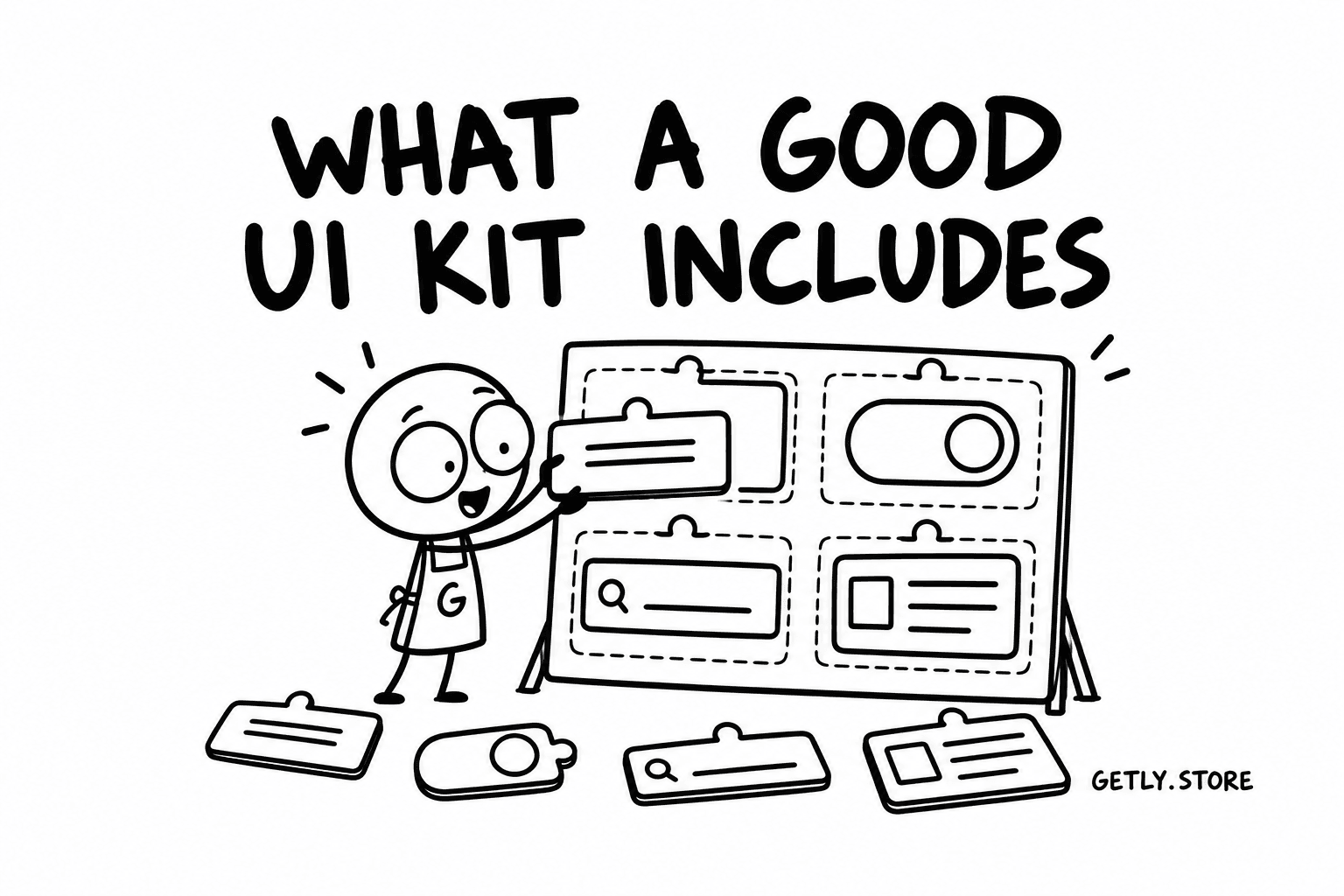
The goal of an UI components library isn’t to “collect components.” It’s to standardize how UI behaves. In Figma, every component should have variants that map cleanly to token roles and state behaviors.
Build components like you build APIs: stable contracts, predictable output, and documented usage rules.
Start with foundational components and patterns
Don’t begin with exotic widgets. Begin with the components that appear in almost every screen:
- Button (primary/secondary/tertiary + disabled/loading)
- InputField (default/error/disabled + helper text)
- Icon system (size tokens + alignment)
- Layout primitives (Frame/Grid wrappers, Stack equivalents)
- Feedback (Alert/Toast/Tooltip skeleton patterns)
When these are solid, more complex components (tables, modals, navigation) become easier because they compose existing primitives.
Design variants that map to token roles
For each component, define variants that change only what’s necessary. Example: Button variants might be style (primary/secondary) + size (sm/md/lg) + state (default/hover/disabled/loading). Each state should reference semantic color tokens and motion tokens.
Then, define consistent rules for what changes and what doesn’t. For instance, a disabled button should never change typography styling unexpectedly; it should only adjust colors and cursor behavior.
Use components to enforce spacing and typography rules
Components should own spacing and typography roles. Designers shouldn’t manually adjust internal padding or line-height in component instances. Instead, components expose only the inputs teams need: label text, icon placement (leading/trailing), and state selection.
This keeps your system resilient as different products iterate on visuals without breaking UX consistency.
Success story pattern: Teams that move from “freeform component styling” to token-driven components usually cut rework during redesign cycles because state and spacing stop changing subtly across teams.
Which design system template and plugins to use in Figma?
The best starting point for a Figma design system is a template that already has the right structure: naming, documentation pages, and a token-to-component mapping workflow. However, you still need to adapt it to your tokens and product UI rules.
In parallel, plugins help you automate repetitive cleanup, faster asset handling, and consistent naming-especially when you’re converting existing UI into components.
Choose a template that matches your token strategy
When evaluating a design system template, look for:
- Token categories already planned (color/typography/spacing/motion)
- Component structure aligned to your roles (inputs, navigation, feedback)
- Documentation frames with usage examples
- Clear naming conventions and predictable hierarchy
- Support for theming (light/dark) via variables
If a template is purely a component library with no token structure, you’ll rebuild the foundation anyway. That wastes time and creates “two systems” inside one file.
Use Figma plugins for designers to speed up system work
Plugins can dramatically reduce the grind of migrating assets, renaming layers, and producing consistent screenshots/documentation. A practical workflow might include batch renaming, screenshot capture for UI diffs, and asset pipeline support.
Here are examples of what to look for (category-level, so you can pick equivalents):
- Batch rename to normalize layer names across legacy files
- Screenshot/video capture to document UI changes for reviews
- Asset import/export for workflows involving 3D or complex materials
- Rigging or conversion tools when UI includes character/animation assets
On Getly, creators offer tooling that complements design system workflows-especially when your product includes rich assets (3D characters, motion effects, or complex UI previews). For instance, you can use specialized systems like Pro Recorder - Professional Screenshot & Video Capture System to produce consistent UI demos for system documentation and reviews.
Tip: Treat plugins like accelerators, not sources of truth. Your tokens and component contracts should remain the foundation, while plugins help you apply them consistently.
How to govern, document, and scale your Figma design system
A Figma design system only stays useful if it’s governed. Governance means you handle change requests, deprecations, versioning, and documentation so updates don’t break product UIs.
In 2026, the winning approach is lightweight but consistent: clear ownership, predictable release cadence, and a feedback loop from real designers and dev partners.
Set up documentation that designers actually use
Your documentation should answer: what it is, how to use it, and what not to do. Include “do/don’t” examples and a small number of canonical patterns.
At minimum, document:
- Token overview (what each semantic role means)
- Component usage (which variants to choose and when)
- State behavior (hover/focus/disabled/loading)
- Spacing and layout rules
- Accessibility considerations (contrast, focus indicators, keyboard states)
If your docs are long but not searchable, adoption will lag. Make it skimmable: short paragraphs plus tables and examples.
Build a change process to avoid token/component drift
Token changes should follow a review path. If you update a semantic color token used by multiple products, you should communicate expected impact. Version notes matter, even if you don’t label “v1.2.0” formally.
Use a simple workflow:
- Request: propose changes with examples
- Review: validate tokens/components + check contrast
- Release: publish an updated library
- Deprecate: mark old components as “do not use”
Warning: Don’t silently rename tokens after they’ve been adopted. If you must change naming, map old tokens to new ones for a transition period or you’ll break existing component bindings.
How to test and validate your design system with real screens
Before you declare your Figma design system “done,” you must validate it against real product screens. The system must work when designers do messy real-world composition-long labels, loading states, empty data, and responsive variants.
Validation turns abstract “we have components” into measurable outcomes: fewer inconsistencies, faster iteration, and fewer UI regressions.
Create a “system stress test” file
Build one Figma document that includes worst-case scenarios for your components. For example:
- Buttons with very long labels
- Inputs with error + helper text + disabled + keyboard focus
- Tables with empty state + skeleton loading + long content
- Modals with scrollable content and varying text lengths
- Navigation with nested items and small width constraints
Then assemble these screens using only your tokens and components (no manual overrides). If designers can’t complete the screen using the system, your components are missing an essential variant or layout rule.
Measure adoption: quality, speed, and consistency
You can measure success without complicated analytics. Track:
| Metric | What to track | Why it matters |
|---|---|---|
| Component usage rate | % of UI built using library components | Shows adoption and reduces drift |
| Override count | How often instances are manually styled | Indicates contract clarity |
| Rework during QA | # of UI fixes after review | Reflects state and spacing consistency |
| Token change impact | How many screens change after a token update | Validates semantic token wiring |
When overrides drop and component usage rises, your system is doing its job.
If your design system includes advanced motion or stylized assets, you’ll also want repeatable asset workflows. For example, if you’re building a product with toon/anime visual rendering, a shader system like AnimeForge Pro - Ultimate Anime & Toon Shader System can keep non-UI visuals consistent across previews and marketing mockups.
FAQ: Figma design system with tokens
Do I need variables/tokens before making components?
Yes-the best Figma design system starts with token structure so components reference stable semantic roles. If you build components first with hard-coded styles, you’ll have to refactor them later when themes or accessibility requirements change.
What’s the best free Figma template approach?
The best free Figma templates are the ones that already include a logical file structure (tokens + documentation + component folders). Even with a template, you should rebuild naming conventions and semantic token categories to match your product.
How do I handle dark mode and theming in 2026?
Use semantic tokens linked to variable values per theme. When you update dark mode values, components should update automatically because they reference tokens-not hex colors.
Which UI components should I build first?
Start with inputs, buttons, layout primitives, and feedback components (toasts/alerts/tooltips). These form the “composition backbone” for almost every screen, so the rest of the library becomes easier and more consistent.
How do Figma plugins for designers fit into a design system?
Plugins accelerate repetitive tasks (batch naming, capture for documentation, asset import/export). They shouldn’t replace token governance-your tokens and component contracts remain the source of truth.
Building a design system is a journey, not a one-time deliverable. If you want a smooth next step, pick one product surface (like forms) and validate your token-to-component pipeline there first-your system will grow from real usage.