 Getly
Getly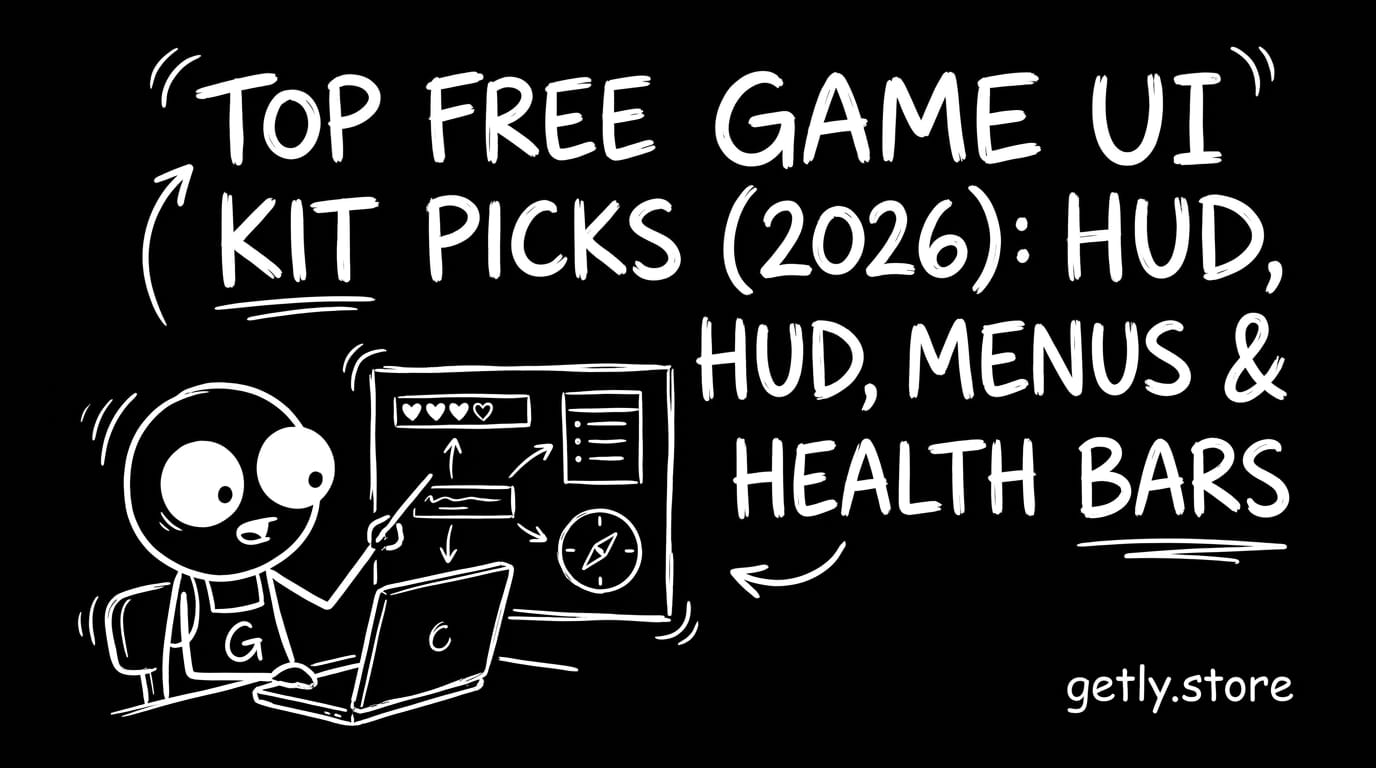
UI can make—or break—how players feel about your game. The right HUD, crisp menus, and readable health bars don’t just look good; they directly affect clarity, pacing, and retention. In 2026, you can ship polished interfaces fast by combining proven free game UI kit elements with smart design rules.
Below is a practical, checklist-driven guide to picking the best game UI kit free resources for HUD, menus, and health bars, plus templates and integration tips you can apply immediately—whether you’re building an FPS, RPG, or platformer.
- The best free game UI kit is the one that matches your gameplay readability needs (not your favorite style).
- Design HUD elements around contrast, scale, and state changes: idle → hover → active → warning.
- Use consistent spacing and typography rules to make free game UI elements look like one system.
- Ship faster by choosing UI packs that support multiple screen sizes and input methods (mouse/controller/touch).
- Free UI should be “free to adapt”: layered files, editable vectors, and clear naming save hours.
What is a game UI kit free pack for 2026?
A game UI kit free pack is a collection of ready-to-use interface components—icons, panels, buttons, HUD elements, and layout templates—distributed without a direct charge. In 2026, the best free packs are the ones that are editable (layers, fonts, vector shapes) and game-ready (exportable at multiple resolutions).
For indie game UI assets, “free” isn’t only about cost. It’s about minimizing production friction: you want components that plug into your workflow quickly, like sprite sheets, layered PSD/AFDES files, or export-ready SVG/PNG bundles.
What you should expect from “free” UI assets
Not all free UI is equally useful. The highest-value free kits include clear structure: consistent naming, separate layers for states, and exports that don’t require manual rework every time you change colors or damage states.
Look for these characteristics:
- Layered files (separate health fill, background, borders, text layers)
- Scalable formats (vector/SVG or high-res source art)
- Multiple states (normal, hover, disabled, critical)
- Layout grid or demo scenes
- Readable typography that survives small sizes
Why HUD clarity beats visual complexity
Players don’t “admire” your HUD—they act on it. If health bars or ammo counters are hard to parse under motion blur or fast camera movement, even a beautiful menu design won’t save usability.
In practice, prioritize contrast and timing: your health bar should be understandable in 200–300 milliseconds at a glance, and critical states must pop without relying on color alone.
Pro tip: When evaluating free packs, ignore the screenshots. Open the source file and check whether the health bar fill, text, and outlines are separated into layers. If they aren’t, customization becomes expensive in time.
How to choose free game menu design elements that match your game
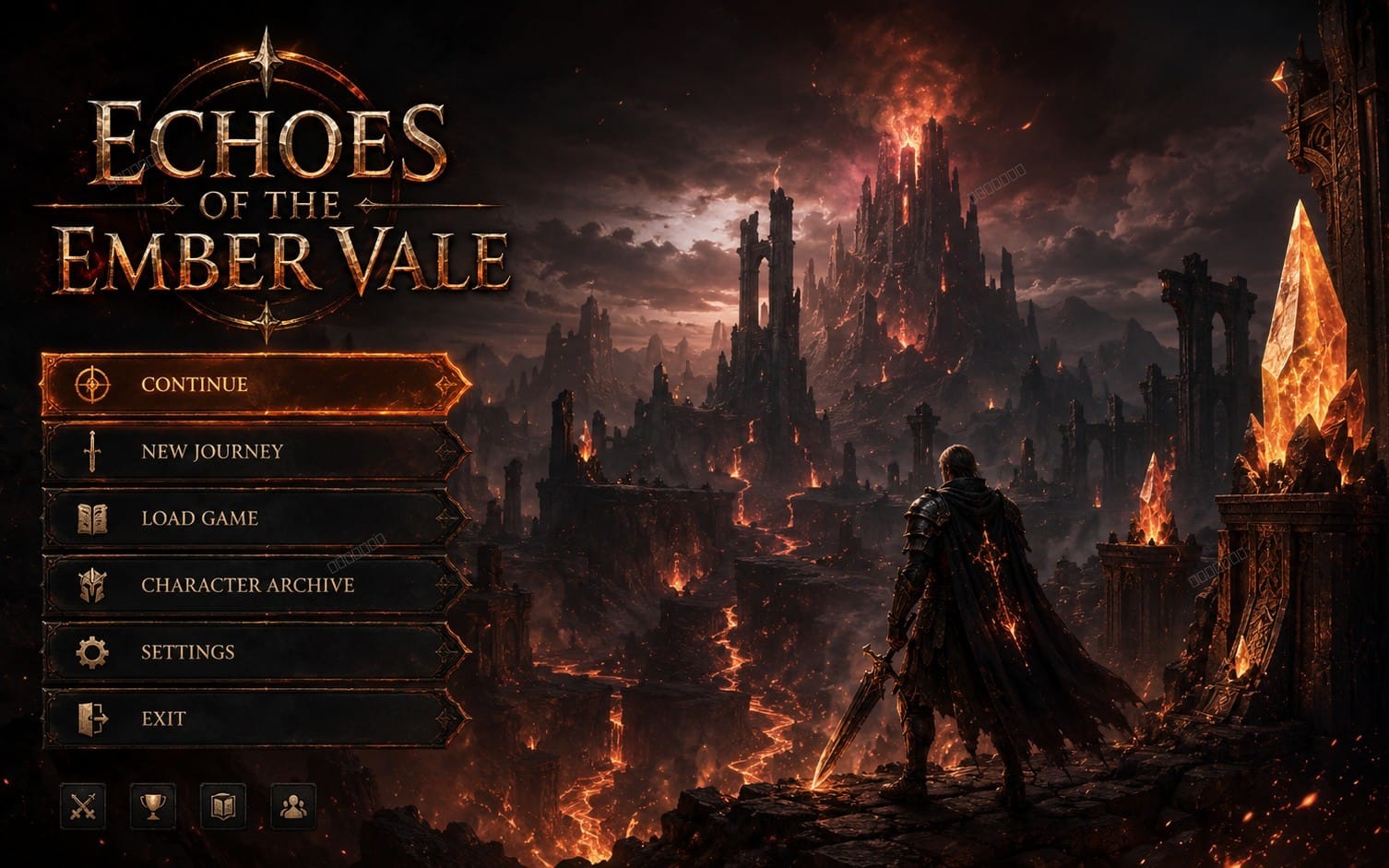
The best free game menu design elements align with your genre’s “decision frequency.” A tactical RPG needs slower, denser menus; an action roguelike needs larger buttons, fewer choices per screen, and faster feedback.
To choose correctly, map your menu screens to gameplay loops: main menu, pause menu, inventory, settings, and “level complete” overlays. Then pick UI kit pieces that already support those patterns.
Use a menu screen checklist (before downloading anything)
Here’s a quick checklist to decide if a free pack is compatible with your UI system:
- Resolution strategy: Does the pack include 1080p/1440p-friendly scales or a layout grid?
- Input method: Are button sizes workable for controller navigation (not just mouse hover)?
- State feedback: Do buttons have hover/pressed/disabled states?
- Typography: Can you change fonts or at least adjust weight and spacing?
- Theme flexibility: Are colors defined via layers or style variables (easy to recolor)?
- Accessibility: Are warning states readable without relying solely on red/green?
If a pack fails two or more of these, you’ll spend your “free time” fixing inconsistencies.
Indie game UI assets that scale from prototype to release
Indie teams often start with placeholder screens and then “lock” their UI style. Choose free packs that allow recoloring, resizing, and text changes without breaking spacing.
Good sign: the kit includes a UI style guide (even a basic one), consistent corner radius, and repeatable button geometry. This makes your game menu design look cohesive instead of assembled.
Common mistake: Picking a free kit based on aesthetics only. If the menu buttons don’t have clear pressed/disabled states, your UI will feel unfinished when you add real gameplay interactions.
What makes a game HUD template actually reusable?
A reusable game HUD template is one you can swap numbers, icons, and states without redesigning the layout. The HUD system should separate “data layers” (health, ammo, stamina) from “presentation layers” (frames, borders, icons).
Think of your HUD like a dashboard: the frame stays consistent; only values and state overlays change.
Key components of a strong HUD template
When you evaluate free game HUD template resources, look for these components:
- Health bar with background, fill, and critical threshold styling
- Stamina/energy (optional) with the same geometry language
- Ammo/charges with numeric and icon modes
- Crosshair/aim indicator spacing compatibility
- Damage feedback overlays (flash, vignette strip, hit marker)
- Notification stack (toast messages, quest updates)
In 2026, the most reusable kits also consider UI safe areas for different aspect ratios, especially for widescreen and ultrawide displays.
How to ensure HUD readability on fast gameplay
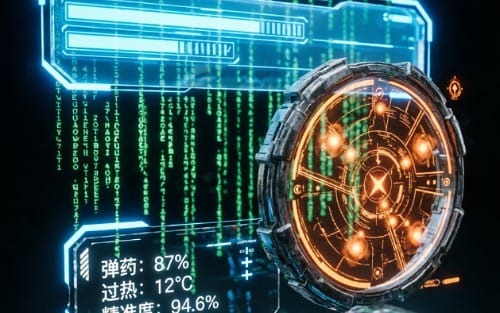
Even a great HUD fails if it blends into the background. Use a readability approach: thick outlines, subtle glow with low intensity, and background panels with alpha. But be consistent—too much glow reads as noise.
Practical rule: health and critical warnings should pass a basic contrast check against your typical combat backgrounds. If you can’t tell “green vs danger” quickly, adjust outline thickness or add a pattern overlay.
Pro tip: Build your HUD with “state skins.” Keep the same base layout, but swap materials/colors for low health, invulnerability, or status effects. That’s faster than redesigning per condition.
Top free game UI elements for HUD, menus, and health bars
Here are the best categories of free UI assets to hunt for in 2026 when you need free game UI elements that look professional. These aren’t one specific pack—you’ll get better results by matching the asset type to your UI goals.
Use this section like a shopping map: pick the pieces you need, then standardize them into one UI system with consistent styling rules.
1) Health bar elements (the “must have” set)
Health bars are the highest-impact UI component. Your kit should include: base bar frame, fill mask, border, numeric label, and critical-state indicator. Ideally, you can animate the fill (linear or eased) and show a distinct warning state.
Minimum health bar kit checklist:
- Separate layers for bar background and fill
- Critical threshold styling (e.g., 25% and below)
- Optional “damage taken” overlay (delayed bar)
- Optional icon slot (e.g., hearts, shield symbol)
- Text style that remains legible over motion
2) Button and menu components that feel responsive
Menu buttons should communicate interaction immediately. A good free UI set includes multiple states with consistent geometry: hover, pressed, disabled, and focus (for controller navigation).
What to look for in game menu design button packs:
- Consistent padding and corner radius across all buttons
- Clear focus ring or highlight (keyboard/controller)
- Icon + text variants (for Settings, Controls, Inventory)
- Drop shadow or panel backdrop that works over scenes
3) HUD panels, icons, and notification toasts
HUD isn’t only bars. Players need inventory hints, status notifications, and objective updates. Free UI kits often include icon sets and panel frames; prioritize assets that are sized for UI (not “big art you must shrink”).
Look for:
- Toast/notification templates with auto-layout spacing
- Status effect icon pack (poison, freeze, buff)
- Panel frames that can be tinted or recolored
- Small icons that stay crisp at 16–24px
Warning: Avoid UI icons that are too thin or rely on gradients that band. In motion, banding looks like low-quality compression artifacts and players notice—even if they can’t name it.
How to customize free UI kits into a cohesive indie game UI
Free assets rarely arrive as a complete system. The secret to success is customization: standardize fonts, spacing, radii, stroke thickness, and color logic so your HUD template and menus share one visual language.
If you do this correctly, your interface looks “designed,” not “downloaded.” And the best part: customization work once saves you every time you add a new screen.
A fast “UI system ruleset” you can apply today
Use these rules to unify disparate free game UI assets:
- Choose a single type scale: 12/16/20/24/32 style steps, then stick to them.
- Pick two radii: one for buttons, one for panels (e.g., 8px and 12px).
- Define stroke behavior: outlines should be 1–2px at UI resolution, not wildly different per element.
- Set a color role map: primary, warning, success, disabled, and neutral backgrounds.
- Standardize shadows: one shadow intensity and one blur method across the UI.
Once these are set, every new element becomes “plug-and-play,” even if it started as a free kit component.
When to use shaders and post effects (without overdoing it)
In 2026, many studios use shader-driven UI effects—glow, scanlines, soft noise, or stylized outlines—especially for anime-toon or sci-fi vibes. The trick is to apply effects consistently and keep them readable over gameplay.
If your game look uses toon shading, connect your UI palette to your world palette. For example, you can create UI glow accents that match your toon highlight colors rather than using generic neon.
Success pattern: Teams that align UI accents with character/world shading report fewer “mismatched style” complaints in internal playtests—because the interface feels like part of the game’s art direction.
Best workflow tips: exporting, scaling, and implementing HUD & menus
The difference between “looks good in the preview” and “works in the game” is the implementation workflow. Use a repeatable pipeline for exporting UI assets, scaling layouts, and wiring animations for HUD.
That’s how you avoid painful rework when you add localization, new weapons, or additional status effects.
Export and scaling best practices
Free UI kits often come in multiple formats, but your job is to standardize. Decide early on your target UI resolution and scaling approach (e.g., reference resolution in Unity/Unreal, or CSS-like scaling for web/HTML overlays).
Use these rules:
- Export UI textures at UI-safe sizes (don’t rely on runtime downscaling only)
- Keep text either bitmap-resized properly or switch to real fonts where possible
- Verify alpha edges on panels (especially against bright backgrounds)
- Test at 16:9, 21:9, and at least one “small viewport” scenario
Implementation checklist for HUD templates
HUD animation should be event-driven. Rather than constantly updating visuals, trigger changes when values actually change (health delta, stamina regen ticks, ammo reload state).
Good HUDs don’t animate continuously—they animate when the player needs information.
Implementation checklist:
- Health value updates: instantly update fill, then optionally delay damage overlay
- Critical state: change color/icon/outline plus add a non-color cue (pattern or icon)
- Status effects: show icons with tooltips or a condensed legend
- Notification stack: cap visible toasts and auto-expire with consistent spacing
- Menu focus: keyboard/controller navigation matches hover visuals
Warning: Don’t ship a HUD without testing under worst-case backgrounds (explosions, bright UI reflections, fog). If your health bar disappears in chaos, it will cost you retention.
Where to find strong UI add-ons (and how to avoid asset mismatch)
Free UI kits are a great start, but many teams need add-ons: extra button variants, different icon sets, or animated HUD overlays. The goal is not to collect random packs—it’s to maintain one consistent UI language.
In practice, you can combine free elements with a small number of high-quality systems that unify style, especially when you’re dealing with toon shaders, stylized outlines, or complex asset pipelines.
Practical add-on ideas for 2026 projects
Here are UI-focused add-on categories that pair well with free HUD and menu elements:
- Shader systems for consistent toon/anime glow across UI and gameplay
- Screenshot/video capture tools for marketing test loops and UI feedback reviews
- Asset import/export pipelines so UI textures and icons remain crisp across tools
- Video-friendly thumbnails to demonstrate UI features in promotions
If your visual direction is anime/toon, consider pairing your UI palette with your toon shader pipeline. For example, a system like AnimeForge Pro - Ultimate Anime & Toon Shader System can help keep highlight/glow behavior consistent between characters and UI accents.
Use “style lock” to prevent mismatch
Mismatch happens when you add assets from different sources with different radii, shadow physics, or font weights. Fix it with a style lock: define the UI ruleset once, then recolor/re-layer new assets to match your system.
To speed up feedback cycles, capture consistent comparisons of UI states. A tool such as Pro Recorder - Professional Screenshot & Video Capture System can help you review HUD readability in motion and quickly iterate on critical states.
- Choose free game menu design and HUD components that support states, scaling, and readability.
- Build a consistent UI system ruleset (fonts, radii, strokes, color roles) to unify free assets.
- Implement HUD as event-driven updates—animate changes only when they matter.
- Use shaders and capture tools to keep art direction consistent and feedback fast.
FAQ: Free game UI kit picks for HUD, menus & health bars
What are the best free game UI elements for a HUD?
The best free game UI elements for HUD are health bars with editable fill layers, ammo/charge indicators with icon + numeric options, and notification toasts with consistent spacing. Prioritize layered files and clear state variants so you can implement critical and damage feedback cleanly.
How do I make a game HUD template readable in combat?
Use contrast-first design: outlined panels, reliable alpha backgrounds, and critical states that change shape/icon/pattern—not color alone. Test your HUD over the brightest in-game effects and adjust stroke thickness and glow intensity until the health bar is readable in motion.
Can I use free game UI kits for indie game UI assets without a full UI team?
Yes—if you choose kits with editable layers and standardized geometry. Create a “style lock” ruleset (type scale, radii, stroke thickness, color roles) and recolor/re-layer new elements to match. This turns random assets into a cohesive system.
What should a free game UI kit include for menus?
A strong free menu kit includes button variants (normal/hover/pressed/disabled/focus), panel frames, and at least one screen layout example (main menu or pause menu). Also look for controller-friendly button sizing and focus indicators.
Are shader effects worth it for UI in 2026?
Shader effects are worth it when they’re consistent with your game’s art direction and don’t compromise readability. Keep UI glow subtle and event-driven; use effects to reinforce state changes rather than to decorate everything continuously.
One last thing: start with HUD readability, then build menus that support the same visual rules. When your UI feels consistent, players trust your game’s feedback—and that’s the real value.
Soft call-to-action: If you want to move from “prototype UI” to a polished release-ready system, browse UI collections and shader add-ons that match your style, then pick the smallest set of components you can standardize quickly.