 Getly
Getly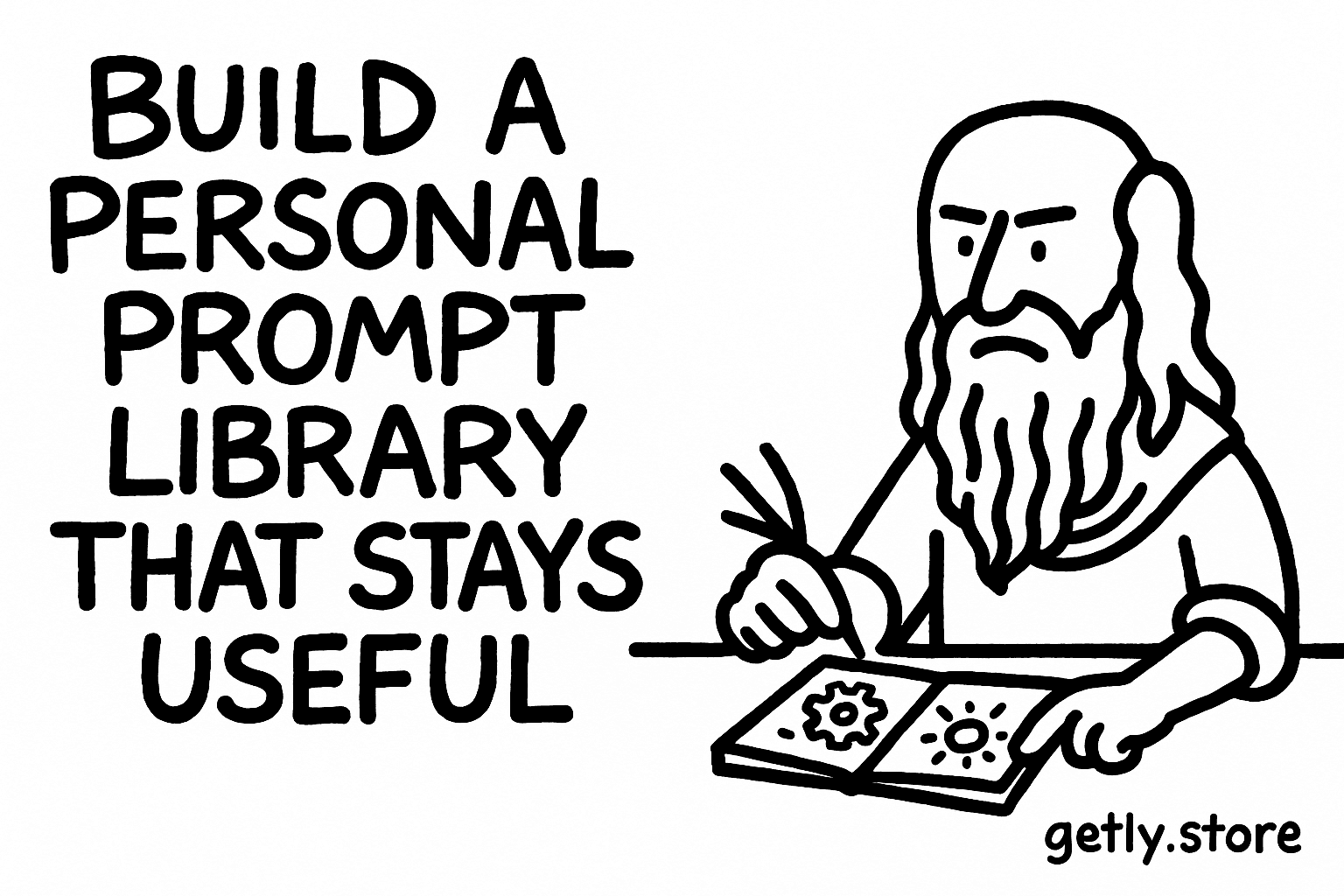
By the end of this guide, you will have a prompt library with names you can scan, versions you can compare, and review dates that expose weak results. You will also know how to retire prompts without losing the useful parts that shaped them.
The workflow works for writing, research, image generation, coding, customer support, and other repeatable tasks. You only need a place to store text, a few test inputs, and enough discipline to record what changed.
1. Define the job before you save the prompt
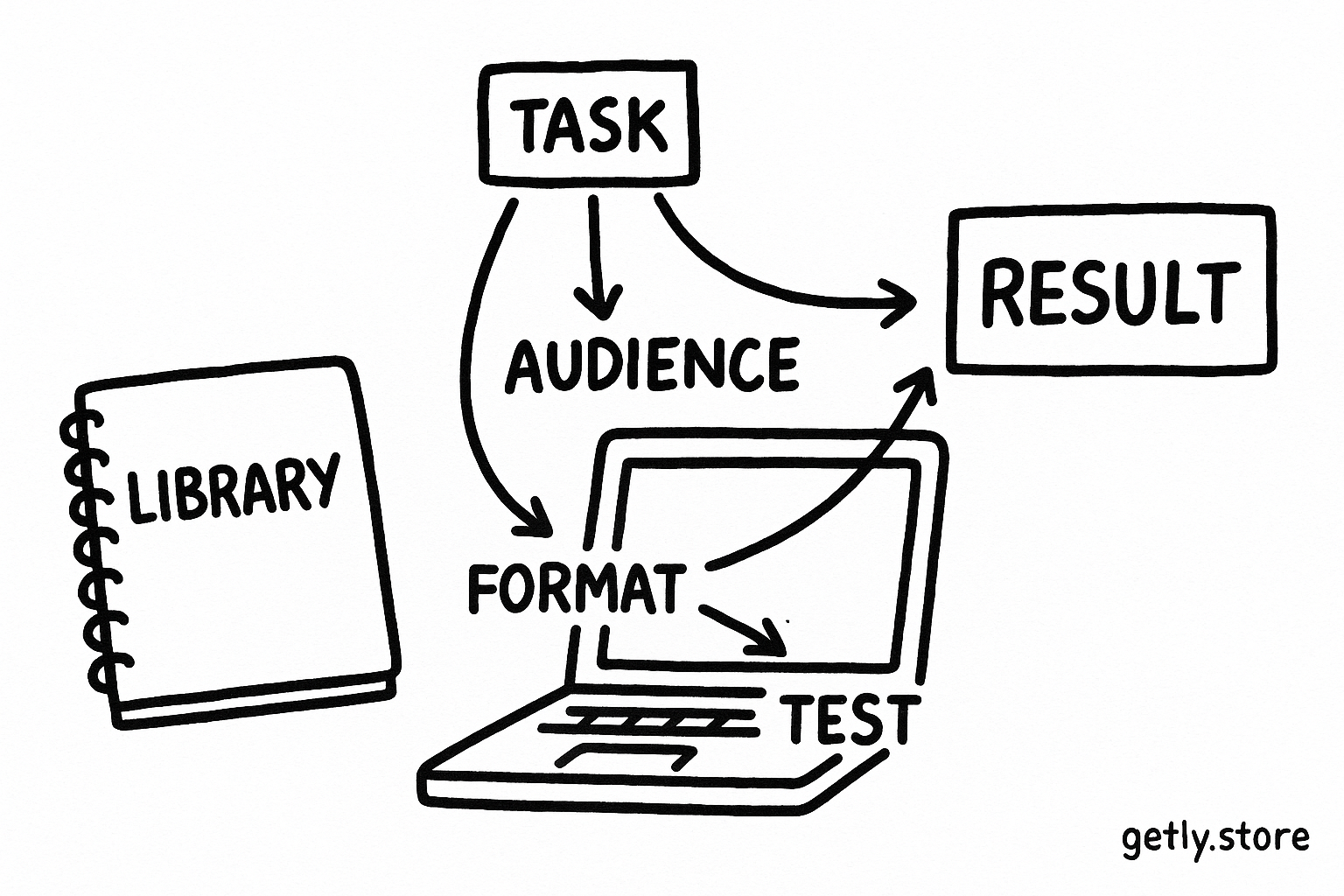
Start with the task, not the wording. Write one sentence that describes the result you want: “Turn a product brief into five short marketplace descriptions for first-time buyers.” That sentence gives the prompt a clear home in your library.
Record the task’s boundaries beside the prompt. Add the intended audience, input type, output format, tone, and a success test. A prompt for product descriptions might require plain language, a 90-word limit, a feature list, and no unsupported claims.
Keep separate prompts for tasks that need different decisions. A prompt that creates a rough outline should not share a file with a prompt that edits a finished article. Separate entries make version changes easier to explain and prevent a successful result in one context from hiding weak performance in another.
Name the job
Describe the repeatable outcome in one sentence.
Set the boundaries
Record audience, inputs, format, tone, and limits.
Choose a success test
Define the checks that make a result usable without extra repair.
2. Give every prompt a name you can scan
Use a naming pattern that puts the task first and the important constraint second. A practical format looks like this:
[Area] / [Task] / [Output] / [Constraint]
For example: Marketing / Product description / 90 words / Beginner buyer. The name tells you what the prompt does before you open it. If you later create a social caption version, you can name it Marketing / Product caption / 60 words / Beginner buyer.
Keep names specific enough to distinguish neighboring prompts. “Writing prompt 4” gives you no useful information six months later. “Support / Refund reply / Warm and concise / Policy-safe” gives you a task, output, tone, and risk boundary.
Use stable tags for cross-cutting details. Tags such as research, JSON, image, buyer-facing, and high-risk let you group prompts without cramming every detail into the title. Keep tags controlled. Five useful tags beat twenty inconsistent variations such as “customer-care,” “customer support,” and “support replies.”
Do
- Put the task at the start of the name.
- Use one format for every entry.
- Record the output constraint that affects selection.
Don't
- Use dates as the only identifier.
- Hide the task inside a clever nickname.
- Rename old versions after you compare them.
3. Store the prompt with its working context
Copying the prompt text alone creates a library of fragments. Store the surrounding instructions that affect the result. Include the role, task, context, rules, output format, examples, and input placeholders in separate fields or clearly marked sections.
Use placeholders for changing information. Write {{product_name}}, {{audience}}, and {{source_text}} instead of saving one real product as if it represented every future job. Placeholders help you test the same prompt against different cases.
Add a short usage note under the prompt. State when to use it, what input it expects, and what you should inspect before publishing the result. A useful note might say: “Use after collecting verified product details. Check every claim against the source brief.”
Save two or three representative test inputs with each important prompt. Include an ordinary case and a difficult case, such as incomplete source material, conflicting requirements, or an unusually long input. Those cases give you a repeatable basis for comparing versions.
4. Version changes so you can explain them
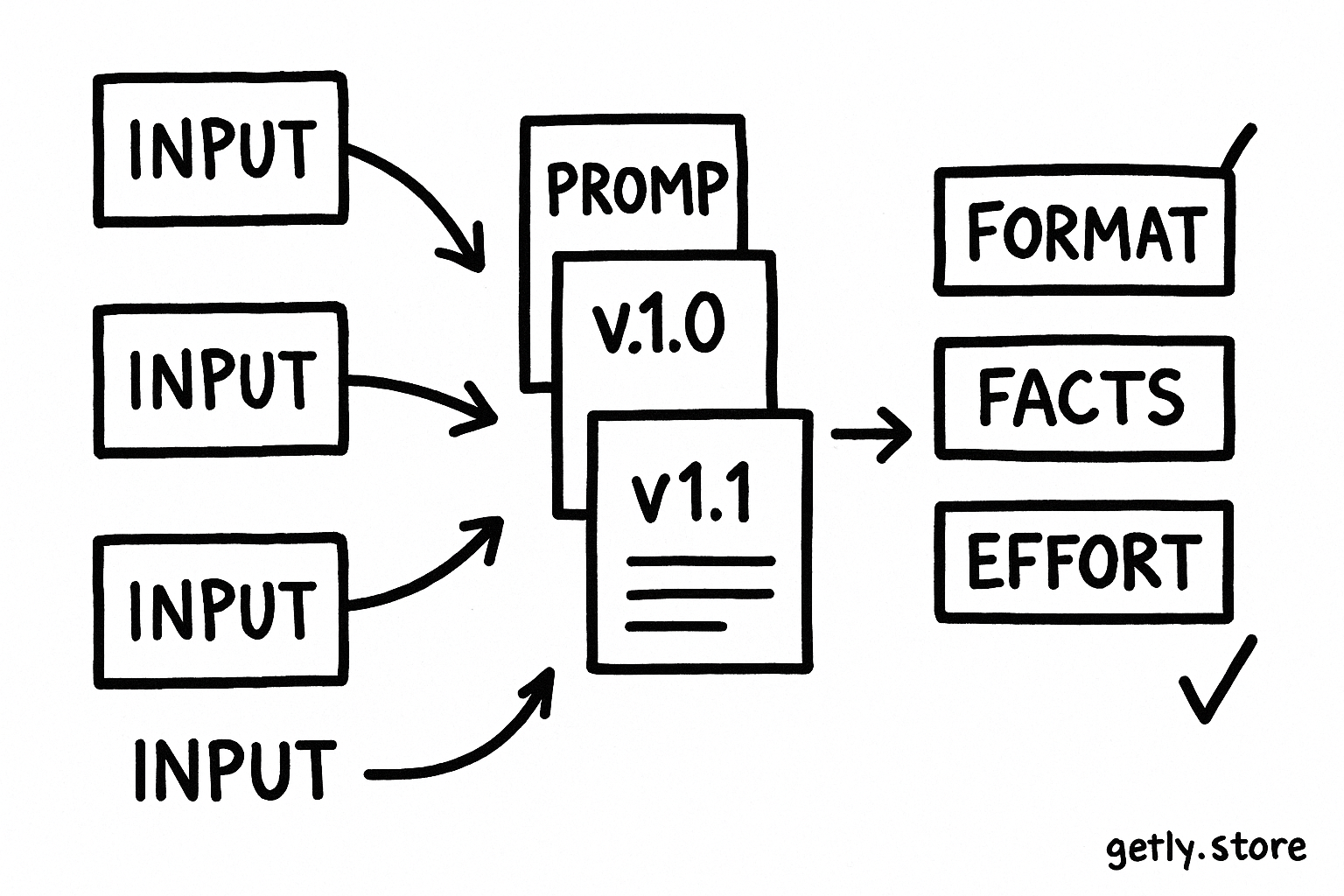
Give the first usable draft a clear version such as v1.0. Increase the major number when you change the task, output contract, or audience. Increase the minor number when you improve instructions without changing the job. Use a small revision number for wording fixes, typo repairs, or formatting changes.
Examples make the rule concrete:
- v1.0 to v1.1: You clarify the tone rule and add a missing input placeholder.
- v1.1 to v2.0: You change the output from paragraphs to a JSON object with required fields.
- v2.0 to v2.0.1: You correct a spelling error without changing instructions.
Write a change note for every new version. Name the change, explain why you made it, and record the result from your test inputs. “Added three examples, reduced repeated headings, and improved the difficult-case score” tells you more than “updated prompt.”
Keep the previous version until the new one passes your tests. A rollback option matters when a prompt performs well on one example but fails on edge cases. Mark the older entry as superseded rather than deleting it. You may need its wording to recover a useful instruction.
Use a simple scorecard when you compare versions. Rate task fit, format compliance, factual support, tone, and editing effort on a five-point scale. A version that sounds smoother but needs more fact checking may not deserve promotion.
5. Test prompts with a small evaluation set
Run every candidate version against the same test inputs. Keep the input fixed while you compare wording changes. If you change the prompt and the input together, you cannot tell which change caused the result.
Record both quality and effort. A result can look polished while forcing you to repair unsupported claims, missing fields, or awkward formatting. Add an effort measure such as “minutes to publish” or “number of manual corrections.” That measure connects prompt performance to your actual workflow.
Use a promotion rule before you test. For example, promote a new version when it meets every required format check, passes the difficult case, and saves at least five minutes across three typical tasks. A rule keeps a single impressive output from deciding the library’s future.
Review your test set when the task changes. Add a new case after a failure that your current examples do not represent. Remove a case only when the underlying task no longer occurs. Your evaluation set should reflect real work, not ideal inputs.
6. Retire prompts that stopped earning their place
Retire a prompt when it fails a required check, duplicates a stronger entry, depends on information you no longer collect, or costs more editing time than a manual approach. Record the reason and the retirement date. A short note such as “Retired after v2.0 reduced corrections from six to two” makes the decision useful later.
Move retired prompts into an archive instead of your active workspace. Keep the last working version, its change notes, test inputs, and the replacement name. Remove shortcuts and templates that still point to the retired entry. Broken references create the false impression that the prompt still works.
Schedule a review based on task risk and frequency. Review a daily publishing prompt after a few weeks of use. Review a rare personal brainstorming prompt after several uses or after a clear failure. Trigger an earlier review when your inputs, audience, policy requirements, or output format changes.
Keep a small active set. If you have five prompts for the same job, choose one default, one specialist, and one fallback. Archive the rest unless they serve a distinct test case. A smaller active library reduces selection time and makes quality problems easier to spot.
Common mistakes
- Saving only the final text. Store the input, prompt version, output, and edits. The edit trail shows where the prompt failed.
- Changing several variables at once. Change the instructions or the test input, not both. Isolated changes produce useful comparisons.
- Calling every edit a major release. Match the version increase to the size of the change. Accurate version labels help you find the right rollback point.
- Keeping weak prompts in the active view. Archive entries that duplicate a stronger prompt or fail your success test.
- Scoring style while ignoring repair time. Count corrections, verification work, and formatting fixes alongside the output’s surface quality.
Start with one recurring task and build the habit around it. Name the prompt, save its context, test each revision against the same inputs, and archive the versions that no longer justify their place. After a few cycles, you will have a library that records decisions instead of collecting disconnected prompt snippets.
FAQ
How many prompts should an active library contain?
Keep one default prompt, one specialist prompt, and one fallback for a recurring job when those versions serve distinct purposes. Archive duplicates so your active workspace stays easy to scan.
Should I create a new version after every wording change?
Create a new version when the wording could change the output or the work required to edit it. Record tiny typo fixes as revision changes, and use a larger version change when you alter the task or output contract.
What should I do when a prompt works on easy inputs but fails on difficult ones?
Keep the prompt in testing, add the difficult input to your evaluation set, and revise the instructions or examples. Do not promote the version until it meets the required checks on both ordinary and difficult cases.
When should I delete a retired prompt?
Keep a retired prompt while its change history, test results, or wording could help you recover a useful technique. Delete it when it contains sensitive material, duplicates a documented version, or has no plausible future use.
Частые вопросы
How many prompts should an active library contain?
Keep one default prompt, one specialist prompt, and one fallback for a recurring job when those versions serve distinct purposes. Archive duplicates so your active workspace stays easy to scan.
Should I create a new version after every wording change?
Create a new version when the wording could change the output or the work required to edit it. Record tiny typo fixes as revision changes, and use a larger version change when you alter the task or output contract.
What should I do when a prompt works on easy inputs but fails on difficult ones?
Keep the prompt in testing, add the difficult input to your evaluation set, and revise the instructions or examples. Do not promote the version until it meets the required checks on both ordinary and difficult cases.
When should I delete a retired prompt?
Keep a retired prompt while its change history, test results, or wording could help you recover a useful technique. Delete it when it contains sensitive material, duplicates a documented version, or has no plausible future use.