 Getly
Getly
Дизайнеры в 2026 живут в режиме «время дороже идеала»: правки, адаптивы, дизайн-система, прототипы и подготовка макетов к разработке. Правильные Figma plugins for designers превращают рутины в один-двухкликовые действия и дают реальную кратность ускорения — вплоть до «10x» на отдельных этапах. Ниже — подборка инструментов и практик, которые вы сможете применить сразу, без магии.
- Лучшие Figma design workflow в 2026 строятся вокруг автоматизации повторяющихся задач: токены, компоненты, экспорт, инспект.
- Для Figma design system критичны плагины по генерации/управлению переменными, стилями и документацией.
- Плагины окупаются, когда вы измеряете время до/после: чек-лист, шаблон, export-поток и правила именования.
- Комбинируйте плагины с free Figma templates и единым стандартом разметки экранов.
- Если вы делаете видео/обзоры макетов, запись интерфейса и сценариев ускоряется отдельными инструментами.
Что такое плагины Figma и как они дают 10x продуктивности?
Плагины Figma — это расширения, которые добавляют в рабочий процесс команды: генерацию объектов, экспорт, преобразования, аудит, помощь с документацией и даже помощь с текстами. Их ценность в 2026 не в «красивых демках», а в сокращении повторяемых действий и ошибок.
Чтобы получить «10x», нужен правильный сценарий: не просто добавить инструмент, а встроить его в ваш Figma design workflow. Например: вы создаёте токены → обновляете стили → прогоняете аудит компонентов → экспортируете наборы активов → формируете пакет для разработчиков. Если каждый шаг сокращается хотя бы на 30–50%, итоговая экономия времени становится кратной.
Три зоны, где плагины дают максимальный эффект
В большинстве продуктовых команд самые большие выигрыши дают плагины вокруг трёх зон: (1) дизайн-системы, (2) подготовки к разработке и (3) коммуникации и документации.
- Дизайн-система: создание/синхронизация стилей, компонентов, переменных, генерация документации.
- Экспорт и handoff: подготовка наборов (SVG/PNG), маркировка, проверки контрастности, размеров и имен.
- Общение: скринкасты, прототипные ассеты, автоматизация заметок к релизам.
Pro tip: выбирайте плагины не «по популярности», а по точке боли. Если вы вручную переименовываете слои или повторно собираете компоненты — найдите плагин для массовых операций или шаблон действий.
Как выбрать лучшие Figma инструменты под ваш процесс?
Лучший выбор — это не «самые известные плагины», а набор инструментов, который закрывает ваши слабые места в конкретном пайплайне. В 2026 успешные команды строят stack вокруг ролей: UI-дизайнер, UX-проектировщик, дизайн-система, motion/презентации, Dev-handoff.
Начните с карты процесса: какие действия повторяются ежедневно или еженедельно? Затем оцените, что можно автоматизировать. Самый простой метод — сделать аудит за 3–5 рабочих дней: выпишите 10–15 типовых задач и отметьте, сколько времени съедает каждая.
Чек-лист выбора (короткий и практичный)
- Регулярность: задача повторяется минимум 3–4 раза в неделю?
- Стандарты: есть правила именования, размеров, стилей и слоёв?
- Совместимость: плагин поддерживает команды (комментарии/файлы/библиотеки) и ваши форматы экспорта?
- Скорость: операция занимает секунды, а не минуты с ручной правкой результатов?
- Контроль: можно ли отменить/перегенерировать без разрушения структуры?
- Риск: снижает ли плагин вероятность ошибок (например, контраст/радиусы/типографика), а не добавляет новых?
Важно: не ставьте плагины «на всякий случай». Каждый новый инструмент увеличивает когнитивную нагрузку и может ломать привычные процессы (особенно если в команде разные версии файлов). Сначала протестируйте на одной странице/компоненте.
Какие Figma plugins for designers ускоряют дизайн-систему?
Если ваша цель — Figma design system, то лучшие Figma plugins for designers — это те, что помогают управлять токенами/стилями, поддерживать консистентность компонентов и документировать правила. В 2026 дизайн-система — это не «папка с компонентами», а контролируемая модель: типографика, цвета, отступы, радиусы, состояния.
Ниже — функциональные категории плагинов, которые чаще всего дают ускорение именно в дизайн-системе. Конкретные названия выбирайте под ваш стек и задачи — но логика едина.
Функции, которые должны быть в вашем наборе
- Управление стилями и токенами: синхронизация цветовых и типографических переменных, массовые обновления.
- Генерация компонентов: создание вариантов (size/state) по правилам.
- Аудит консистентности: поиск несоответствий (неиспользуемые стили, разный радиус, «слои-дубликаты»).
- Документация: автоматическая сборка таблиц компонентов, states и usage notes.
- Импорт/экспорт спецификаций: обмен с таблицами/доками для Dev и PM.
Мини-сценарий: как ускорить внедрение системы за 1–2 дня
Возьмите один ключевой блок (например, Buttons + Inputs) и зафиксируйте правила: именование, набор состояний, типы отступов, базовые размеры. Далее включите плагин(ы) для массового применения стилей и генерации вариантов — чтобы не делать всё вручную.
- Создайте «источник правды»: базовые стили цвета/текста и компоненты-холдеры.
- Прогоните аудит: найдите элементы, которые не используют токены/стили.
- Сгенерируйте варианты компонентов (например, primary/secondary/disabled) по шаблону.
- Соберите мини-док: таблица компонентов и правила использования.
- Сделайте один handoff для разработчика: проверьте, что размеры и состояния описаны.
Команды, которые строят систему «от одного блока» (вместо попытки сразу охватить всё), обычно видят снижение времени на правки в новых экранах уже через 1–2 спринта — потому что исчезает ручная доводка несостыковок.
Как плагины помогают с handoff и экспортом для разработчиков?
Лучшие «best Figma tools» для handoff — это те, что уменьшают разрыв между макетом и реализацией: экспорт ассетов в нужных форматах, подготовка спрайтов/ивекторов, контроль имен, инспект и сбор пакетов. В 2026 Dev ждёт не «красивый файл», а предсказуемый набор артефактов и спецификаций.
Начните с вопроса: что именно вы отдаёте разработчику? Часто это наборы SVG/PNG, ссылки на стили, спецификация состояний и понятная структура слоёв. Плагины уменьшают время, но главное — снижают шанс ошибки в размерах, плотности и экспорте.
Таблица: что автоматизировать в экспорт-пайплайне
| Задача | Почему долго | Что должен делать плагин | Ожидаемый эффект |
|---|---|---|---|
| Экспорт иконок/иллюстраций | Повторение действий и проверка размеров | Массовый экспорт, контроль формата и суффиксов | Минус 30–70% времени |
| Подготовка ассетов для UI | Разные DPI/версии и ручная упаковка | Наборы по артбордам, автогенерация папок | Меньше возвратов от Dev |
| Проверка имен и структуры | Ошибки в логике слоёв | Нормализация имен, шаблоны | Снижение «ручной уборки» |
| Контраст/типографика | Ручной аудит требований | Автопроверка, подсветка проблем | Больше соответствия UI-правилам |
Как собрать «экспортный пакет» без боли
Популярная практика: вы делаете один шаблон страницы «Release Export» с заданными артбордами и зонами. Затем плагин(ы) прогоняют экспорт строго по правилам. Это делает результат повторяемым: разработчик получает похожие структуры от релиза к релизу.
- Назначьте префиксы артбордам: например, 01-Icons, 02-Illustrations, 03-UI.
- Заведите слой-метку «export=true» (или аналогичный маркер) и включите фильтрацию.
- Согласуйте форматы: где SVG, где PNG, где нужен @2x/@3x.
- Добавьте «контрольный кадр»: один артборд с примером состояний.
- Автоматизируйте сборку архивов (zip) — чтобы не собирать вручную.
Pro tip: если вы часто объясняете «почему так», записывайте короткие видео к сборке. Это уменьшает количество вопросов и ускоряет согласование. Для таких задач полезны инструменты видеозахвата экрана, которые вы интегрируете в ваш процесс обсуждения макетов.
Как использовать free Figma templates и не терять качество?
Free Figma templates ускоряют старт: вы не начинаете с пустого полотна, а получаете структуру экранов и базовые компоненты. Но в 2026 важно не «просто вставить шаблон», а адаптировать его под вашу дизайн-систему и брендинг, иначе получите хаос из несогласованных стилей.
Самый частый сценарий провала: шаблон привлекает быстрым результатом, но через неделю вы тратите больше времени на переделку — потому что цвета/типографика/радиусы отличаются, а компоненты не используют токены.
Алгоритм внедрения шаблона в 5 шагов
- Инвентаризация: проверьте, какие стили и компоненты использованы в шаблоне.
- Карта соответствий: составьте таблицу соответствий «старый стиль → ваш токен». Например, Brand Blue 500 → primary/interactive.
- Массовая замена: примените массовое обновление стилей через плагины/скрипты, а не вручную по одному.
- Стабилизация компонентов: убедитесь, что основные UI-модули используют ваши варианты и состояния.
- Шаблон под проекты: закрепите структуру в отдельном «starter file» для будущих задач.
Частая ошибка: сохранять шаблон «как есть» и постепенно добавлять правки. В какой-то момент вы перестаёте понимать источник правды: что обновлять, а что — нет. Правильнее один раз привести шаблон к вашим правилам.
Где шаблоны особенно полезны
- Лендинги и страницы маркетинга с предсказуемыми секциями.
- Онбординг и онбоард-спринты: нужно быстро собрать несколько сценариев.
- Дашборды: важно быстро задать сетку, таблицы, карточки и состояния.
- Образовательные материалы и презентации с повторяющимся стилем.
Какие Figma tools лучше для анимации, прототипов и визуальных шоу-кейсов?
Если вы делаете презентации, демо или обучающие материалы, то вам нужны плагины, которые упрощают сценарии прототипов, сбор визуальных материалов и подготовку ассетов для видео. В 2026 дизайнеры всё чаще упаковывают работу в короткие «объясняющие» ролики, а не только в статичные макеты.
В этой зоне особенно полезна связка: (1) быстрый захват экрана, (2) управление сценарием/кадрами, (3) аккуратная разметка слоёв для последующей сборки в видео или интерактив.
Мини-набор для «быстрой демонстрации» макета
- Плагин для записи/захвата (скриншот + видео) — чтобы фиксировать изменения и объяснять логику UI.
- Плагин для подготовки ассетов (кадры, экспорт изображений) под разные форматы.
- Шаблоны слайдов/страниц, чтобы быстро превращать макет в историю.
- Набор UI-компонентов для «видео-оверлеев» (таймлайн, подсказки, акценты).
Простой пример: вы обновляете экран фильтра — делаете 30–60 секунд записи, где показываете «до/после» и ключевое отличие. Это обычно сокращает число итераций согласования, потому что зритель мгновенно понимает намерение.
Если вы ищете готовые решения для видеодемонстраций и презентаций, посмотрите примеры продуктов и ассетов под вашу нишу. Например, тематические наборы по аниме/тонам, пайплайны импорта 3D и готовые материалы для учебных сцен могут ускорить подготовку контента, особенно если вы создаёте демонстрации для портфолио или уроков.
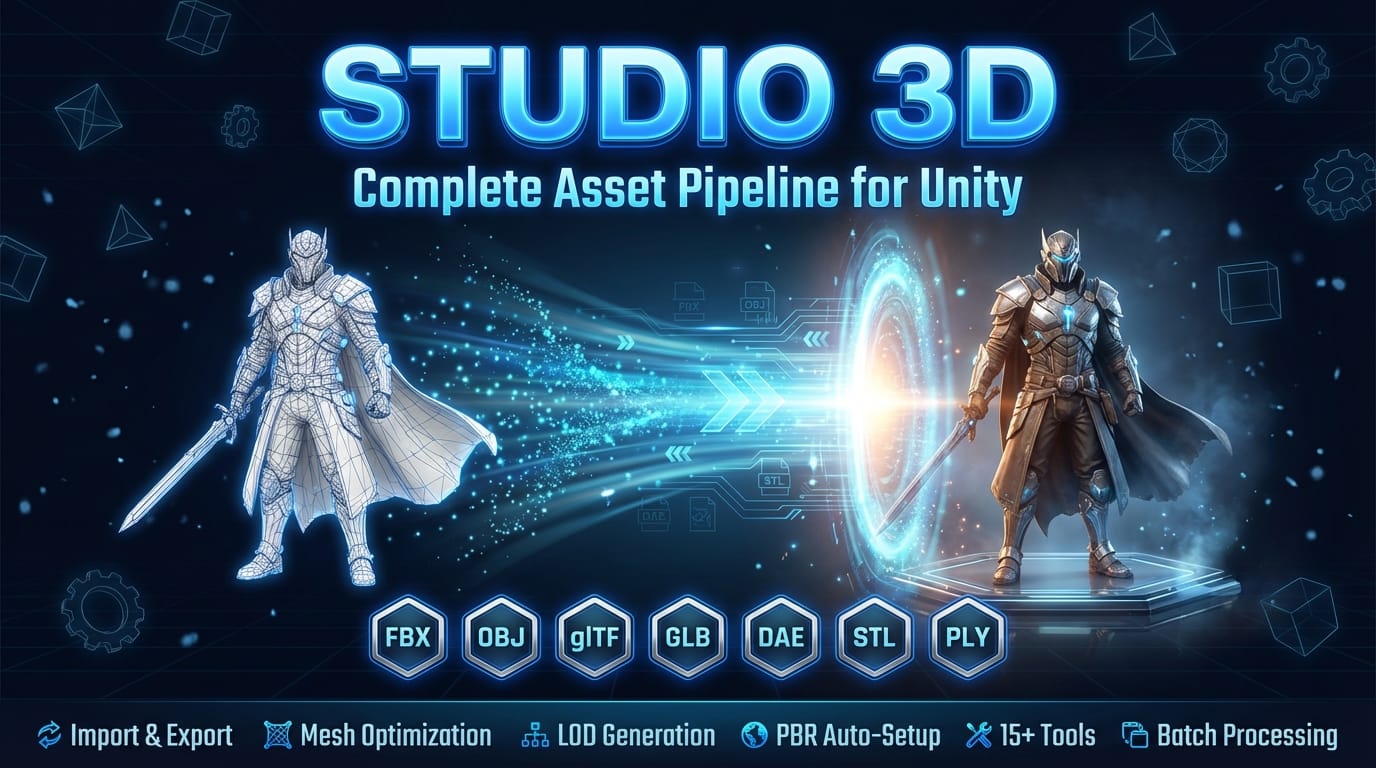
Для примера: наборы вроде AnimeForge Pro — Ultimate Anime & Toon Shader System полезны, когда визуальные ассеты создаются и настраиваются параллельно с UI, а Pro Recorder — Professional Screenshot & Video Capture System может закрыть задачу «быстро записать, как именно работает интерфейс». Если ваш проект связан с трёхмерными сценами, рассмотрите конвейер импорта/экспорта ассетов вроде Studio 3D Import/Export — Complete Asset Pipeline.
Как построить Figma design workflow с плагинотекой и правилами?
Лучший Figma design workflow в 2026 — это система, а не набор разрозненных инструментов. Когда вы формализуете правила (имена слоёв, токены, структура страниц, экспортный регламент) и добавляете плагины строго под эти правила, вы получаете предсказуемость и скорость.
Вместо «поищем плагин на задачу» используйте подход «один этап — один инструмент». И обязательно измеряйте эффект: время до/после, количество возвратов от Dev, число правок из-за несоответствий.
Рекомендуемая структура работы (практическая)
- Скелет: заготовка страницы + базовые компоненты (используйте starter templates).
- Брендинг: токены цвета/типографики и массовая подстановка стилей.
- Сборка: сборка экранов из компонентов и корректные states.
- Проверка: аудит (контраст, стили, уникальность ключевых объектов).
- Экспорт: пакет для разработчиков по правилам имен и форматов.
- Коммуникация: короткая видеозаметка или схема изменений.
Правила, которые ускоряют сильнее плагинов
- Единые имена слоёв: компонент → секция → состояние.
- Ограниченное число вариантов: меньше свободы — меньше ошибок.
- Согласованный список статусов: ready/blocked/needs-dev-notes.
- Разделение файлов: работа над UI отдельно от релизного экспорта.
- В 2026 «лучшие Figma plugins» — это те, что встроены в этапы: токены → сборка → аудит → экспорт → коммуникация.
- Для дизайн-системы важнее автоматизация консистентности, чем скорость создания экранов.
- free Figma templates ускоряют только после адаптации под ваш источник правды.
- Скорость растёт, когда есть правила именования и повторяемый экспортный пакет.
FAQ: лучшие Figma tools и плагины для дизайнеров в 2026
Какие Figma plugins for designers дают максимальный прирост скорости?
Максимальный прирост дают плагины для массовых действий: управление стилями/токенами, генерация вариантов компонентов и автоматизация экспорта. Если плагин экономит меньше 1–2 минут на задачу, эффект чаще всего «съедается» настройкой и проверкой.
Как собрать Figma design system с нуля, не утонув в ручной работе?
Начните с одного «ядра» (например, типографика + кнопки + поля ввода), зафиксируйте правила имен и состояний, затем сделайте массовое приведение существующих элементов к токенам. После этого расширяйте систему блоками по очереди.
Нужно ли использовать free Figma templates, если у нас уже есть компоненты?
Да, но только как стартовую структуру. Важно сразу привести стили и компоненты шаблона к вашему источнику правды: токены, радиусы, наборы состояний и правила именования.
Как ускорить handoff для разработчиков без ухудшения качества?
Сконцентрируйтесь на предсказуемости: экспортные пакеты по правилам форматов, контроль имен, минимизация «ручных» правок. Плагины для аудита и проверки помогут снизить возвраты из-за мелких несоответствий.
Подходят ли плагины для задач вроде презентаций и видео-демо?
Да. Для видео-демо важна связка: захват/запись, экспорт кадров/ассетов и готовые шаблоны страниц. Тогда вы превращаете макеты в понятные истории без долгой ручной сборки.
Итог: в 2026 выигрывают те дизайнеры, кто превращает Figma в конвейер. Сформируйте небольшой набор «правильных» плагинов под ваши этапы и закрепите правила — и скорость вырастет не на словах, а в измеримых итерациях. Мягкий следующий шаг: посмотрите подборки готовых ассетов и шаблонов на Getly, чтобы быстрее собрать стартовую структуру и ускорить запуск своих проектов.